> ## Documentation Index
> Fetch the complete documentation index at: https://storekit.com/docs/llms.txt
> Use this file to discover all available pages before exploring further.
# Print Catering Item Labels
> Download storekit item-label PDFs for catering orders, view an example label, and check paper size, food information and printer compatibility before printing.
Item labels identify individual meals or items within an order. Download the order's PDF, then print it from your computer. Use the labels alongside the [pack list](/docs/catering/operations/pack-lists), not instead of it.
## Download and Print Labels
Go to **Orders** → **Catering** and click the order you want to pack.
Click **Print Item Labels** on the order. A PDF downloads with a label for each item quantity. For example, two of the same sandwich produce labels numbered **#1** and **#2**. Modifiers configured to print as products also receive their own labels.
Review the item name, order code, modifiers and any notes, allergens and ingredients. Check the printed date and storage instructions are suitable for the food you are supplying.
Open the PDF in your PDF viewer and choose the intended printer and paper size. Check the preview, then print one page before printing the whole order. Confirm that nothing is clipped and the smallest text is readable.
## Example Labels
This fictional office-lunch order shows two vegetarian wraps and a chicken sandwich with a modifier and a packing note. The PDF is generated by the same label renderer used for orders; it is an example, not an editable template.
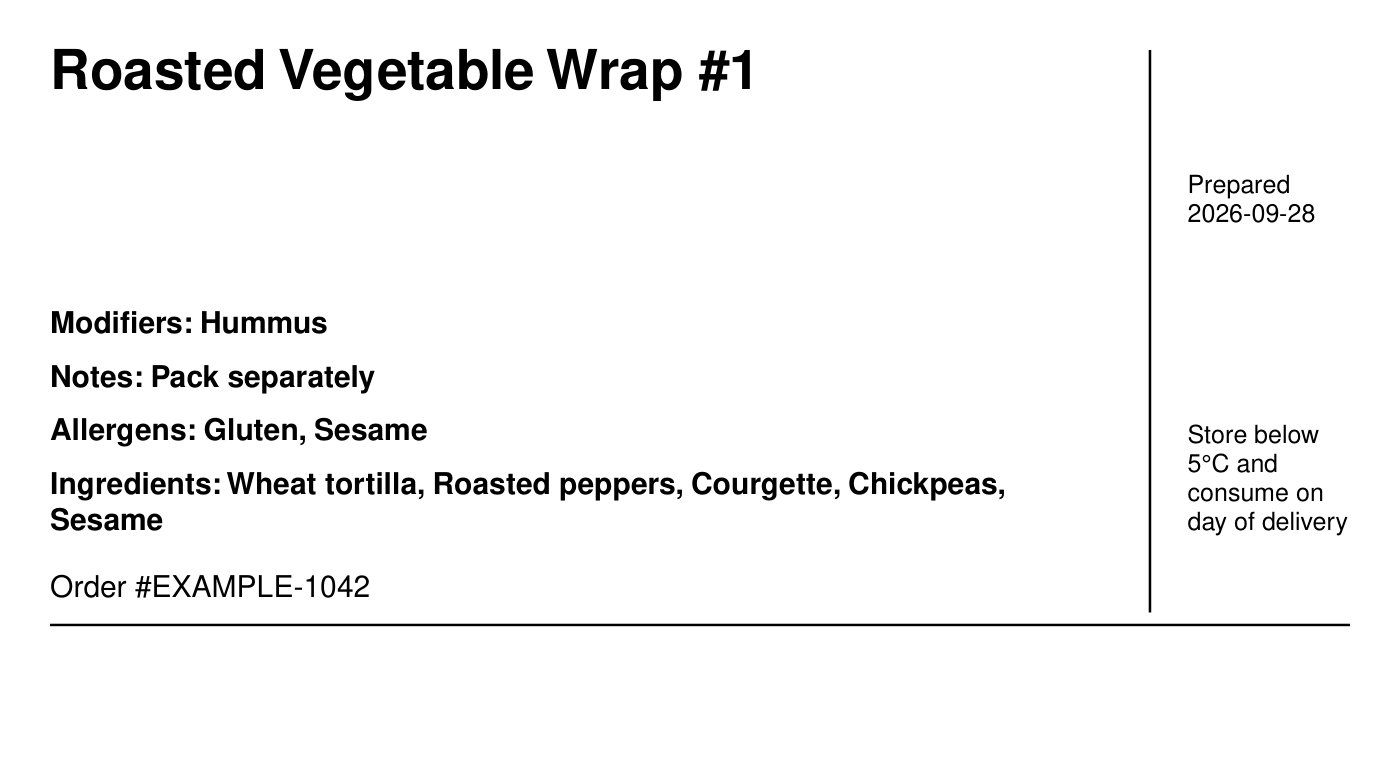 [Download the example item-label PDF](https://ucarecdn.com/b1ecf0c5-c30e-4ef3-9e52-47b226e1437f/example-item-labels.pdf)
The label's **Prepared** date is taken from the order's estimated time, not a recorded kitchen preparation time. The current label also prints **Store below 5°C and consume on day of delivery**. Do not use a label if that wording or date is wrong for the food. Labels do not establish allergen accuracy or compliance with food-labelling requirements.
## Choosing a Label Printer
**Zebra ZD230 DT** is the direct-thermal model supplied for Just Eat for Business by [ERS](https://www.ers-online.co.uk/p13528/just-eat-for-business-label-printer-solutions-for-allergens-and-food-id). Their bundles use **101 × 50 mm** labels and offer different desktop and tablet connection options.
Treat it as a model to evaluate, not a confirmed storekit-compatible purchase. The current storekit PDF pages are approximately **198 × 109 mm**, which do not match that stock. Scaling, margins and text legibility need a physical print check before ordering hardware or reusing another platform's setup.
* Ask the supplier to test the example PDF with the exact printer, device and label stock you plan to use.
* Check tablet printing separately; a desktop driver or another platform's tablet bundle does not establish compatibility with storekit.
* Do not add the Zebra under **Direct Printing**. That feature uses [Star CloudPRNT printers](/docs/guides/printing/printer-setup) for order tickets; item labels use a downloaded PDF.
## Troubleshooting
Check the PDF page size against the selected paper size, orientation and scaling. Test one page with a long item name and food information. If it cannot be printed legibly on your stock, [contact support](/docs/getting-started/contact-support) before using it for orders.
Check the information saved on the item and its modifiers. Labels do not invent missing ingredients or allergens. See [Tags and Allergens](/docs/guides/menu/tags-allergens), then download a fresh PDF and check it before use.
[View the label field reference →](/docs/catering/reference/operations#item-labels)
## Related topics
- [Set up a Star Micronics cloud printer](/docs/guides/printing/printer-setup.md)
- [Catering](/docs/catering/overview.md)
- [Catering Views and Printouts](/docs/catering/reference/operations.md)
- [Print Catering Pack Lists](/docs/catering/operations/pack-lists.md)
- [Plan Upcoming Catering Orders](/docs/catering/operations/planning-orders.md)
This documentation is built and hosted on [Mintlify](https://mintlify.com), a developer documentation platform.
[Download the example item-label PDF](https://ucarecdn.com/b1ecf0c5-c30e-4ef3-9e52-47b226e1437f/example-item-labels.pdf)
The label's **Prepared** date is taken from the order's estimated time, not a recorded kitchen preparation time. The current label also prints **Store below 5°C and consume on day of delivery**. Do not use a label if that wording or date is wrong for the food. Labels do not establish allergen accuracy or compliance with food-labelling requirements.
## Choosing a Label Printer
**Zebra ZD230 DT** is the direct-thermal model supplied for Just Eat for Business by [ERS](https://www.ers-online.co.uk/p13528/just-eat-for-business-label-printer-solutions-for-allergens-and-food-id). Their bundles use **101 × 50 mm** labels and offer different desktop and tablet connection options.
Treat it as a model to evaluate, not a confirmed storekit-compatible purchase. The current storekit PDF pages are approximately **198 × 109 mm**, which do not match that stock. Scaling, margins and text legibility need a physical print check before ordering hardware or reusing another platform's setup.
* Ask the supplier to test the example PDF with the exact printer, device and label stock you plan to use.
* Check tablet printing separately; a desktop driver or another platform's tablet bundle does not establish compatibility with storekit.
* Do not add the Zebra under **Direct Printing**. That feature uses [Star CloudPRNT printers](/docs/guides/printing/printer-setup) for order tickets; item labels use a downloaded PDF.
## Troubleshooting
Check the PDF page size against the selected paper size, orientation and scaling. Test one page with a long item name and food information. If it cannot be printed legibly on your stock, [contact support](/docs/getting-started/contact-support) before using it for orders.
Check the information saved on the item and its modifiers. Labels do not invent missing ingredients or allergens. See [Tags and Allergens](/docs/guides/menu/tags-allergens), then download a fresh PDF and check it before use.
[View the label field reference →](/docs/catering/reference/operations#item-labels)
## Related topics
- [Set up a Star Micronics cloud printer](/docs/guides/printing/printer-setup.md)
- [Catering](/docs/catering/overview.md)
- [Catering Views and Printouts](/docs/catering/reference/operations.md)
- [Print Catering Pack Lists](/docs/catering/operations/pack-lists.md)
- [Plan Upcoming Catering Orders](/docs/catering/operations/planning-orders.md)
This documentation is built and hosted on [Mintlify](https://mintlify.com), a developer documentation platform.