> ## Documentation Index
> Fetch the complete documentation index at: https://storekit.com/docs/llms.txt
> Use this file to discover all available pages before exploring further.
# Plan Upcoming Catering Orders
> Use the storekit catering lookahead to review the next 14 days, plan busy dates, check orders without couriers and prepare the day's kitchen and dispatch paperwork.
Review upcoming catering orders before the day of fulfilment, so the kitchen and dispatch team know what is booked and which deliveries need attention.
## Before You Start
Catering is enabled by storekit on request. If **Orders** → **Catering** is not in your sidebar, [contact support](/docs/getting-started/contact-support). To configure booking availability and minimum spend, see [Set Up a Catering Store](/docs/getting-started/store-types/catering-services).
## Review the Lookahead
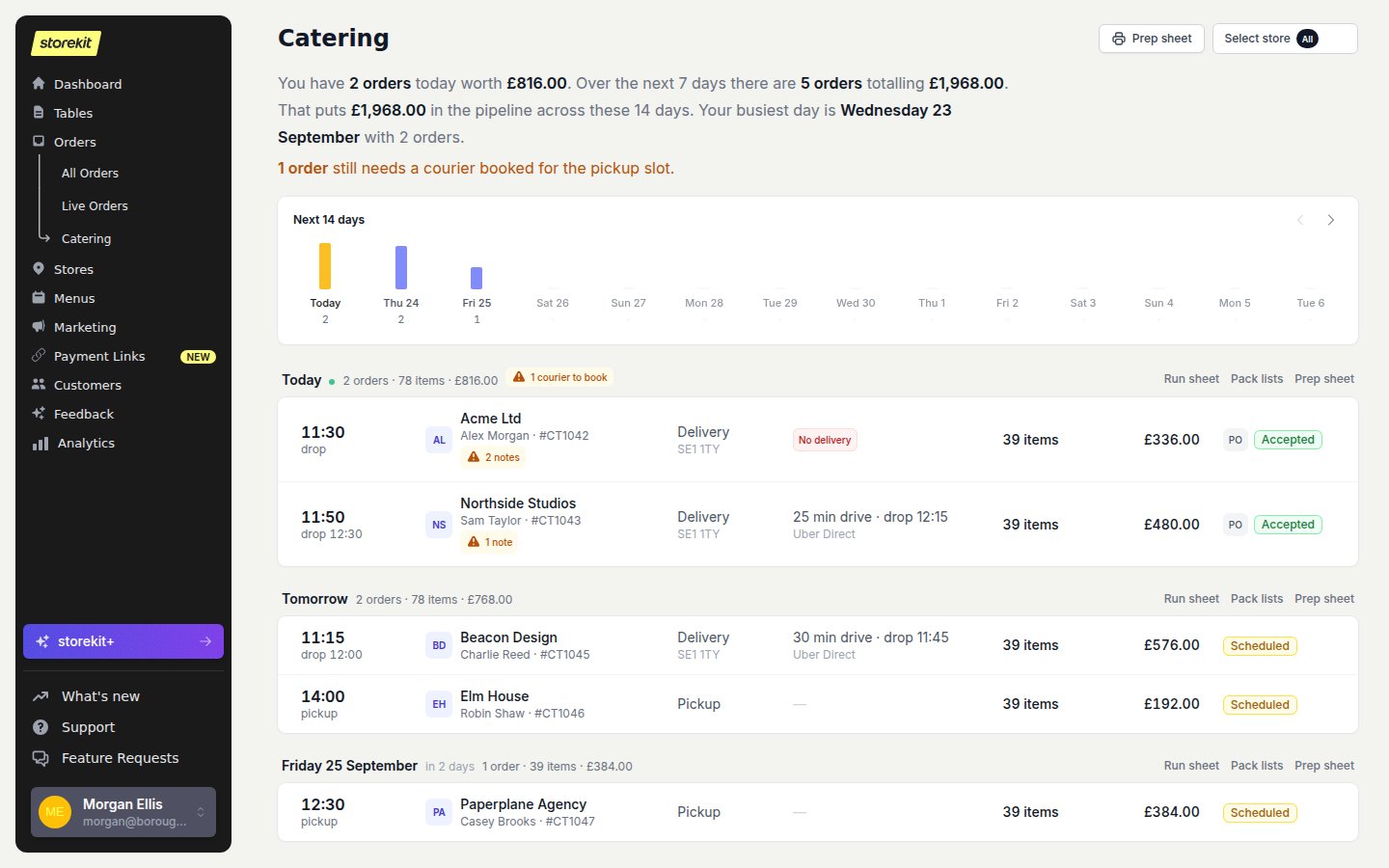
Go to **Orders** → **Catering**. Use the store selector at the top right to choose one or more stores, or leave it empty to include all your stores.
The page opens on **Next 14 days**. The fixed options are **Next 7 days**, **Next 14 days**, **Next 21 days** and **Next 30 days**.
The arrows either side move the window forward or back; you cannot move it earlier than today. This changes the view, not how far ahead customers can book.
Read the summary for today's orders and value, the next 7 days, pipeline value for the selected period, and the busiest day. Click a day in the strip to jump to its orders. The bars compare the value booked each day.
Work through the date groups. Click an order row for its details, the item count for its items, or a note badge for **Allergens & notes**.
Catering deliveries without a booked courier are highlighted in amber. A courier booking waiting for a rider is not treated as a missing booking.
 ## Resolve Delivery Warnings
Open a flagged order and check its delivery details against your delivery integration. There is no button on the catering page or order page to book a courier by hand. See [Uber Direct](/docs/guides/integrations/delivery/uber-direct) or your provider's guide under [Integrations](/docs/guides/integrations/overview) for when a request is sent and what to check if one is missing.
## Prepare the Day's Paperwork
Each date group has three links on the right, filtered to your selected stores:
* **Run sheet** — [print the dispatch timeline](/docs/catering/operations/run-sheet).
* **Pack lists** — [print one checklist per order](/docs/catering/operations/pack-lists).
* **Prep sheet** — [total the kitchen's items](/docs/guides/reports/pre-orders-report) for that date.
The **Prep sheet** button at the top of the page opens the prep view for the whole selected period. Completed orders in that period remain in prep totals; it is not a list of unfinished work.
For individual meals or items, [download item labels from the order](/docs/catering/operations/item-labels).
[View fields and warning definitions →](/docs/catering/reference/operations)
## Related topics
- [Win Repeat Catering Orders](/docs/catering/marketing/repeat-orders.md)
- [Catering Views and Printouts](/docs/catering/reference/operations.md)
- [Set up a catering store for advance group orders](/docs/getting-started/store-types/catering-services.md)
- [Managing Live Orders](/docs/guides/orders/managing-live-orders.md)
- [All Orders and Exports](/docs/guides/orders/all-orders.md)
This documentation is built and hosted on [Mintlify](https://mintlify.com), a developer documentation platform.
## Resolve Delivery Warnings
Open a flagged order and check its delivery details against your delivery integration. There is no button on the catering page or order page to book a courier by hand. See [Uber Direct](/docs/guides/integrations/delivery/uber-direct) or your provider's guide under [Integrations](/docs/guides/integrations/overview) for when a request is sent and what to check if one is missing.
## Prepare the Day's Paperwork
Each date group has three links on the right, filtered to your selected stores:
* **Run sheet** — [print the dispatch timeline](/docs/catering/operations/run-sheet).
* **Pack lists** — [print one checklist per order](/docs/catering/operations/pack-lists).
* **Prep sheet** — [total the kitchen's items](/docs/guides/reports/pre-orders-report) for that date.
The **Prep sheet** button at the top of the page opens the prep view for the whole selected period. Completed orders in that period remain in prep totals; it is not a list of unfinished work.
For individual meals or items, [download item labels from the order](/docs/catering/operations/item-labels).
[View fields and warning definitions →](/docs/catering/reference/operations)
## Related topics
- [Win Repeat Catering Orders](/docs/catering/marketing/repeat-orders.md)
- [Catering Views and Printouts](/docs/catering/reference/operations.md)
- [Set up a catering store for advance group orders](/docs/getting-started/store-types/catering-services.md)
- [Managing Live Orders](/docs/guides/orders/managing-live-orders.md)
- [All Orders and Exports](/docs/guides/orders/all-orders.md)
This documentation is built and hosted on [Mintlify](https://mintlify.com), a developer documentation platform.