> ## Documentation Index
> Fetch the complete documentation index at: https://storekit.com/docs/llms.txt
> Use this file to discover all available pages before exploring further.
# Orders
> How storekit posts orders to Comtrex as guest checks: sales types, scheduled orders, tips, discounts, notes, covers, and retry behaviour.
Every order placed on storekit is sent to Comtrex as a new guest check the moment it's paid. The check carries each product and modifier by POS ID, the table number for dine-in, the sales type you configured, any discount, tip or service charge, an order note, and a payment line so the check is already settled on the till.
## How an Order Reaches the Till
The customer pays. storekit queues the order for dispatch straight away — you don't have to accept it in the dashboard first.
storekit builds a `CreateNewOrder` request for the till from the order, using the settings in **Order handling** and **Media mapping**.
The request is posted to the server address you configured. Each attempt waits up to two minutes for a reply, and storekit retries automatically if the server doesn't respond or returns an error.
If the till accepts, the order shows as **Accepted** in **Orders** and the till's guest check number is stored on it as the POS receipt. If the till refuses, or can't be reached after the retries, the order is marked as failed and you're notified — see [When an order fails](#when-an-order-fails).
If the guest has already opened their table's bill in storekit (pay at table) and then orders more, storekit adds the items to that Comtrex check instead of opening a new one. Orders placed without an open bill in storekit always open a new check — a check staff opened on the till isn't picked up automatically. See [Pay at Table](/docs/guides/integrations/pos/comtrex/pay-at-table#adding-orders-to-an-open-check).
## What's on the Check
| storekit | On the Comtrex check |
| -------------------------------- | -------------------------------------------------------------------------------------------------------------------------------------------------------------------------------------------- |
| Products and modifiers | Sale items and ingredients by **POS ID**, with quantity and the price the customer paid. Items with no POS ID are left off — see [Menu Linking](/docs/guides/integrations/pos/comtrex/menu-sync). |
| Customer name | `CustomerName` on the check |
| Order ID | `VendorOrderID`, so Zonal can trace a check back to the storekit order |
| Table | `TableNumber`, taken from the table's **POS ID** |
| Delivery, pickup and in-store | All use the **Sales Type Number** from **Media mapping** |
| Delivery address and phone | Sent on delivery orders as the check's delivery details |
| Discounts (promo codes, loyalty) | A discount line against the **Discount ID** media, for the discount value |
| Service charge | A service charge line for the amount |
| Tip | A service charge line against the **Tip ID** media — only when **Send Gratuity Amount** is on |
| Order note | `Instructions`, built from **Order Note Template** (max 255 characters) |
| Number of diners | `CoverCount`, according to the **Cover Count** setting |
| Payment | A payment line against the **Payment Type ID** media for the order total, named `storekit`, so the check is closed as paid on the till |
A tip and a service charge on the same order both go into the check's service charge lines, and the tip line replaces the service charge line. If you take both, ask storekit support about the right configuration for your till before going live.
Cash orders are also sent with a `storekit` payment line for the full total. If you'd rather cash orders stay open on the till for staff to settle, contact storekit support.
## Order Handling Settings
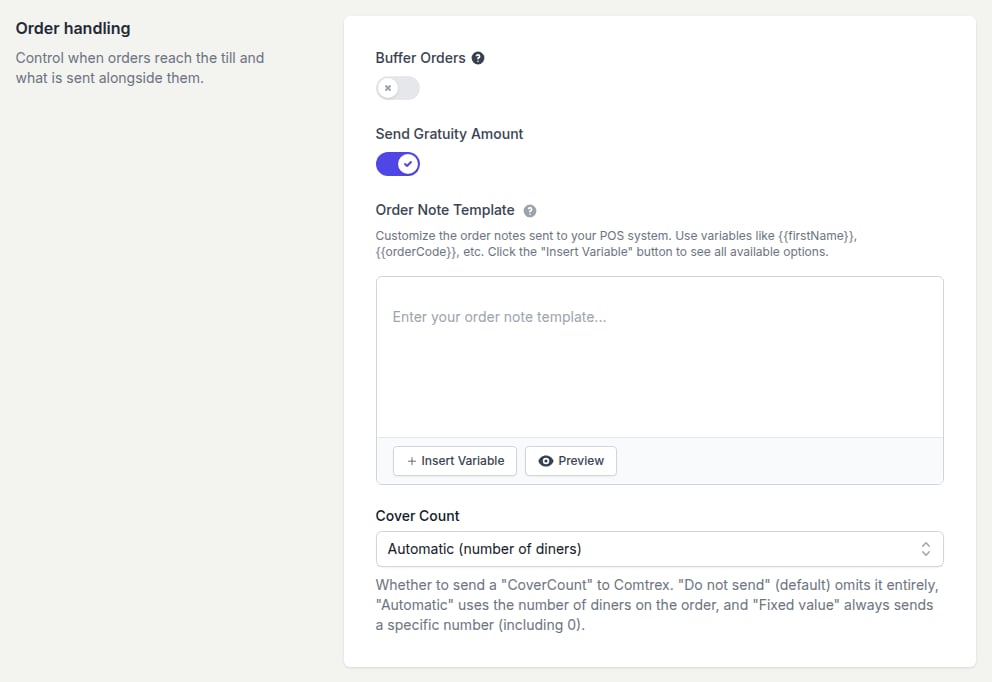
Go to **Stores** → your store → **Settings** → **Integrations** → **Comtrex** and scroll to **Order handling**. Click **Save** after changing anything here.
 ### Buffer Orders
The **Buffer Orders** toggle is shown but disabled for Comtrex — you can't change it from the dashboard. Scheduled orders are instead handled by the till itself as Comtrex future orders (below). If you need storekit to hold scheduled orders back until nearer the time, [contact storekit support](/docs/getting-started/contact-support) to have buffering configured.
### Send Gratuity Amount
When on, a tip added at checkout is sent to the till as a service charge line against your **Tip ID** media. When off, tips stay in storekit only and the till check doesn't include them. Pay-at-table tips are always sent, regardless of this setting.
### Order Note Template
Controls the text sent as the check's `Instructions`. Leave it empty and storekit sends the customer's own notes. To include order details, type a template and use **Insert Variable** to add placeholders such as `{{orderCode}}`, `{{fullName}}`, `{{phone}}`, `{{customerNotes}}`, `{{tableName}}` or `{{deliveryFullAddress}}`; **Preview** shows how it will read on the till. Comtrex allows 255 characters — longer notes are cut short.
### Cover Count
Sets how many covers the check is opened with. The options are fixed:
* **Do not send** — no cover count on the check
* **Automatic (number of diners)** — the number of diners the guest chose when ordering at a table; `0` if they weren't asked
* **Fixed value** — the number you enter in **Cover Count Value** (which appears when this option is selected); `0` is allowed
## Scheduled Orders
Orders placed for later are sent to the till straight away as a Comtrex *future order* rather than held in storekit. The check carries:
* **PickupDateTime** — the time the customer chose, in your store's timezone
* **TriggerDateTime** — that time minus your store's **Preparation time** (the **Pickup** value for pickup orders, otherwise the store's default prep time), so the till releases the check to the kitchen when it needs to start
ASAP delivery orders are also sent as future orders with the estimated delivery time as the pickup time and an immediate trigger, so the till shows when the order should be ready.
If a scheduled order is cancelled in storekit before its time, storekit sends a `CancelOrder` to the till for that check.
## When an Order Fails
If the till rejects the order or can't be reached, storekit retries several times with increasing gaps between attempts. If every attempt fails:
* The order is marked as **Failed** in **Orders**, with the till's error text shown on the order page after *Something went wrong sending this order to the POS:*
* An email headed *Comtrex Issue* is sent to your store's email address
* If the store has a storekit printer, the order is printed so the kitchen still receives it
* The customer has already paid, so fulfil the order manually and fix the cause
Once the cause is fixed, open the order in **Orders** and choose **Resend order to POS** from the actions menu — it's available on any order that doesn't yet have a POS receipt. See [Troubleshooting](/docs/guides/integrations/pos/comtrex/troubleshooting) for the common causes.
storekit doesn't check the basket against the till before checkout, and doesn't snooze products after a failed order. If an item keeps failing, snooze it yourself in **Menus** until the till is fixed.
## Related
How order injection works across all POS providers
Fix failed orders
## Related topics
- [Orders Overview](/docs/guides/orders/overview.md)
- [Order Statuses](/docs/guides/orders/order-statuses.md)
- [Archiving Orders](/docs/guides/orders/archiving-orders.md)
- [Order Batching](/docs/guides/orders/advanced/order-batching.md)
- [Order Limits](/docs/guides/orders/advanced/order-limits.md)
### Buffer Orders
The **Buffer Orders** toggle is shown but disabled for Comtrex — you can't change it from the dashboard. Scheduled orders are instead handled by the till itself as Comtrex future orders (below). If you need storekit to hold scheduled orders back until nearer the time, [contact storekit support](/docs/getting-started/contact-support) to have buffering configured.
### Send Gratuity Amount
When on, a tip added at checkout is sent to the till as a service charge line against your **Tip ID** media. When off, tips stay in storekit only and the till check doesn't include them. Pay-at-table tips are always sent, regardless of this setting.
### Order Note Template
Controls the text sent as the check's `Instructions`. Leave it empty and storekit sends the customer's own notes. To include order details, type a template and use **Insert Variable** to add placeholders such as `{{orderCode}}`, `{{fullName}}`, `{{phone}}`, `{{customerNotes}}`, `{{tableName}}` or `{{deliveryFullAddress}}`; **Preview** shows how it will read on the till. Comtrex allows 255 characters — longer notes are cut short.
### Cover Count
Sets how many covers the check is opened with. The options are fixed:
* **Do not send** — no cover count on the check
* **Automatic (number of diners)** — the number of diners the guest chose when ordering at a table; `0` if they weren't asked
* **Fixed value** — the number you enter in **Cover Count Value** (which appears when this option is selected); `0` is allowed
## Scheduled Orders
Orders placed for later are sent to the till straight away as a Comtrex *future order* rather than held in storekit. The check carries:
* **PickupDateTime** — the time the customer chose, in your store's timezone
* **TriggerDateTime** — that time minus your store's **Preparation time** (the **Pickup** value for pickup orders, otherwise the store's default prep time), so the till releases the check to the kitchen when it needs to start
ASAP delivery orders are also sent as future orders with the estimated delivery time as the pickup time and an immediate trigger, so the till shows when the order should be ready.
If a scheduled order is cancelled in storekit before its time, storekit sends a `CancelOrder` to the till for that check.
## When an Order Fails
If the till rejects the order or can't be reached, storekit retries several times with increasing gaps between attempts. If every attempt fails:
* The order is marked as **Failed** in **Orders**, with the till's error text shown on the order page after *Something went wrong sending this order to the POS:*
* An email headed *Comtrex Issue* is sent to your store's email address
* If the store has a storekit printer, the order is printed so the kitchen still receives it
* The customer has already paid, so fulfil the order manually and fix the cause
Once the cause is fixed, open the order in **Orders** and choose **Resend order to POS** from the actions menu — it's available on any order that doesn't yet have a POS receipt. See [Troubleshooting](/docs/guides/integrations/pos/comtrex/troubleshooting) for the common causes.
storekit doesn't check the basket against the till before checkout, and doesn't snooze products after a failed order. If an item keeps failing, snooze it yourself in **Menus** until the till is fixed.
## Related
How order injection works across all POS providers
Fix failed orders
## Related topics
- [Orders Overview](/docs/guides/orders/overview.md)
- [Order Statuses](/docs/guides/orders/order-statuses.md)
- [Archiving Orders](/docs/guides/orders/archiving-orders.md)
- [Order Batching](/docs/guides/orders/advanced/order-batching.md)
- [Order Limits](/docs/guides/orders/advanced/order-limits.md)