> ## Documentation Index
> Fetch the complete documentation index at: https://storekit.com/docs/llms.txt
> Use this file to discover all available pages before exploring further.
# Connecting PointOne
> Link a storekit store to a PointOne site with your API Key, Site ID and Organisation ID, then switch the integration on so orders start flowing.
Connecting PointOne links one storekit store to one PointOne site. You enter the credentials PointOne gives you, save them, then enable the integration.
## Prerequisites
* An active PointOne account with API access
* From your PointOne account manager: an **API Key**, the **Site ID** of the site this store maps to, and your **Organisation ID**
* The PointOne integration enabled on your storekit account
If **PointOne** does not appear in your **Integrations** list, the integration isn't enabled for your account yet — [contact storekit support](/docs/getting-started/contact-support).
## Connect Your Site
Go to **Stores** → your store → **Settings** → **Integrations**, then select **PointOne**.
Fill in **API Key**, **Site ID** and **Organisation ID**. All three are required — the page shows *This field is required* under any you leave empty.
Click **Save**. The credentials are stored against the store but nothing is sent to PointOne yet.
Switch **Integration Status** on. The label changes from *Disabled - not sending orders to PointOne* to *Enabled - sending orders to PointOne*, and PointOne becomes the store's POS provider. Click **Save** again.
Click **Sync Menu** to pull your PointOne menu into storekit — see [Menu Sync](/docs/guides/integrations/pos/pointone/menu-sync).
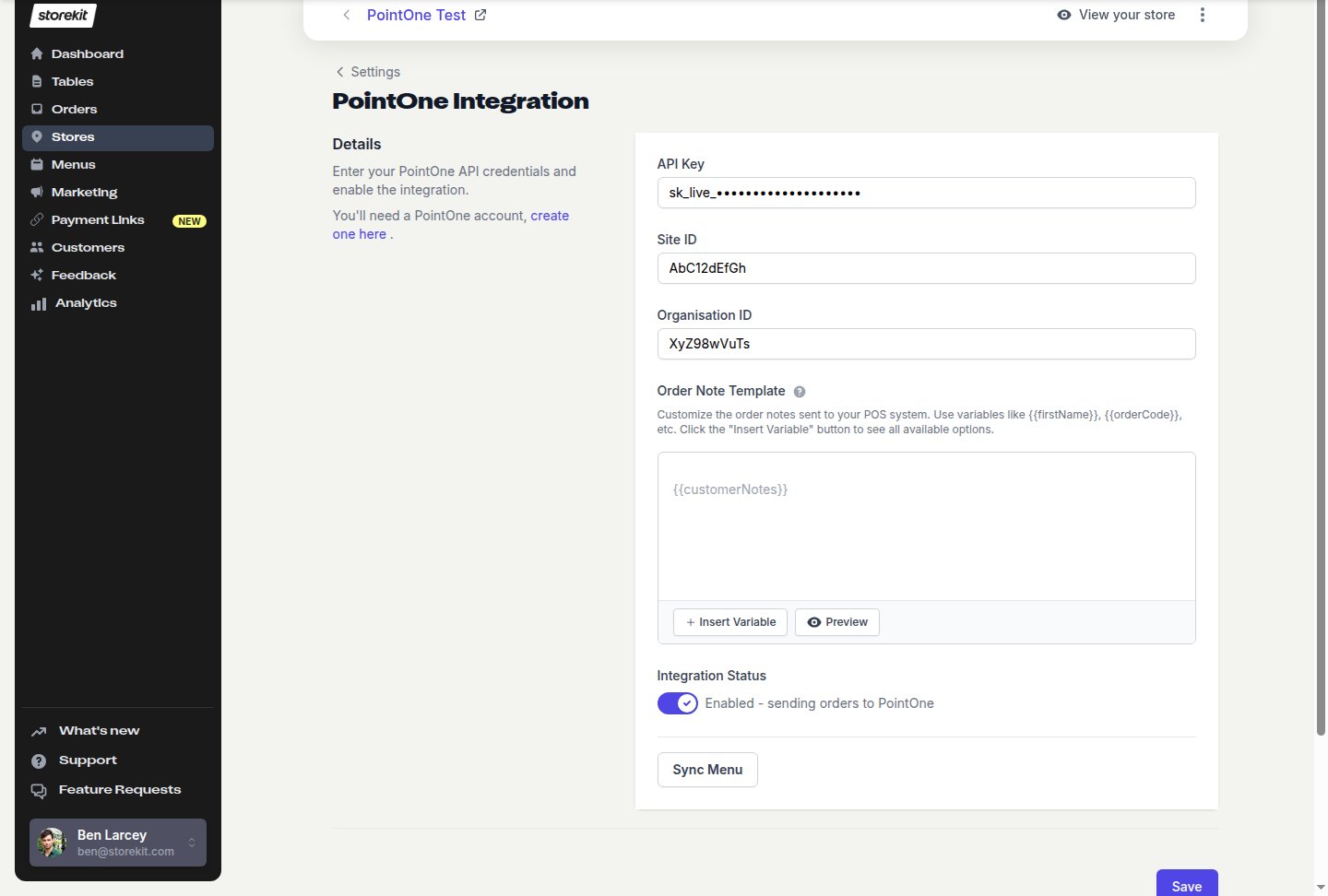 Each storekit store connects to a single PointOne site. Multi-site operators connect each store separately with that site's own **Site ID**.
## Settings on This Page
| Setting | What it's for |
| ----------------------- | ---------------------------------------------------------------------------------------------------------------------------------------- |
| **API Key** | Authenticates every request storekit makes to PointOne |
| **Site ID** | The PointOne site that receives orders and owns the menu and table bills |
| **Organisation ID** | Your PointOne organisation |
| **Order Note Template** | Optional. Controls the note attached to each order in PointOne — see [Order Notes](/docs/guides/integrations/pos/pointone/orders#order-notes) |
| **Integration Status** | The master switch. When off, storekit keeps the credentials but sends nothing to PointOne |
| **Sync Menu** | Starts a menu import from PointOne. Only shown once the integration is saved and enabled |
Changes on this page only take effect once you click **Save** — including the **Integration Status** toggle. If you toggle it before the credentials have been saved, the page tells you to save the configuration first.
## Switching PointOne Off
Turn **Integration Status** off and click **Save**. storekit stops sending orders to PointOne and clears the store's POS provider; your menu and credentials stay in place so you can switch it back on later.
## Next Steps
Import your PointOne menu into storekit
What storekit sends to PointOne and what happens when it fails
## Related topics
- [PointOne POS](/docs/guides/integrations/pos/pointone/overview.md)
- [PointOne Troubleshooting](/docs/guides/integrations/pos/pointone/troubleshooting.md)
- [PointOne Orders](/docs/guides/integrations/pos/pointone/orders.md)
- [PointOne Menu Sync](/docs/guides/integrations/pos/pointone/menu-sync.md)
- [PointOne Pay at Table](/docs/guides/integrations/pos/pointone/pay-at-table.md)
Each storekit store connects to a single PointOne site. Multi-site operators connect each store separately with that site's own **Site ID**.
## Settings on This Page
| Setting | What it's for |
| ----------------------- | ---------------------------------------------------------------------------------------------------------------------------------------- |
| **API Key** | Authenticates every request storekit makes to PointOne |
| **Site ID** | The PointOne site that receives orders and owns the menu and table bills |
| **Organisation ID** | Your PointOne organisation |
| **Order Note Template** | Optional. Controls the note attached to each order in PointOne — see [Order Notes](/docs/guides/integrations/pos/pointone/orders#order-notes) |
| **Integration Status** | The master switch. When off, storekit keeps the credentials but sends nothing to PointOne |
| **Sync Menu** | Starts a menu import from PointOne. Only shown once the integration is saved and enabled |
Changes on this page only take effect once you click **Save** — including the **Integration Status** toggle. If you toggle it before the credentials have been saved, the page tells you to save the configuration first.
## Switching PointOne Off
Turn **Integration Status** off and click **Save**. storekit stops sending orders to PointOne and clears the store's POS provider; your menu and credentials stay in place so you can switch it back on later.
## Next Steps
Import your PointOne menu into storekit
What storekit sends to PointOne and what happens when it fails
## Related topics
- [PointOne POS](/docs/guides/integrations/pos/pointone/overview.md)
- [PointOne Troubleshooting](/docs/guides/integrations/pos/pointone/troubleshooting.md)
- [PointOne Orders](/docs/guides/integrations/pos/pointone/orders.md)
- [PointOne Menu Sync](/docs/guides/integrations/pos/pointone/menu-sync.md)
- [PointOne Pay at Table](/docs/guides/integrations/pos/pointone/pay-at-table.md)