> ## Documentation Index
> Fetch the complete documentation index at: https://storekit.com/docs/llms.txt
> Use this file to discover all available pages before exploring further.
# Connecting Stream
> Authorise Stream against your storekit account over OAuth, choose which stores Stream can see, and link a Stream location to a storekit store.
Connecting Stream links one Stream location to one storekit store. The connection is started from Stream: you authorise Stream in storekit, choose which stores it may access, then connect the location in Stream.
## Prerequisites
* A Stream account with storekit available as a channel
* A storekit login with access to the stores you want to connect — grant **Access all available venues** on the consent screen only if your login can see every store on the account
* The store's address filled in on **Stores** → your store → **Settings** → **General**, so Stream can match it to the right location
Stream is not listed on **Stores** → your store → **Settings** → **Integrations** for merchant logins — the **Stream Integration** page is only shown to storekit staff. You connect from Stream, and [contact storekit support](/docs/getting-started/contact-support) for the storekit-side settings (order buffering, stock sync, order note template).
## Authorise Stream
In Stream, add storekit as a channel. Stream sends you to storekit to sign in.
Sign in with your normal storekit dashboard login. The stores offered on the next screen are the ones this login can access.
On the **Stream wants access to your storekit account.** screen, **Access all available venues** is on by default. Leave it on to let Stream see every store your login can access, including stores added later. Switch it off to pick specific stores from **Select stores** instead — at least one is required, or you'll see *Please select at least one store*.
Click **Allow**. You're returned to Stream. **Cancel** rejects the request and nothing is connected.
Stream lists the storekit stores it was granted — using the store's admin name (or name) and address — as locations. Connect the location that matches the store you want to link. When Stream confirms the connection, storekit sets that store's POS provider to Stream and starts routing its orders to Stream.
Publish the location's menu in Stream. storekit imports it and creates or updates the store's menu — see [Menu Sync](/docs/guides/integrations/pos/stream/menu-sync).
## What Connecting Changes in storekit
* The store's POS provider becomes Stream. A store has a single POS provider, so any other POS integration on the store stops receiving orders.
* The store's menu becomes POS-managed: categories and items come from Stream's published menu and can't be added in the storekit menu editor.
* Orders placed on the store are queued to Stream as soon as they're placed.
* Availability, stock counts and pause/resume events from Stream are applied to the store.
Disconnecting the location in Stream clears the store's POS provider; orders then stay in storekit and no longer go to Stream. The menu that was imported remains in storekit.
## Storekit-Side Settings
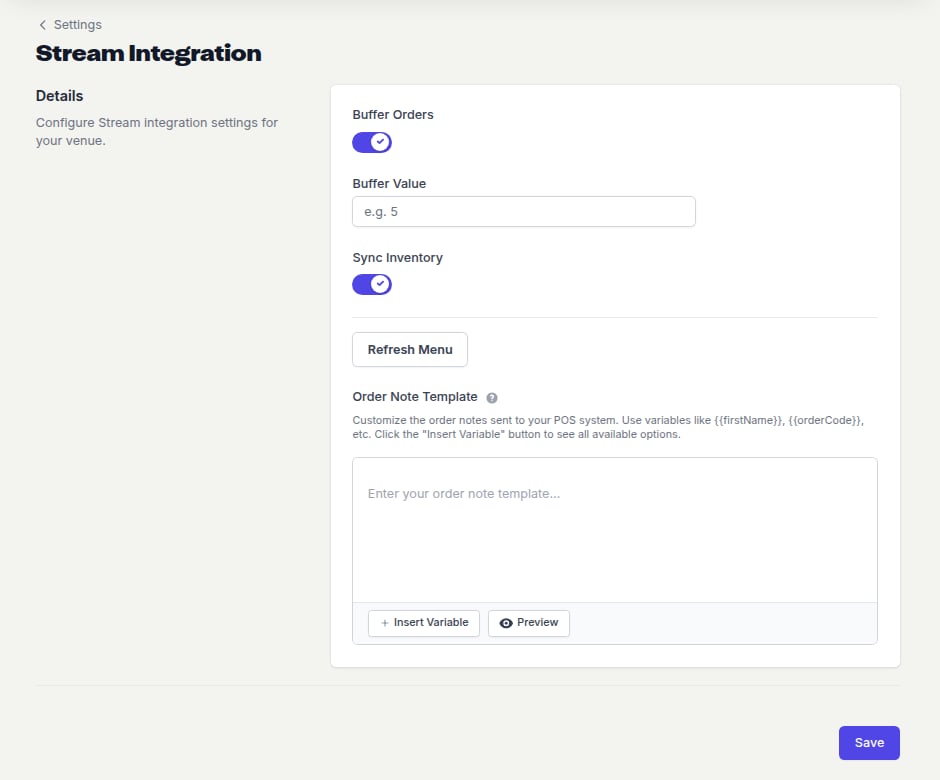
The **Stream Integration** page (**Stores** → your store → **Settings** → **Integrations** → **Stream**, staff only) holds the settings storekit applies to a Stream-connected store:
| Setting | What it does | Default |
| ----------------------- | -------------------------------------------------------------------------------------------------------------------------------------------------- | ------- |
| **Buffer Orders** | Hold pre-orders back until closer to their fulfilment time — see [Orders](/docs/guides/integrations/pos/stream/orders#pre-order-buffering) | Off |
| **Buffer Value** | Minutes before the fulfilment time to release a buffered pre-order. Shown only when **Buffer Orders** is on; must be at least 1 | — |
| **Sync Inventory** | Apply stock counts from Stream to storekit items — see [Stock & Availability](/docs/guides/integrations/pos/stream/stock-and-availability#stock-counts) | On |
| **Refresh Menu** | Ask Stream to re-publish the location's latest menu | — |
| **Order Note Template** | Template for the note sent with each order — see [Orders](/docs/guides/integrations/pos/stream/orders#order-notes) | Empty |
Changes take effect when **Save** is clicked. Ask [storekit support](/docs/getting-started/contact-support) to change any of them.
 ## Next Steps
What happens when Stream publishes a menu
How orders reach Stream and what comes back
## Related topics
- [Stream](/docs/guides/integrations/pos/stream/overview.md)
- [Stream Troubleshooting](/docs/guides/integrations/pos/stream/troubleshooting.md)
- [Connecting Toast](/docs/guides/integrations/pos/toast/connect.md)
- [Connecting Deliverect](/docs/guides/integrations/pos/deliverect/connect.md)
- [Connecting Syrve](/docs/guides/integrations/pos/syrve/connect.md)
## Next Steps
What happens when Stream publishes a menu
How orders reach Stream and what comes back
## Related topics
- [Stream](/docs/guides/integrations/pos/stream/overview.md)
- [Stream Troubleshooting](/docs/guides/integrations/pos/stream/troubleshooting.md)
- [Connecting Toast](/docs/guides/integrations/pos/toast/connect.md)
- [Connecting Deliverect](/docs/guides/integrations/pos/deliverect/connect.md)
- [Connecting Syrve](/docs/guides/integrations/pos/syrve/connect.md)