> ## Documentation Index
> Fetch the complete documentation index at: https://storekit.com/docs/llms.txt
> Use this file to discover all available pages before exploring further.
# Kitchen Display
> Run the storekit Kitchen Display: a full-screen ticket board that shows live orders by due time and lets staff bump tickets through each stage.
The Kitchen Display is a full-screen ticket board for the kitchen. It shows every open order for the stores you choose, ordered by when it is due, and lets staff move each ticket along with a single tap. Open it on a tablet or wall screen and leave it running — it updates in real time as orders arrive and change.
## Opening the Screen
1. Go to **Orders** → **Kitchen Display**.
2. The first time, the screen asks you to **Choose stores**. Pick the stores this screen should show, then click **Save**. Nothing loads until at least one store is chosen.
3. Click **Fullscreen** to hide the browser chrome. **Exit** takes you back to the dashboard.
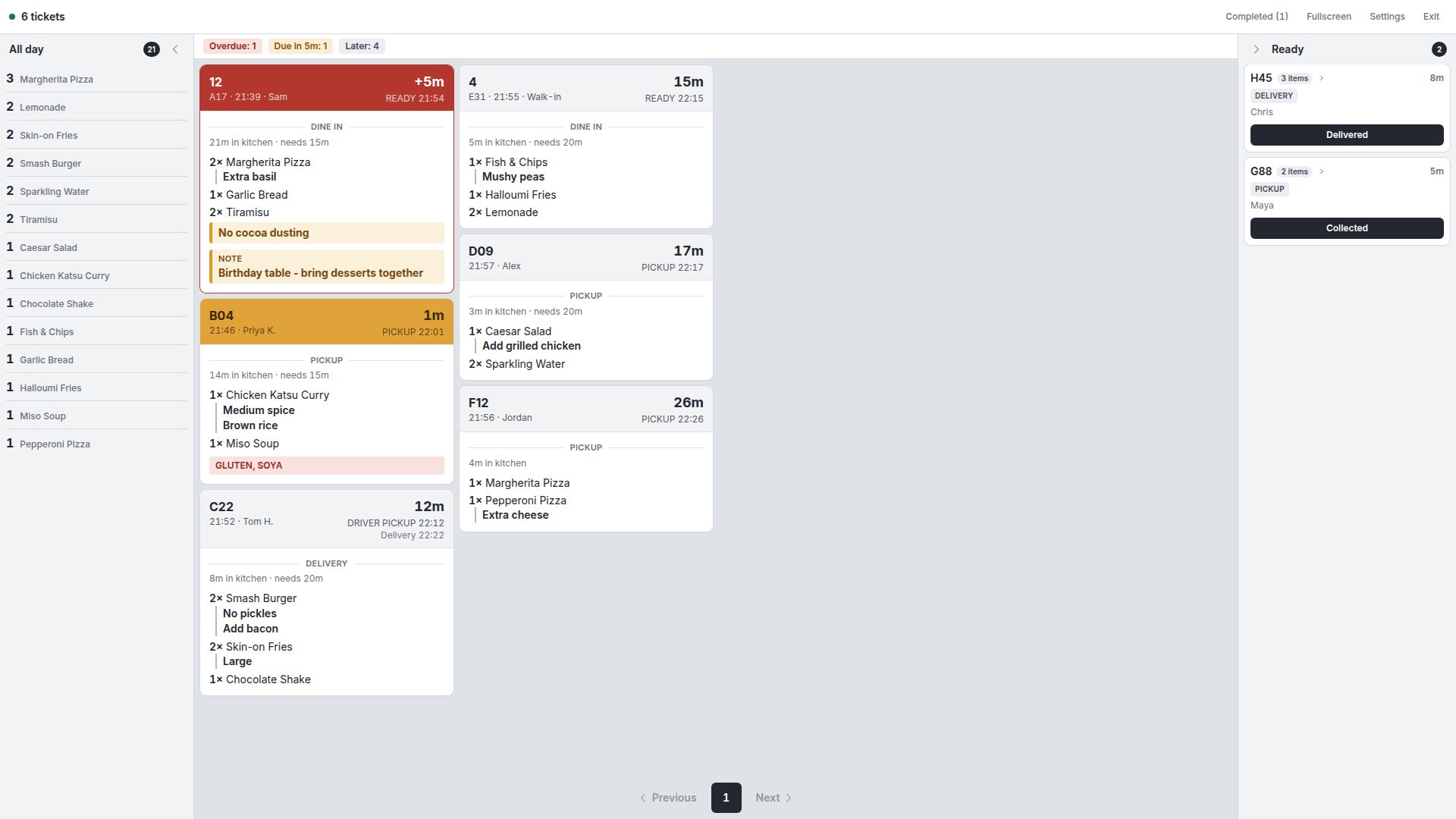
The header shows how many tickets are on the board and, on the right, **Completed**, **Fullscreen**, **Settings** and **Exit**.
## How the Board Works
Tickets are split into three groups by order status:
| Group | Statuses | Where it appears |
| ---------- | -------------------------------------------------------------------- | ----------------------------------------------- |
| Production | Pending, Accepted, Preparing (plus orders still syncing to your POS) | The main queue in the middle, soonest due first |
| Ready | Ready for Pickup, Out for Delivery | The **Ready** rail on the right |
| Completed | Completed, Delivered | Behind the **Completed** button in the header |
### The queue
The queue holds everything the kitchen still has to make, ordered by due time. When more tickets exist than fit on one page, the rest are backlog: use **Previous** and **Next** at the bottom, or the left and right arrow keys, to move through them.
The chips above the queue give a running count of where things stand: **Overdue**, **Due in 5m** (the number matches your **Warn before due** setting) and **Later**.
Pre-orders join the queue ahead of their slot so the kitchen can start on time. How far ahead is controlled by **Show pre-orders ahead by (min)**; until then a scheduled ticket is not shown.
### Anatomy of a ticket
Each ticket has a coloured head and a body:
* **Head** — the order number (or table number for dine-in), the time it was placed and the customer's name on the left; on the right, a countdown to when it is due and the target time itself (**Ready**, **Pickup**, **Driver pickup** or **Delivery**). For deliveries the countdown runs against the courier pickup, with the customer's delivery time underneath. A new ticket flashes briefly when it lands.
* **Fulfilment line** — **Dine in**, **Pickup**, **Delivery**, **Catering pickup** or **Catering delivery**.
* **Timing line** — how long the ticket has been in the kitchen and, where the menu has prep times, how long it needs, so a chef can tell whether a ticket is behind or simply big.
* **Items** — quantity and name, with each modifier on its own line beneath it. Item-level notes appear as highlighted lines; an order-level note appears in a **Note** box. If **Show allergens on tickets** is on, allergens tagged on the products are listed in a red strip. Only tagged allergens appear — an empty strip does not mean a dish is allergen-free.
The head changes colour as the due time approaches: neutral while there is time, amber once it is within the **Warn before due (min)** window, and red once it is past the **Late after due (min)** threshold. The countdown then shows how late the ticket is rather than resetting.
### The Ready rail
Tickets that have been marked ready or dispatched move to the **Ready** rail on the right, where front of house can see what is waiting to be handed over. Each card shows the order code, item count, fulfilment type and customer, with a button to complete it. Click the item count to open the full order details. The rail can be collapsed with the arrow at its top; **Ready rail order** decides whether the soonest-due or the most recently plated ticket sits at the top.
### All-day counts
The **All day** rail on the left totals every item still to be made across the whole queue, so the kitchen can batch prep — three margheritas across three tickets show as one line. It can be collapsed with the arrow at its top, or hidden entirely with **Show all-day counts**.
### Completed
Click **Completed** in the header to see tickets finished in the last few minutes (set by **Keep done tickets for (min)**). Each shows an **Undo** button. Older orders are in **Orders** → **All Orders**. Click **Completed** again to return to the queue.
### Staying in sync
The board receives orders over a live connection and also re-checks periodically. If it has not heard anything for a minute a banner appears saying the board may be missing orders, with a **Try now** button to refresh. If a bump fails to save, the ticket shows **Could not update that ticket** and stays where it was.
## Bumping Tickets
In the queue, the whole ticket head is the bump button — tap it to move the order to its next status. Ready-rail and Completed cards have a labelled button instead. The action depends on the order:
| Order state | Fulfilment | Action | Result |
| --------------------- | -------------------------------- | -------------------- | --------------------------------------------------------------------------- |
| Pending | Any | **Accept** | Confirms the order. It stays in the queue as Accepted. |
| Accepted / Preparing | Dine in, Pickup, Catering pickup | **Ready** | Moves to the **Ready** rail. The customer is notified their order is ready. |
| Accepted / Preparing | Delivery, Catering delivery | **Out for delivery** | Moves to the **Ready** rail as dispatched. |
| Ready for Pickup | Dine in, Pickup, Catering pickup | **Collected** | Completes the order. |
| Out for Delivery | Delivery, Catering delivery | **Delivered** | Completes the order. |
| Completed / Delivered | Any | **Undo** | Returns the ticket to the **Ready** rail. |
If **Ask how long until ready** is on, tapping **Ready** on a collection order opens a sheet asking **When will it be ready?** — choose **Now** or a number of minutes. The customer is told either way and the ticket moves to the Ready rail showing **ready in** that many minutes.
Orders that failed to reach your POS (Failed or Retrying) stay in the queue so the kitchen can see them, but their head is disabled and they cannot be bumped until the sync succeeds. Manage those from **Orders** → **Live Orders**.
## Settings
Click **Settings** in the header. Settings are saved on the device only, so each kitchen screen can be set up differently. **Reset** returns them to the defaults; **Save** applies your changes.
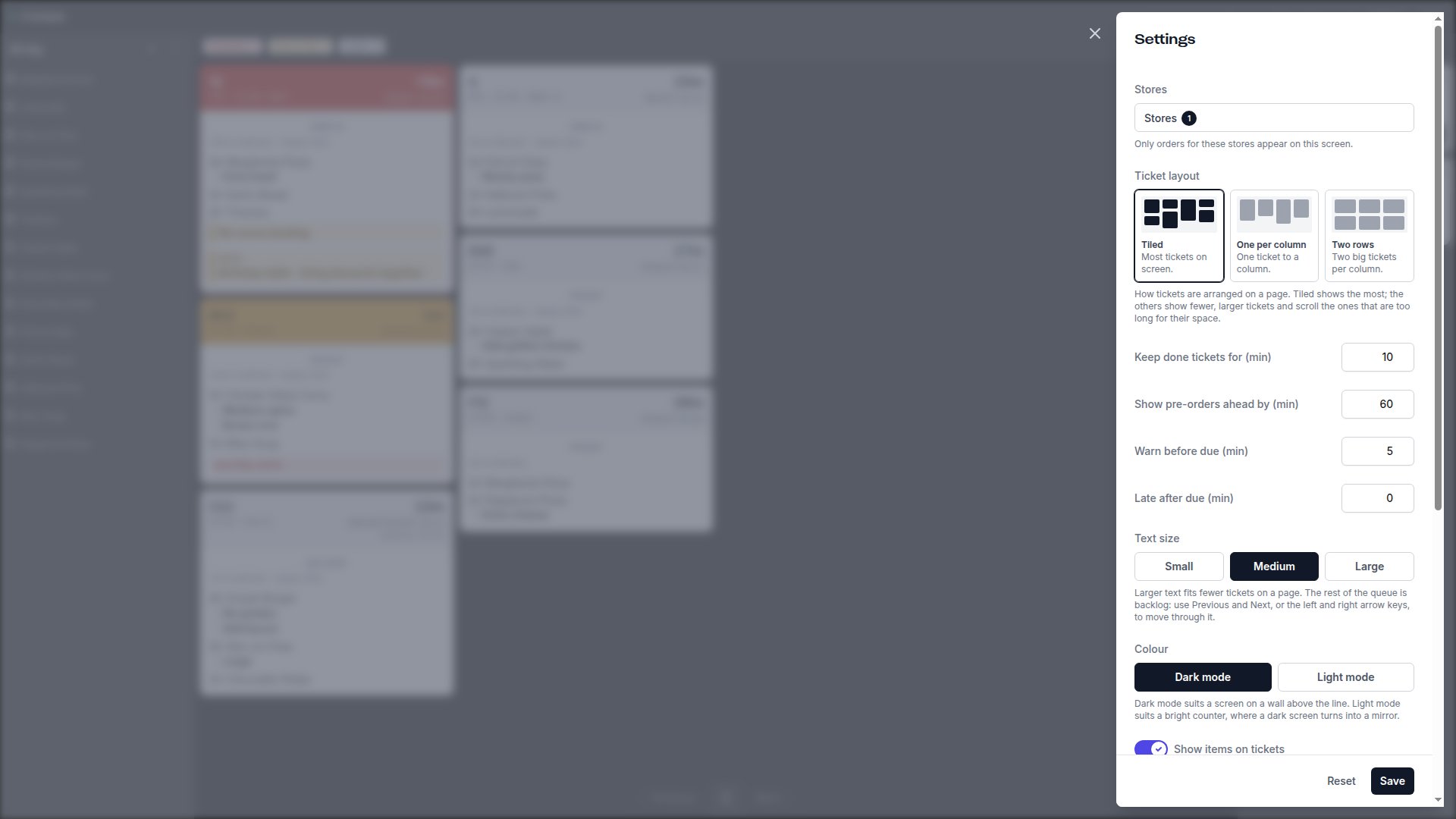 | Setting | What it does | Default |
| ---------------------------------- | ------------------------------------------------------------------------------------------------------------------------------------------------------------------------------------------------------------------------------ | --------------------- |
| **Stores** | Only orders for these stores appear on this screen. | None selected |
| **Ticket layout** | How tickets are arranged on a page. **Tiled** shows the most tickets; **One per column** and **Two rows** show fewer, larger tickets and scroll the ones too long for their space. | **Tiled** |
| **Keep done tickets for (min)** | How long completed tickets remain in the **Completed** view. | 10 |
| **Show pre-orders ahead by (min)** | How far before their slot scheduled orders join the queue. | 60 |
| **Warn before due (min)** | When a ticket turns amber and counts under **Due in**. | 5 |
| **Late after due (min)** | How long after the due time a ticket turns red and counts as **Overdue**. | 0 |
| **Text size** | **Small**, **Medium** or **Large**. Larger text fits fewer tickets on a page. | **Medium** |
| **Colour** | **Dark mode** suits a screen on a wall above the line; **Light mode** suits a bright counter where a dark screen turns into a mirror. | **Dark mode** |
| **Show items on tickets** | Turn off for a pass-only screen that just needs order codes and timing. | On |
| **Show allergens on tickets** | Lists the allergens tagged on each product. | Off |
| **Show all-day counts** | Shows or hides the **All day** rail. | On |
| **Ask how long until ready** | Prompts for a wait time when you tap **Ready** on a collection. | Off |
| **Ready rail order** | **Soonest due first** keeps a ticket in the place it held in the queue; **Latest due first** puts what was just plated at the top. | **Soonest due first** |
| **Play a sound for new orders** | Chime when a ticket arrives, with a **Sound volume** slider. Browsers block sound until the screen has been touched, so tap **Test sound** once when you set a screen up. If the board shows **Tap to turn sound on**, tap it. | On |
The option lists for **Ticket layout**, **Text size**, **Colour** and **Ready rail order** are fixed; there are no other choices.
| Setting | What it does | Default |
| ---------------------------------- | ------------------------------------------------------------------------------------------------------------------------------------------------------------------------------------------------------------------------------ | --------------------- |
| **Stores** | Only orders for these stores appear on this screen. | None selected |
| **Ticket layout** | How tickets are arranged on a page. **Tiled** shows the most tickets; **One per column** and **Two rows** show fewer, larger tickets and scroll the ones too long for their space. | **Tiled** |
| **Keep done tickets for (min)** | How long completed tickets remain in the **Completed** view. | 10 |
| **Show pre-orders ahead by (min)** | How far before their slot scheduled orders join the queue. | 60 |
| **Warn before due (min)** | When a ticket turns amber and counts under **Due in**. | 5 |
| **Late after due (min)** | How long after the due time a ticket turns red and counts as **Overdue**. | 0 |
| **Text size** | **Small**, **Medium** or **Large**. Larger text fits fewer tickets on a page. | **Medium** |
| **Colour** | **Dark mode** suits a screen on a wall above the line; **Light mode** suits a bright counter where a dark screen turns into a mirror. | **Dark mode** |
| **Show items on tickets** | Turn off for a pass-only screen that just needs order codes and timing. | On |
| **Show allergens on tickets** | Lists the allergens tagged on each product. | Off |
| **Show all-day counts** | Shows or hides the **All day** rail. | On |
| **Ask how long until ready** | Prompts for a wait time when you tap **Ready** on a collection. | Off |
| **Ready rail order** | **Soonest due first** keeps a ticket in the place it held in the queue; **Latest due first** puts what was just plated at the top. | **Soonest due first** |
| **Play a sound for new orders** | Chime when a ticket arrives, with a **Sound volume** slider. Browsers block sound until the screen has been touched, so tap **Test sound** once when you set a screen up. If the board shows **Tap to turn sound on**, tap it. | On |
The option lists for **Ticket layout**, **Text size**, **Colour** and **Ready rail order** are fixed; there are no other choices.
 ## Related
* [Managing Live Orders](/docs/guides/orders/managing-live-orders) — the dashboard view for accepting, rejecting and refunding orders.
* [Order Statuses](/docs/guides/orders/order-statuses) — what each status means.
## Related topics
- [Orders Overview](/docs/guides/orders/overview.md)
- [Managing Live Orders](/docs/guides/orders/managing-live-orders.md)
- [Operations](/docs/guides/integrations/operations.md)
- [Dine-In (Order & Pay)](/docs/getting-started/store-types/dine-in-order-and-pay.md)
- [POS-Connected Store](/docs/getting-started/store-types/pos-connected-store.md)
## Related
* [Managing Live Orders](/docs/guides/orders/managing-live-orders) — the dashboard view for accepting, rejecting and refunding orders.
* [Order Statuses](/docs/guides/orders/order-statuses) — what each status means.
## Related topics
- [Orders Overview](/docs/guides/orders/overview.md)
- [Managing Live Orders](/docs/guides/orders/managing-live-orders.md)
- [Operations](/docs/guides/integrations/operations.md)
- [Dine-In (Order & Pay)](/docs/getting-started/store-types/dine-in-order-and-pay.md)
- [POS-Connected Store](/docs/getting-started/store-types/pos-connected-store.md)