> ## Documentation Index
> Fetch the complete documentation index at: https://storekit.com/docs/llms.txt
> Use this file to discover all available pages before exploring further.
# Tax Defaults for New Stores
> What a new store's taxes are set to, based on its address, and what to check before you take orders.
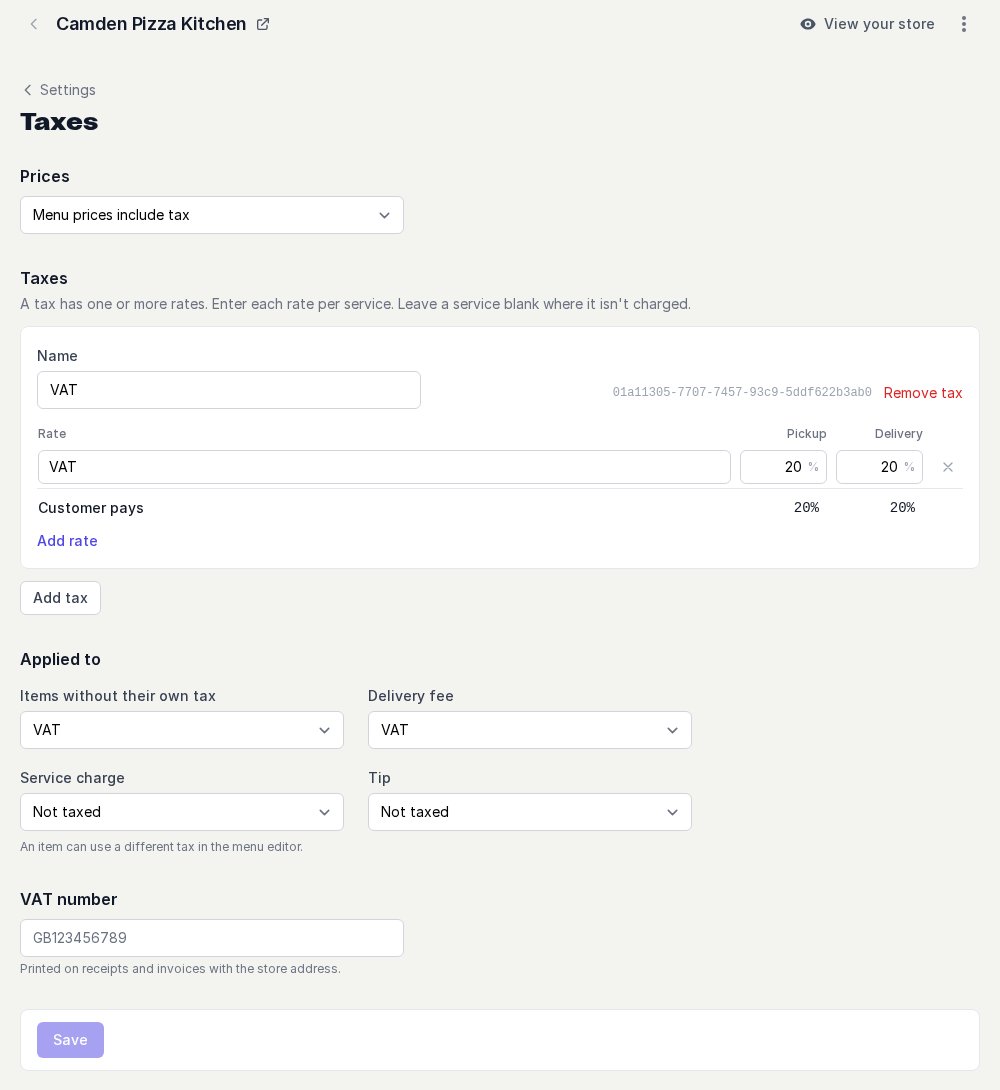
When you create a store, storekit sets up its taxes from the store's address. Tax is charged on orders from the very first one, so the store doesn't take untaxed orders while you get set up.
The defaults are a starting point, not tax advice. Open **Stores** → your store → **Settings** → **Taxes**, check what's there, and add what's missing. See [What to Check](#what-to-check) below.
## What Your Store Starts With
| | Store outside the US | Store in the US |
| - | - | - |
| **Prices** | **Menu prices include tax** | **Tax is added at checkout** |
| Tax created | One tax named after your country's tax (for example **VAT**, **GST**, **IVA** or **MwSt**) | One tax named **Sales Tax** |
| Rate | Your country's standard rate (for example UK 20%, Australia 10%). If we don't have a rate for your country, 20%. | Your **state** rate only (for example New York 4%). City, county and district taxes are not included. |
| Charged on | Every service the store offers | Every service the store offers |
| **Items without their own tax** | The new tax | The new tax |
| **Delivery fee** | The new tax | The new tax |
| **Service charge** | **Not taxed** | **Not taxed** |
| **Tip** | **Not taxed** | **Not taxed** |
| Tax number | Empty | Empty |
### Example: a Store in London
 ### Example: a Store in Brooklyn, New York
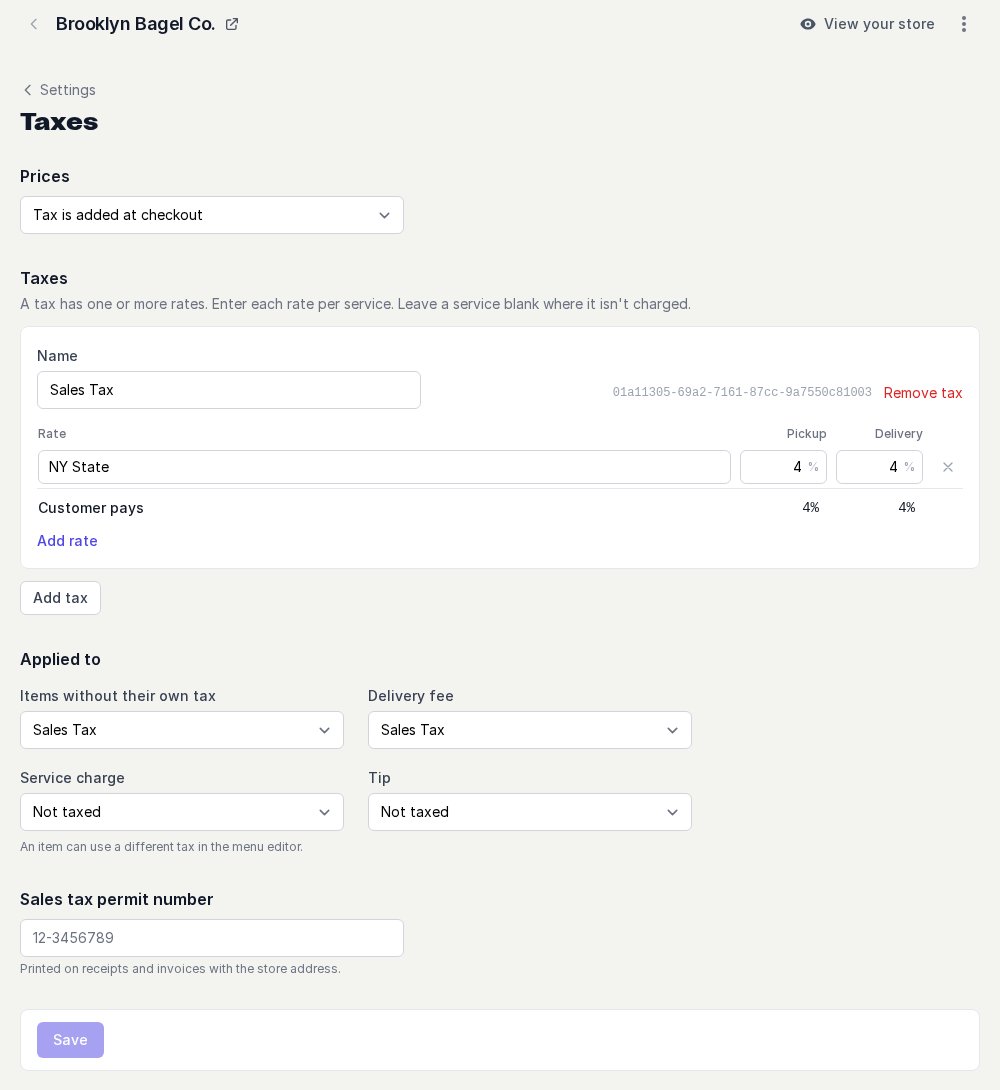 The New York state rate is 4%, but a Brooklyn restaurant charges 8.875% in total. The other 4.875% is city and district tax, which you add yourself: see [Set Up Tax-Exclusive Pricing](/docs/guides/taxes/tax-exclusive-pricing#step-2-add-your-local-rates).
## Enter Your Address Carefully
The defaults come from the **Country** you choose when you create the store and, in the US, the **State**. Type the state's full name or its two-letter code: `New York` and `NY` both work.
The New York state rate is 4%, but a Brooklyn restaurant charges 8.875% in total. The other 4.875% is city and district tax, which you add yourself: see [Set Up Tax-Exclusive Pricing](/docs/guides/taxes/tax-exclusive-pricing#step-2-add-your-local-rates).
## Enter Your Address Carefully
The defaults come from the **Country** you choose when you create the store and, in the US, the **State**. Type the state's full name or its two-letter code: `New York` and `NY` both work.
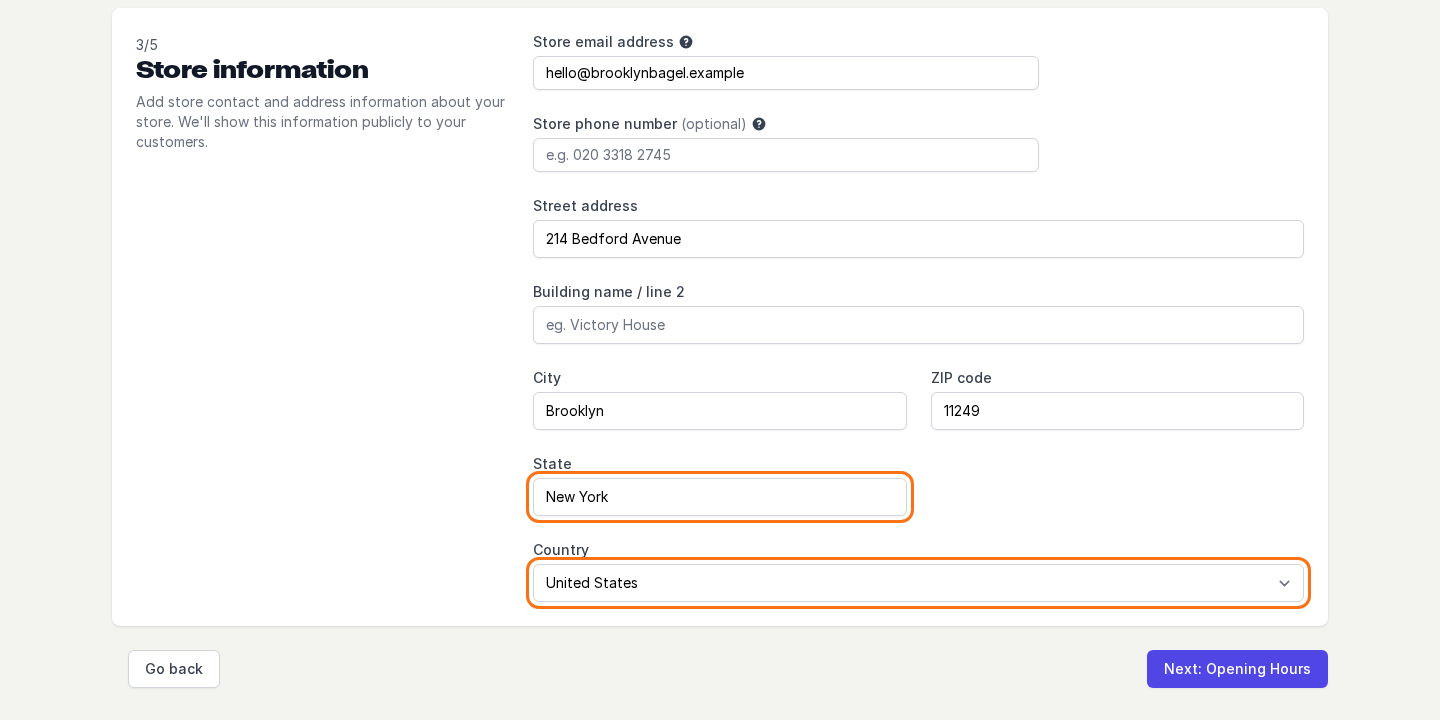 The defaults are set once, when the store is created. **Changing the store's address later does not change its taxes.** If you move a store to another state or country, update its **Taxes** page yourself.
## What to Check
Go to **Stores** → your store → **Settings** → **Taxes**.
Compare the rate with what you are registered to charge.
* **Outside the US**, the default is the standard rate. Many countries charge a lower rate on restaurant food, so change it if yours does.
* **In the US**, click **Add rate** to add your city, county or district taxes to **Sales Tax**. They are never filled in for you.
* If some items are charged at a different rate, or not taxed at all (for example cold food to take away in the UK), [give those items their own tax](/docs/guides/taxes/overview#give-one-item-a-different-tax).
* Under **Applied to**, **Service charge** and **Tip** start as **Not taxed**. Some US states tax a mandatory service charge. If yours does, set **Service charge** to your tax.
Enter your **VAT number**, **Sales tax permit number** or **Tax number**. It's printed on receipts and invoices with the store address.
Click **Save**. Changes apply to new orders only. Orders already placed keep the tax they were charged.
## Related topics
- [Set Up Tax-Exclusive Pricing](/docs/guides/taxes/tax-exclusive-pricing.md)
- [How Taxes Work](/docs/guides/taxes/overview.md)
- [Tax-Exclusive Pricing with Toast](/docs/guides/integrations/pos/toast/tax-exclusive-pricing.md)
- [Webhook Events](/docs/developers/webhooks/webhook-events.md)
- [storekit Payments Setup](/docs/guides/payments/storekit-payments-setup.md)
This documentation is built and hosted on [Mintlify](https://mintlify.com), a developer documentation platform.
The defaults are set once, when the store is created. **Changing the store's address later does not change its taxes.** If you move a store to another state or country, update its **Taxes** page yourself.
## What to Check
Go to **Stores** → your store → **Settings** → **Taxes**.
Compare the rate with what you are registered to charge.
* **Outside the US**, the default is the standard rate. Many countries charge a lower rate on restaurant food, so change it if yours does.
* **In the US**, click **Add rate** to add your city, county or district taxes to **Sales Tax**. They are never filled in for you.
* If some items are charged at a different rate, or not taxed at all (for example cold food to take away in the UK), [give those items their own tax](/docs/guides/taxes/overview#give-one-item-a-different-tax).
* Under **Applied to**, **Service charge** and **Tip** start as **Not taxed**. Some US states tax a mandatory service charge. If yours does, set **Service charge** to your tax.
Enter your **VAT number**, **Sales tax permit number** or **Tax number**. It's printed on receipts and invoices with the store address.
Click **Save**. Changes apply to new orders only. Orders already placed keep the tax they were charged.
## Related topics
- [Set Up Tax-Exclusive Pricing](/docs/guides/taxes/tax-exclusive-pricing.md)
- [How Taxes Work](/docs/guides/taxes/overview.md)
- [Tax-Exclusive Pricing with Toast](/docs/guides/integrations/pos/toast/tax-exclusive-pricing.md)
- [Webhook Events](/docs/developers/webhooks/webhook-events.md)
- [storekit Payments Setup](/docs/guides/payments/storekit-payments-setup.md)
This documentation is built and hosted on [Mintlify](https://mintlify.com), a developer documentation platform.