> ## Documentation Index
> Fetch the complete documentation index at: https://storekit.com/docs/llms.txt
> Use this file to discover all available pages before exploring further.
# Set Up Tax-Exclusive Pricing
> Show menu prices before tax and add sales tax at checkout, as US restaurants do. A step-by-step setup with a New York City example.
With tax-exclusive pricing, your menu shows prices before tax and storekit adds the tax at checkout as its own line. This is how sales tax works in the US.
This guide sets up a restaurant in Brooklyn, New York, which charges 8.875% sales tax: 4% New York State, 4.5% New York City and 0.375% Metropolitan Commuter Transportation District (MCTD). Use your own rates in place of these.
A new US store already starts with **Tax is added at checkout** and a **Sales Tax** with your state rate. See [Tax Defaults for New Stores](/docs/guides/taxes/new-store-defaults). If that's your case, step 1 is already done: check it and go to step 2.
## Before You Start
* **Your rates.** Your state rate plus any city, county or district rates for the store's address. Your state's tax authority publishes them, and your accountant can confirm.
* **Your sales tax permit number** (optional, but it's printed on receipts and invoices).
## Step 1: Add Tax at Checkout
Go to **Stores** → your store → **Settings** → **Taxes**. Under **Prices**, choose **Tax is added at checkout**.
 Your menu prices don't change. From now on they are prices before tax.
## Step 2: Add Your Local Rates
Under **Taxes**, put all your rates in one tax, one rate per line.
1. If the page has no tax yet, click **Add tax** and enter a **Name**, for example `Sales Tax`. Customers see this name as the tax line at checkout, so use one they'll recognise.
2. Enter the first rate's name (for example `NY State`) and its percentage in each service column.
3. Click **Add rate** for each local rate and fill it in the same way.
4. Check **Customer pays**. It adds up the rates for each service and should match your total rate.
Your menu prices don't change. From now on they are prices before tax.
## Step 2: Add Your Local Rates
Under **Taxes**, put all your rates in one tax, one rate per line.
1. If the page has no tax yet, click **Add tax** and enter a **Name**, for example `Sales Tax`. Customers see this name as the tax line at checkout, so use one they'll recognise.
2. Enter the first rate's name (for example `NY State`) and its percentage in each service column.
3. Click **Add rate** for each local rate and fill it in the same way.
4. Check **Customer pays**. It adds up the rates for each service and should match your total rate.
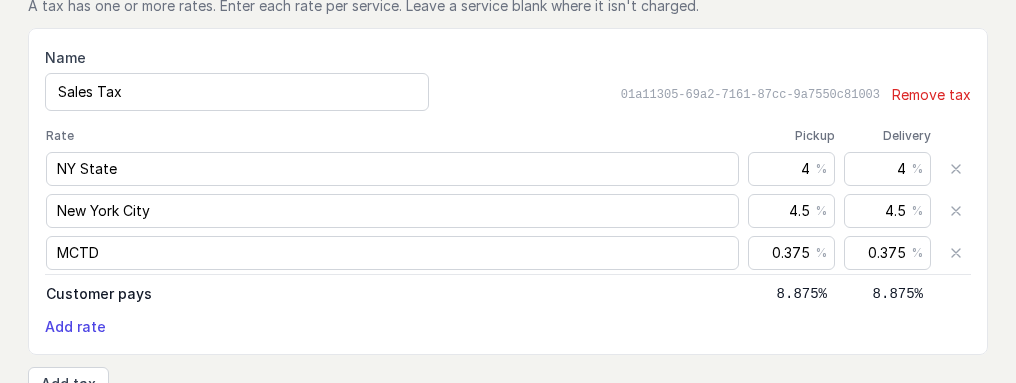 There is a column for each service your store offers (**In store**, **Pickup**, **Curbside**, **Delivery**, **Catering**). Leave a cell blank where that rate isn't charged for that service.
## Step 3: Choose What Is Taxed
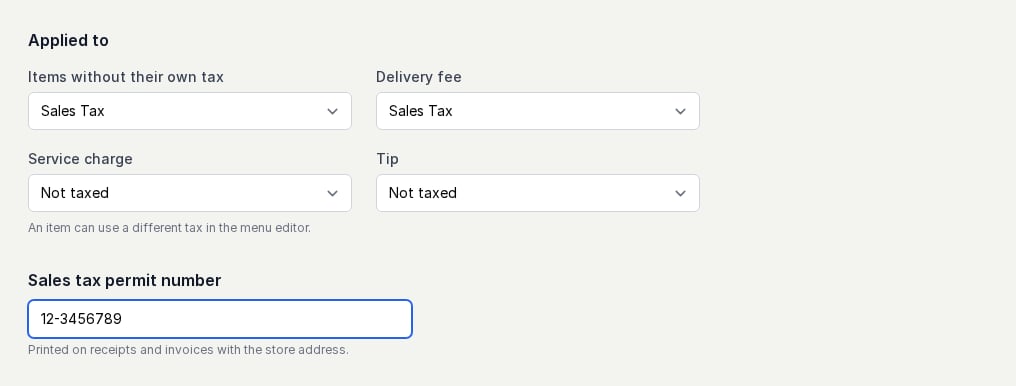
Under **Applied to**, choose the tax for:
| Field | Set it to |
| - | - |
| **Items without their own tax** | Your sales tax. Every item uses it unless you give the item its own tax. |
| **Delivery fee** | Your sales tax if your state taxes delivery fees, otherwise **Not taxed**. |
| **Service charge** | Your sales tax if your state taxes a mandatory service charge, otherwise **Not taxed**. |
| **Tip** | **Not taxed**, unless your state requires otherwise. |
Then enter your **Sales tax permit number**.
There is a column for each service your store offers (**In store**, **Pickup**, **Curbside**, **Delivery**, **Catering**). Leave a cell blank where that rate isn't charged for that service.
## Step 3: Choose What Is Taxed
Under **Applied to**, choose the tax for:
| Field | Set it to |
| - | - |
| **Items without their own tax** | Your sales tax. Every item uses it unless you give the item its own tax. |
| **Delivery fee** | Your sales tax if your state taxes delivery fees, otherwise **Not taxed**. |
| **Service charge** | Your sales tax if your state taxes a mandatory service charge, otherwise **Not taxed**. |
| **Tip** | **Not taxed**, unless your state requires otherwise. |
Then enter your **Sales tax permit number**.
 ## Step 4: Save and Check
Click **Save**. The change applies to new orders straight away. Orders already placed keep the tax they were charged.
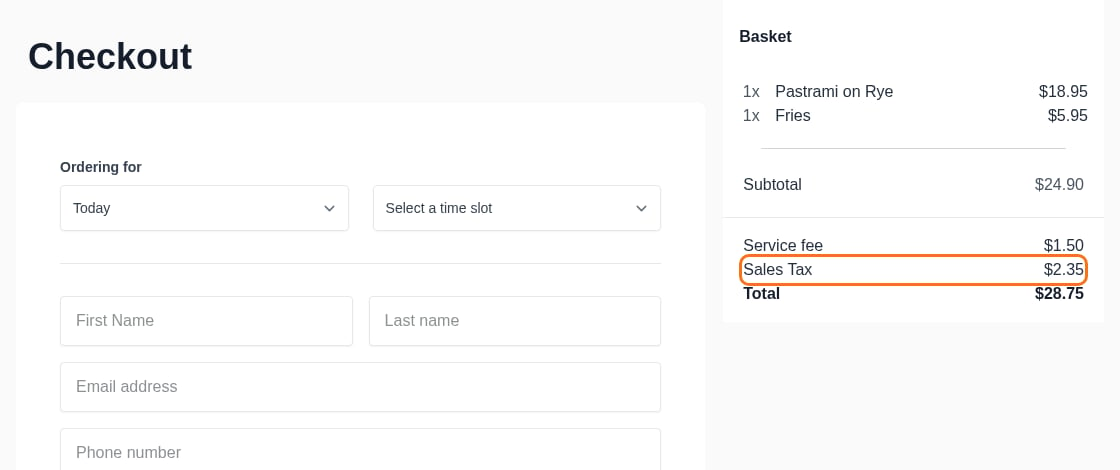
To check, open your store, add an item to the basket and go to checkout. The tax appears as its own line above the **Total**:
## Step 4: Save and Check
Click **Save**. The change applies to new orders straight away. Orders already placed keep the tax they were charged.
To check, open your store, add an item to the basket and go to checkout. The tax appears as its own line above the **Total**:
 ## Items Taxed at a Different Rate
Some items may be taxed differently. For example, in New York, bagels sold whole to take home aren't taxed, but they are when eaten in the store. For items like these:
1. Click **Add tax** and create a second tax, for example `Grocery`, with its rates only in the columns where it's charged (here only **In store**).
2. Click **Save**.
3. Open the menu, click each item, and set its **Tax** field to the new tax.
See [Give One Item a Different Tax](/docs/guides/taxes/overview#give-one-item-a-different-tax).
## Common Questions
Yes. Under **Prices**, choose **Menu prices include tax** and click **Save**. Your menu prices stay the same, so customers then pay the menu price with the tax inside it. Review your prices first.
No. storekit charges the rates you enter and doesn't track rate changes. When a rate changes, update it on the **Taxes** page.
storekit calculates tax from the settings you enter, but it doesn't give tax advice. Check your rates, and what's taxable in your state, with your accountant or your state's tax authority.
## Related topics
- [Tax Defaults for New Stores](/docs/guides/taxes/new-store-defaults.md)
- [How Taxes Work](/docs/guides/taxes/overview.md)
- [Tax-Exclusive Pricing with Toast](/docs/guides/integrations/pos/toast/tax-exclusive-pricing.md)
- [Taxes and Your POS](/docs/guides/taxes/pos.md)
- [POS Menu Sync](/docs/guides/menu/pos-menu-sync.md)
This documentation is built and hosted on [Mintlify](https://mintlify.com), a developer documentation platform.
## Items Taxed at a Different Rate
Some items may be taxed differently. For example, in New York, bagels sold whole to take home aren't taxed, but they are when eaten in the store. For items like these:
1. Click **Add tax** and create a second tax, for example `Grocery`, with its rates only in the columns where it's charged (here only **In store**).
2. Click **Save**.
3. Open the menu, click each item, and set its **Tax** field to the new tax.
See [Give One Item a Different Tax](/docs/guides/taxes/overview#give-one-item-a-different-tax).
## Common Questions
Yes. Under **Prices**, choose **Menu prices include tax** and click **Save**. Your menu prices stay the same, so customers then pay the menu price with the tax inside it. Review your prices first.
No. storekit charges the rates you enter and doesn't track rate changes. When a rate changes, update it on the **Taxes** page.
storekit calculates tax from the settings you enter, but it doesn't give tax advice. Check your rates, and what's taxable in your state, with your accountant or your state's tax authority.
## Related topics
- [Tax Defaults for New Stores](/docs/guides/taxes/new-store-defaults.md)
- [How Taxes Work](/docs/guides/taxes/overview.md)
- [Tax-Exclusive Pricing with Toast](/docs/guides/integrations/pos/toast/tax-exclusive-pricing.md)
- [Taxes and Your POS](/docs/guides/taxes/pos.md)
- [POS Menu Sync](/docs/guides/menu/pos-menu-sync.md)
This documentation is built and hosted on [Mintlify](https://mintlify.com), a developer documentation platform.