> ## Documentation Index
> Fetch the complete documentation index at: https://storekit.com/docs/llms.txt
> Use this file to discover all available pages before exploring further.
# Creating a Payment Link
> Create a storekit payment link from the dashboard: one-off or reusable, set price or customer chooses, contact fields, expiry date and payment cap.
Payment links are created from the **Payment Links** page in the dashboard. Only stores with storekit Payments active appear in the **Store** selector; if you cannot see **Payment Links** at all, see [Set up payments](/docs/getting-started/launch/set-up-payments).
## Create a Link
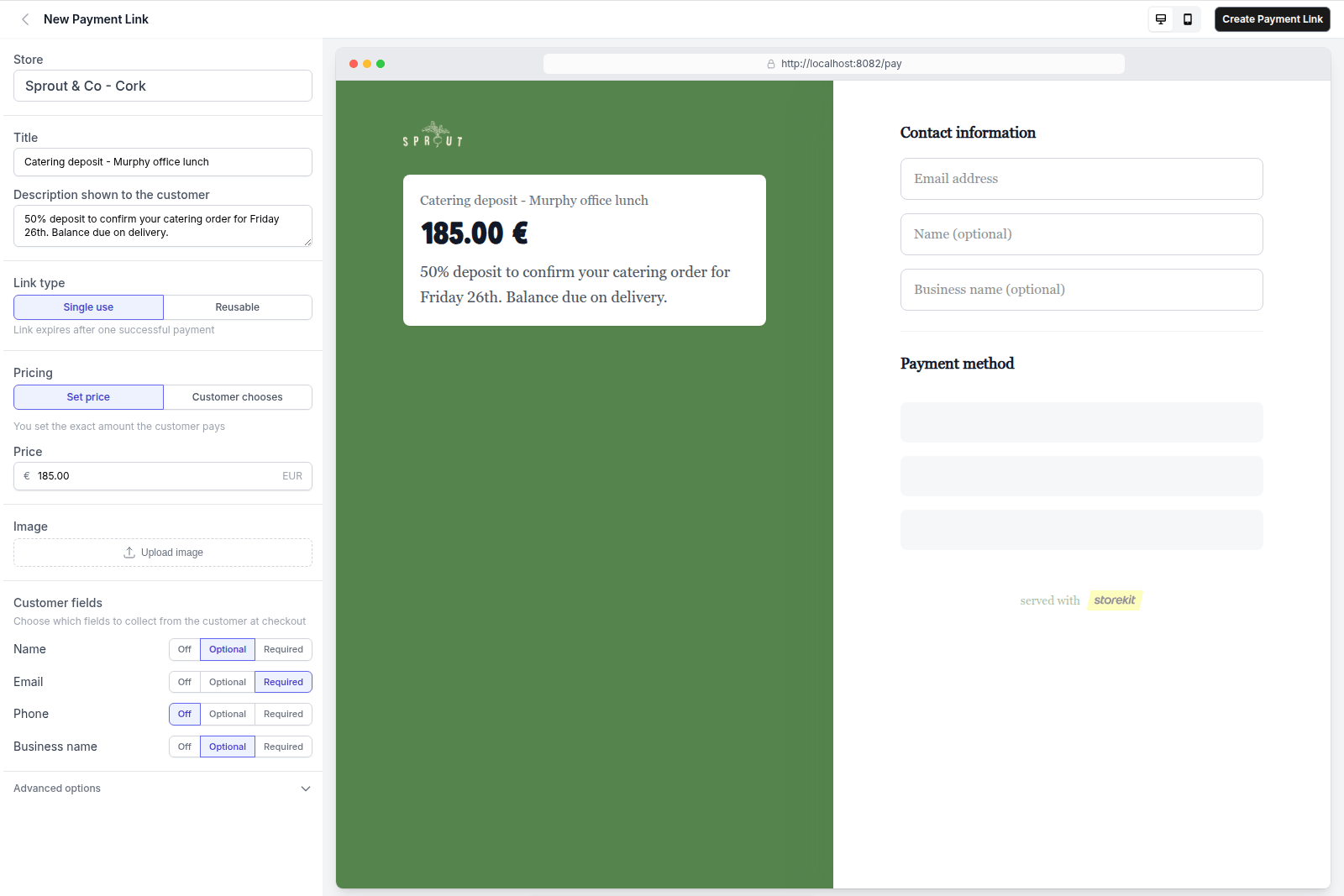 In the dashboard click **Payment Links** in the left-hand navigation.
Click **Create Payment Link** (on an empty list the button reads **Create your first payment link**). The **New Payment Link** page opens.
Under **Store**, select the store the money should be paid to. This cannot be changed after the link is created.
Enter a **Title**. This is the heading the customer sees on the checkout page, so make it specific: "Private dining deposit — Patel, 14 Oct" rather than "Deposit".
Optionally expand **Description shown to the customer** and add a sentence about what the payment covers.
Under **Link type** choose:
* **One-off** — the link accepts a single successful payment and then closes.
* **Reusable** — the link stays open for multiple payments until you deactivate it, it expires, or it reaches its payment cap.
This cannot be changed after the link is created.
Under **Pricing** choose:
* **Set price** — enter the **Price**. The customer pays exactly this amount.
* **Customer chooses** — the customer types an amount. Optionally enter a **Minimum** and **Maximum** to bound it.
The pricing mode cannot be changed after the link is created, but the minimum and maximum can.
Under **Image**, upload a picture to show on the checkout page.
Under **Customer fields**, set each of **Name**, **Email**, **Phone** and **Business name** to **Off**, **Optional** or **Required**.
If you collect an email address, the customer is sent a receipt after paying. Ask for at least one of **Email** or **Phone** on reusable links so you can match payments to people later.
Expand **Advanced options**:
* **Reference** — an internal note (order number, invoice number, booking name). The customer sees it on the checkout page and it is stored against every payment.
* **Link expiry date** — the link stops accepting payments at this date and time and shows as **Expired**.
* **Maximum number of payments** — reusable links only. Once this many payments succeed the link closes.
* **After successful payment** — **Show thank you** (with an optional **Custom thank you message**) or **Redirect to URL** (enter the **Redirect URL after payment**).
Click **Create Payment Link**. You are taken to the link's detail page, where the **Share** panel shows the URL. See [Sharing a Payment Link](/docs/payment-links/sharing-a-payment-link).
In the dashboard click **Payment Links** in the left-hand navigation.
Click **Create Payment Link** (on an empty list the button reads **Create your first payment link**). The **New Payment Link** page opens.
Under **Store**, select the store the money should be paid to. This cannot be changed after the link is created.
Enter a **Title**. This is the heading the customer sees on the checkout page, so make it specific: "Private dining deposit — Patel, 14 Oct" rather than "Deposit".
Optionally expand **Description shown to the customer** and add a sentence about what the payment covers.
Under **Link type** choose:
* **One-off** — the link accepts a single successful payment and then closes.
* **Reusable** — the link stays open for multiple payments until you deactivate it, it expires, or it reaches its payment cap.
This cannot be changed after the link is created.
Under **Pricing** choose:
* **Set price** — enter the **Price**. The customer pays exactly this amount.
* **Customer chooses** — the customer types an amount. Optionally enter a **Minimum** and **Maximum** to bound it.
The pricing mode cannot be changed after the link is created, but the minimum and maximum can.
Under **Image**, upload a picture to show on the checkout page.
Under **Customer fields**, set each of **Name**, **Email**, **Phone** and **Business name** to **Off**, **Optional** or **Required**.
If you collect an email address, the customer is sent a receipt after paying. Ask for at least one of **Email** or **Phone** on reusable links so you can match payments to people later.
Expand **Advanced options**:
* **Reference** — an internal note (order number, invoice number, booking name). The customer sees it on the checkout page and it is stored against every payment.
* **Link expiry date** — the link stops accepting payments at this date and time and shows as **Expired**.
* **Maximum number of payments** — reusable links only. Once this many payments succeed the link closes.
* **After successful payment** — **Show thank you** (with an optional **Custom thank you message**) or **Redirect to URL** (enter the **Redirect URL after payment**).
Click **Create Payment Link**. You are taken to the link's detail page, where the **Share** panel shows the URL. See [Sharing a Payment Link](/docs/payment-links/sharing-a-payment-link).
 ## Which Fields Can Change Later
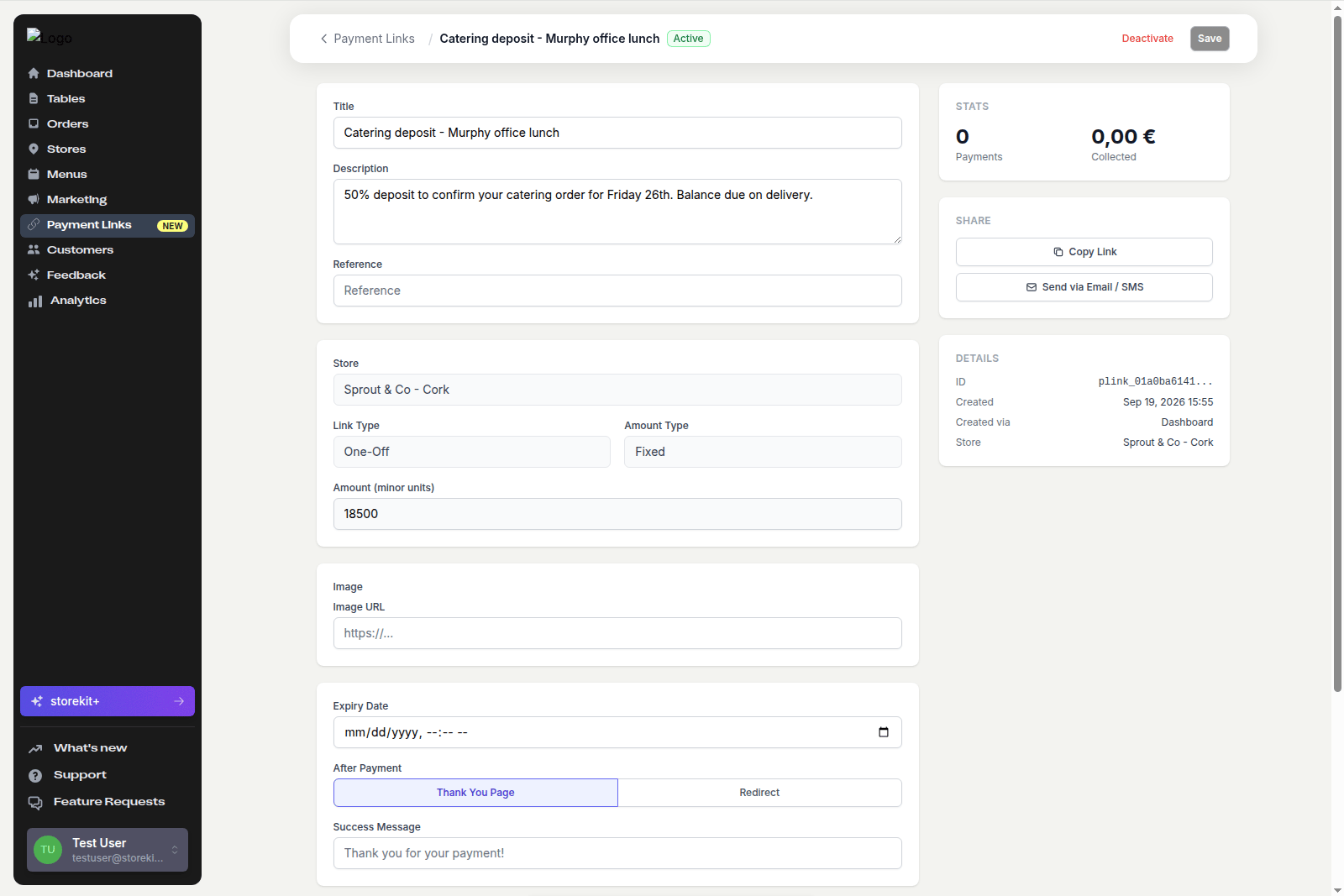
On the link's detail page you can edit the title, description, reference, minimum and maximum, image, expiry date, payment cap and the after-payment behaviour, then click **Save**. The store, link type, pricing mode and set price are fixed once the link exists — create a new link if any of those need to change.
For a set-price link that has been shared but needs a different amount, deactivate it and create a new one. Anyone opening the old link sees that it is no longer available rather than the wrong price.
## Other Ways to Create a Link
* **From an unpaid cash order** — catering stores get a **Send Payment Link** prompt on the order page that pre-fills the amount. See [Collecting Payment for an Unpaid Order](/docs/payment-links/collecting-for-an-order).
* **From an AI assistant** — ask Claude, ChatGPT or another connected assistant to "create a £50 one-off payment link titled…". Creating a link is a write action, so you approve it before it runs. See [What you can ask](/docs/guides/ai/what-you-can-ask#payment-links).
## Related Guides
Copy the URL or send it by email or SMS.
Filter, edit, deactivate and reactivate links.
## Related topics
- [Payment Links Overview](/docs/payment-links/overview.md)
- [Collecting Payment for an Unpaid Order](/docs/payment-links/collecting-for-an-order.md)
- [What Your Customer Sees](/docs/payment-links/what-your-customer-sees.md)
- [Connect Cursor or VS Code](/docs/guides/ai/connect/cursor-vscode.md)
- [Connect ChatGPT](/docs/guides/ai/connect/chatgpt.md)
## Which Fields Can Change Later
On the link's detail page you can edit the title, description, reference, minimum and maximum, image, expiry date, payment cap and the after-payment behaviour, then click **Save**. The store, link type, pricing mode and set price are fixed once the link exists — create a new link if any of those need to change.
For a set-price link that has been shared but needs a different amount, deactivate it and create a new one. Anyone opening the old link sees that it is no longer available rather than the wrong price.
## Other Ways to Create a Link
* **From an unpaid cash order** — catering stores get a **Send Payment Link** prompt on the order page that pre-fills the amount. See [Collecting Payment for an Unpaid Order](/docs/payment-links/collecting-for-an-order).
* **From an AI assistant** — ask Claude, ChatGPT or another connected assistant to "create a £50 one-off payment link titled…". Creating a link is a write action, so you approve it before it runs. See [What you can ask](/docs/guides/ai/what-you-can-ask#payment-links).
## Related Guides
Copy the URL or send it by email or SMS.
Filter, edit, deactivate and reactivate links.
## Related topics
- [Payment Links Overview](/docs/payment-links/overview.md)
- [Collecting Payment for an Unpaid Order](/docs/payment-links/collecting-for-an-order.md)
- [What Your Customer Sees](/docs/payment-links/what-your-customer-sees.md)
- [Connect Cursor or VS Code](/docs/guides/ai/connect/cursor-vscode.md)
- [Connect ChatGPT](/docs/guides/ai/connect/chatgpt.md)