> ## Documentation Index
> Fetch the complete documentation index at: https://storekit.com/docs/llms.txt
> Use this file to discover all available pages before exploring further.
# Managing Payment Links
> Find, filter, edit, deactivate and reactivate storekit payment links from the dashboard, and understand how expiry dates and payment caps close a link.
All of a store's payment links live under **Payment Links** in the left-hand navigation.
## The Payment Links List
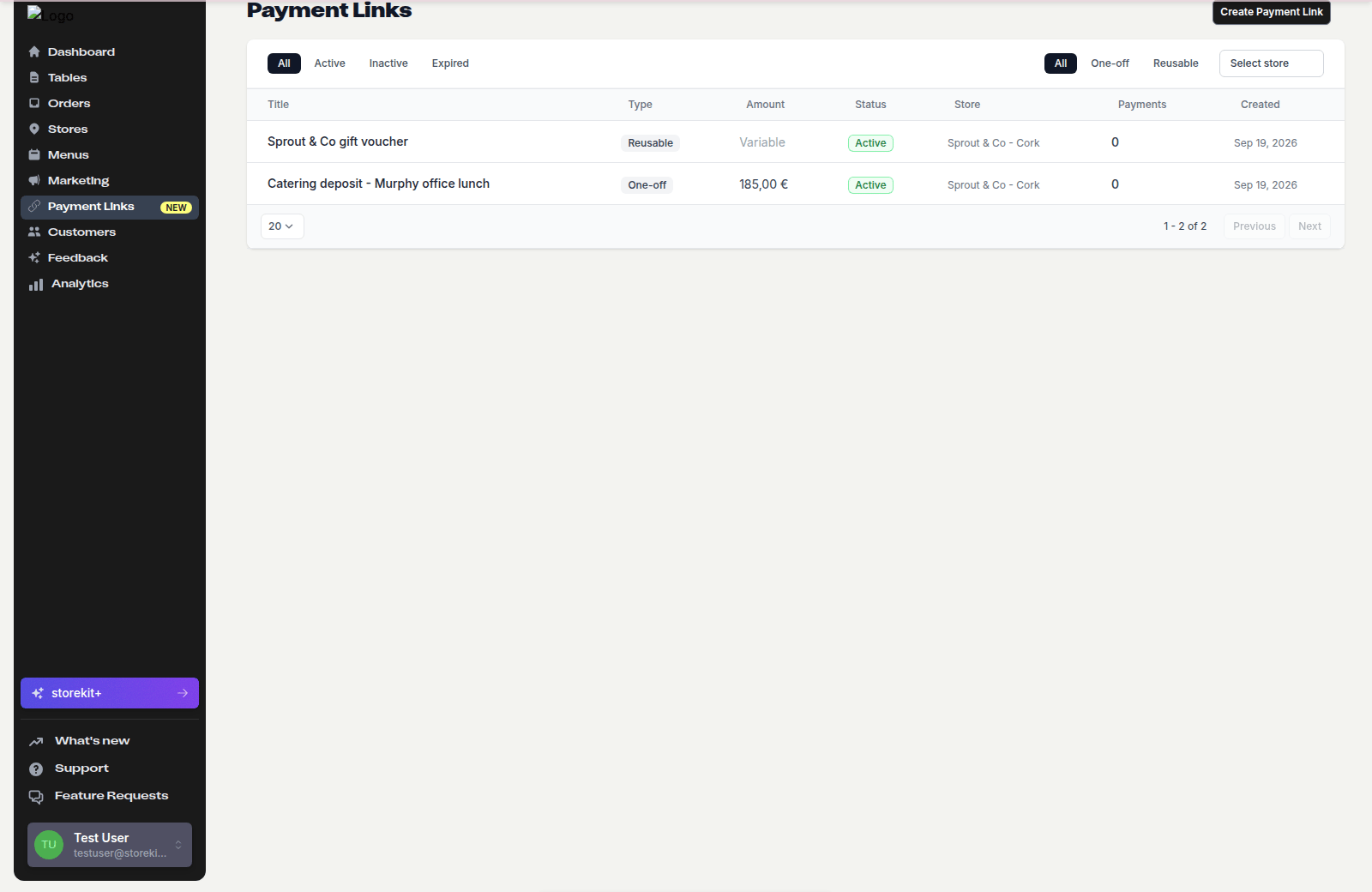
Choose a store from the selector at the top of the page. Each row shows **Title**, **Type**, **Amount**, **Status**, **Store**, **Payments** (successful payments so far) and **Created**. Click a row to open the link.
Two sets of filters sit above the list:
* Status: **All**, **Active**, **Inactive**, **Expired**
* Type: **All**, **One-off**, **Reusable**
 ## Statuses
| Status | Meaning | Customer opening the link |
| ------------- | --------------------------------------------------------------------------------------------------------- | -------------------------------------------------------------------------- |
| **Active** | Accepting payments | Checkout page |
| **Inactive** | Deactivated by you | **Link expired** — "This payment link has expired or is no longer active." |
| **Expired** | The **Link expiry date** has passed | **Link expired** |
| **Completed** | A one-off link that has been paid, or a reusable link that has reached its **Maximum number of payments** | **Already paid** — "This payment link has already been used." |
The status filter has no **Completed** option; choose **All** and look at the **Status** column.
## Edit a Link
Click **Payment Links**, then click the link in the list.
Edit the fields in the form on the left. The **Store**, **Link Type**, **Amount Type** and set amount are locked; everything else — **Title**, **Description**, **Reference**, **Min Amount**, **Max Amount**, **Max Payments**, **Image**, **Expiry Date** and **After Payment** — can change.
Click **Save** in the bar at the top. Changes apply to the live link immediately; anyone who opens it afterwards sees the new details.
## Deactivate a Link
Deactivate a link when it has been shared too widely, the price is wrong, or the thing it paid for is no longer on offer.
Click **Payment Links**, then click the link in the list.
Click **Deactivate** in the bar at the top and confirm. The link's status becomes **Inactive**; anyone opening the URL sees that it is no longer available.
Deactivating does not affect payments already taken. You can still view and refund them.
## Reactivate a Link
Open an **Inactive** link and click **Activate**. The button only appears on links you deactivated yourself.
**Expired** and **Completed** links cannot be reactivated from the dashboard. Create a new link instead.
## Expiry Dates and Payment Caps
Two settings close a link without you doing anything:
* **Link expiry date** — a date and time after which the link shows **Expired**. Useful for deposits that must be paid by a deadline, or an early-bird price.
* **Maximum number of payments** — reusable links only. After this many successful payments the link becomes **Completed**. Useful for events with a fixed number of places.
Both can be edited while the link is still **Active**. Raise the cap or push the date back before the link closes; once it is **Completed** or **Expired** it stays that way.
## Delete a Link
Payment links cannot be deleted from the dashboard. Deactivate the link instead; it stays in the list under the **Inactive** filter with its payment history intact.
## Related Guides
See who paid and refund a payment.
Statuses, fields and IDs in one place.
## Related topics
- [Creating a Payment Link](/docs/payment-links/creating-a-payment-link.md)
- [Sharing a Payment Link](/docs/payment-links/sharing-a-payment-link.md)
- [Payment Links Reference](/docs/payment-links/reference.md)
- [What Your Customer Sees](/docs/payment-links/what-your-customer-sees.md)
- [Payment Links Overview](/docs/payment-links/overview.md)
## Statuses
| Status | Meaning | Customer opening the link |
| ------------- | --------------------------------------------------------------------------------------------------------- | -------------------------------------------------------------------------- |
| **Active** | Accepting payments | Checkout page |
| **Inactive** | Deactivated by you | **Link expired** — "This payment link has expired or is no longer active." |
| **Expired** | The **Link expiry date** has passed | **Link expired** |
| **Completed** | A one-off link that has been paid, or a reusable link that has reached its **Maximum number of payments** | **Already paid** — "This payment link has already been used." |
The status filter has no **Completed** option; choose **All** and look at the **Status** column.
## Edit a Link
Click **Payment Links**, then click the link in the list.
Edit the fields in the form on the left. The **Store**, **Link Type**, **Amount Type** and set amount are locked; everything else — **Title**, **Description**, **Reference**, **Min Amount**, **Max Amount**, **Max Payments**, **Image**, **Expiry Date** and **After Payment** — can change.
Click **Save** in the bar at the top. Changes apply to the live link immediately; anyone who opens it afterwards sees the new details.
## Deactivate a Link
Deactivate a link when it has been shared too widely, the price is wrong, or the thing it paid for is no longer on offer.
Click **Payment Links**, then click the link in the list.
Click **Deactivate** in the bar at the top and confirm. The link's status becomes **Inactive**; anyone opening the URL sees that it is no longer available.
Deactivating does not affect payments already taken. You can still view and refund them.
## Reactivate a Link
Open an **Inactive** link and click **Activate**. The button only appears on links you deactivated yourself.
**Expired** and **Completed** links cannot be reactivated from the dashboard. Create a new link instead.
## Expiry Dates and Payment Caps
Two settings close a link without you doing anything:
* **Link expiry date** — a date and time after which the link shows **Expired**. Useful for deposits that must be paid by a deadline, or an early-bird price.
* **Maximum number of payments** — reusable links only. After this many successful payments the link becomes **Completed**. Useful for events with a fixed number of places.
Both can be edited while the link is still **Active**. Raise the cap or push the date back before the link closes; once it is **Completed** or **Expired** it stays that way.
## Delete a Link
Payment links cannot be deleted from the dashboard. Deactivate the link instead; it stays in the list under the **Inactive** filter with its payment history intact.
## Related Guides
See who paid and refund a payment.
Statuses, fields and IDs in one place.
## Related topics
- [Creating a Payment Link](/docs/payment-links/creating-a-payment-link.md)
- [Sharing a Payment Link](/docs/payment-links/sharing-a-payment-link.md)
- [Payment Links Reference](/docs/payment-links/reference.md)
- [What Your Customer Sees](/docs/payment-links/what-your-customer-sees.md)
- [Payment Links Overview](/docs/payment-links/overview.md)