> ## Documentation Index
> Fetch the complete documentation index at: https://storekit.com/docs/llms.txt
> Use this file to discover all available pages before exploring further.
# Sharing a Payment Link
> Get a storekit payment link to the customer: copy the URL, send it by email or SMS from the dashboard, or generate a QR code via a connected AI assistant.
A payment link is a plain URL, so anything that can carry a URL can carry a payment link — email, SMS, WhatsApp, a chat widget, a PDF invoice or a printed sign.
## Copy the Link
Click **Payment Links** in the left-hand navigation, then click the link in the list.
In the **Share** panel on the right, click **Copy Link**. The URL is on your clipboard; paste it wherever you talk to the customer.
## Send by Email or SMS
storekit can send the link for you, branded with your store's name and logo.
Click **Payment Links** in the left-hand navigation, then click the link in the list.
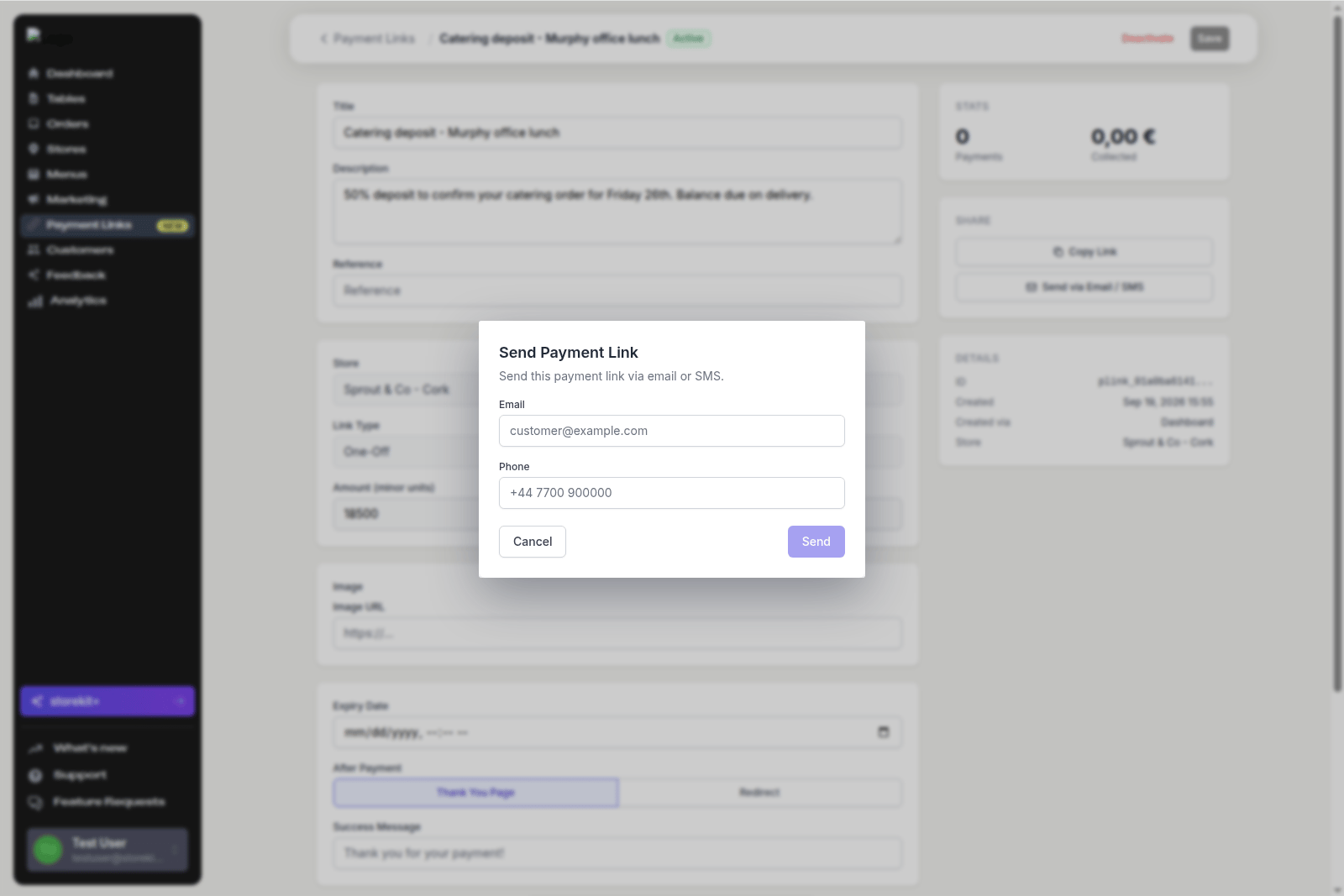
In the **Share** panel, click **Send via Email / SMS**. The **Send Payment Link** dialog opens.
Fill in **Email**, **Phone** or both. Use the international format for phone numbers (for example `+447700900123`).
Click **Send**. The email comes from your store's contact address where one is set, otherwise from `payments@storekit.com`.
 You can send the same link as many times as you need. Only **Active** links can be sent; reactivate an **Inactive** link first, and create a new link in place of an **Expired** one.
For a link created from an order page, the dashboard sends it to the email address or phone number on the order automatically, and offers **Resend** and **Copy Link** on the order. See [Collecting Payment for an Unpaid Order](/docs/payment-links/collecting-for-an-order).
## QR Codes
A QR code that opens the payment link is useful on a printed menu, a counter card or an event poster. Reusable, customer-chooses links work well here because the same code serves everyone.
The dashboard does not currently have a QR download button on the payment link page. To get a QR code:
* **Ask an AI assistant** — a connected assistant can call the `get-payment-link-qr` tool and return the image. See [What you can ask](/docs/guides/ai/what-you-can-ask#payment-links).
* **Use any QR generator** — paste the URL from **Copy Link** into the QR tool of your choice. The link is a normal URL and does not need to be generated by storekit.
## Where to Put the Link
| Channel | Works well for |
| ------------------------------- | ----------------------------------------------------------------- |
| Reply to the enquiry email | Deposits and catering balances agreed in writing |
| SMS or WhatsApp | Customers you have spoken to by phone; the link is one tap away |
| Printed on the invoice or quote | Balances due, with the invoice number in the link's **Reference** |
| QR code on a card or poster | Gift vouchers, donations, supper clubs, event tickets |
| Website or social bio | A standing reusable link |
## Related Guides
The page that opens when they tap the link.
Deactivate a link that has been shared too widely.
## Related topics
- [Creating a Payment Link](/docs/payment-links/creating-a-payment-link.md)
- [Payment Links Overview](/docs/payment-links/overview.md)
- [Payment Links Reference](/docs/payment-links/reference.md)
- [Managing Payment Links](/docs/payment-links/managing-payment-links.md)
- [Payment Link Refunds and Transactions](/docs/payment-links/refunds-and-transactions.md)
You can send the same link as many times as you need. Only **Active** links can be sent; reactivate an **Inactive** link first, and create a new link in place of an **Expired** one.
For a link created from an order page, the dashboard sends it to the email address or phone number on the order automatically, and offers **Resend** and **Copy Link** on the order. See [Collecting Payment for an Unpaid Order](/docs/payment-links/collecting-for-an-order).
## QR Codes
A QR code that opens the payment link is useful on a printed menu, a counter card or an event poster. Reusable, customer-chooses links work well here because the same code serves everyone.
The dashboard does not currently have a QR download button on the payment link page. To get a QR code:
* **Ask an AI assistant** — a connected assistant can call the `get-payment-link-qr` tool and return the image. See [What you can ask](/docs/guides/ai/what-you-can-ask#payment-links).
* **Use any QR generator** — paste the URL from **Copy Link** into the QR tool of your choice. The link is a normal URL and does not need to be generated by storekit.
## Where to Put the Link
| Channel | Works well for |
| ------------------------------- | ----------------------------------------------------------------- |
| Reply to the enquiry email | Deposits and catering balances agreed in writing |
| SMS or WhatsApp | Customers you have spoken to by phone; the link is one tap away |
| Printed on the invoice or quote | Balances due, with the invoice number in the link's **Reference** |
| QR code on a card or poster | Gift vouchers, donations, supper clubs, event tickets |
| Website or social bio | A standing reusable link |
## Related Guides
The page that opens when they tap the link.
Deactivate a link that has been shared too widely.
## Related topics
- [Creating a Payment Link](/docs/payment-links/creating-a-payment-link.md)
- [Payment Links Overview](/docs/payment-links/overview.md)
- [Payment Links Reference](/docs/payment-links/reference.md)
- [Managing Payment Links](/docs/payment-links/managing-payment-links.md)
- [Payment Link Refunds and Transactions](/docs/payment-links/refunds-and-transactions.md)