> ## Documentation Index
> Fetch the complete documentation index at: https://storekit.com/docs/llms.txt
> Use this file to discover all available pages before exploring further.
# What Your Customer Sees
> The customer's side of a storekit payment link: the branded checkout page, entering an amount and contact details, paying by card or wallet, and what follows.
A payment link opens a single page on your storekit ordering domain at `/pay/…`. It is built for a phone screen, carries your store's branding, and asks for nothing the link did not require.
## The Checkout Page
At the top: your store's logo and name, the **Image** if you added one, the **Title**, the **Description shown to the customer** and, if set, the **Reference**. Colours and fonts follow the branding of the store the link belongs to, the same as your online ordering pages.
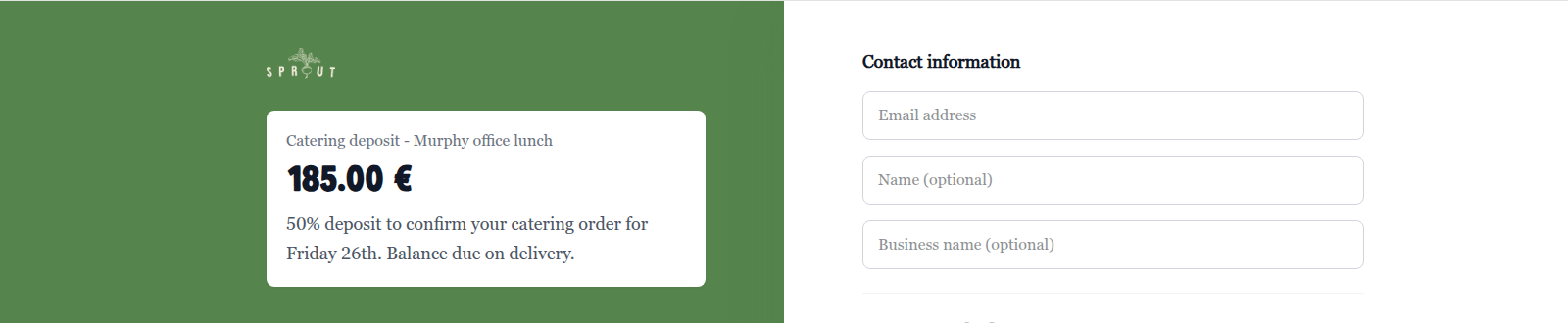 Below that the page asks for, in order:
### 1. The amount
* **Set price** links show the amount. There is nothing to enter.
* **Customer chooses** links show **Enter amount** with the currency symbol. If you set a **Minimum**, it is shown as the field's placeholder; amounts outside the **Minimum** and **Maximum** are rejected when the customer tries to continue. Payment methods do not load until an amount is entered — the page reads **Enter an amount to continue**.
### 2. Contact information
Shown only when at least one customer field is **Optional** or **Required**. The heading is **Contact information**, with **Name**, **Business name**, **Email address** and **Phone number** as configured. Optional fields are marked *optional*; a required field left blank shows **This field is required** and blocks payment.
### 3. Payment method
Under **Payment method**, the customer chooses from the methods enabled on your store — card, Apple Pay and Google Pay where available — and pays. Card details are collected on the page; some cards send the customer through their bank's verification step and back.
## After Paying
What happens next depends on the link's **After successful payment** setting:
* **Show thank you** (default) — the page shows **Payment successful** with **Thank you for your payment.** (or your **Custom thank you message**) and **Amount paid**.
* **Redirect to URL** — the customer is sent straight to your **Redirect URL after payment**, for example a booking confirmation page.
If the link collected an **Email**, the customer receives a receipt by email from your store's contact address (or `payments@storekit.com` if none is set).
## When the Link Cannot Be Used
| The customer sees | Why |
| ----------------------------------------------------------------------------------------- | ------------------------------------------------------------------------------------------- |
| **Payment link not found** — "This payment link does not exist or may have been removed." | The URL is wrong or the link belongs to a store that has been archived |
| **Link expired** — "This payment link has expired or is no longer active." | The **Link expiry date** has passed, or you deactivated the link |
| **Already paid** — "This payment link has already been used." | A one-off link has been paid, or a reusable link reached its **Maximum number of payments** |
If a card is declined, the page reads **Your payment was declined. Please try another payment method.** and the customer can try again or pick another method. Only successful payments count towards the link's **Payments** total.
## Previewing Before You Share
The **New Payment Link** page shows a live preview of the checkout page on the right as you fill in the form; use the desktop and phone icons above it to switch layouts.
Below that the page asks for, in order:
### 1. The amount
* **Set price** links show the amount. There is nothing to enter.
* **Customer chooses** links show **Enter amount** with the currency symbol. If you set a **Minimum**, it is shown as the field's placeholder; amounts outside the **Minimum** and **Maximum** are rejected when the customer tries to continue. Payment methods do not load until an amount is entered — the page reads **Enter an amount to continue**.
### 2. Contact information
Shown only when at least one customer field is **Optional** or **Required**. The heading is **Contact information**, with **Name**, **Business name**, **Email address** and **Phone number** as configured. Optional fields are marked *optional*; a required field left blank shows **This field is required** and blocks payment.
### 3. Payment method
Under **Payment method**, the customer chooses from the methods enabled on your store — card, Apple Pay and Google Pay where available — and pays. Card details are collected on the page; some cards send the customer through their bank's verification step and back.
## After Paying
What happens next depends on the link's **After successful payment** setting:
* **Show thank you** (default) — the page shows **Payment successful** with **Thank you for your payment.** (or your **Custom thank you message**) and **Amount paid**.
* **Redirect to URL** — the customer is sent straight to your **Redirect URL after payment**, for example a booking confirmation page.
If the link collected an **Email**, the customer receives a receipt by email from your store's contact address (or `payments@storekit.com` if none is set).
## When the Link Cannot Be Used
| The customer sees | Why |
| ----------------------------------------------------------------------------------------- | ------------------------------------------------------------------------------------------- |
| **Payment link not found** — "This payment link does not exist or may have been removed." | The URL is wrong or the link belongs to a store that has been archived |
| **Link expired** — "This payment link has expired or is no longer active." | The **Link expiry date** has passed, or you deactivated the link |
| **Already paid** — "This payment link has already been used." | A one-off link has been paid, or a reusable link reached its **Maximum number of payments** |
If a card is declined, the page reads **Your payment was declined. Please try another payment method.** and the customer can try again or pick another method. Only successful payments count towards the link's **Payments** total.
## Previewing Before You Share
The **New Payment Link** page shows a live preview of the checkout page on the right as you fill in the form; use the desktop and phone icons above it to switch layouts.
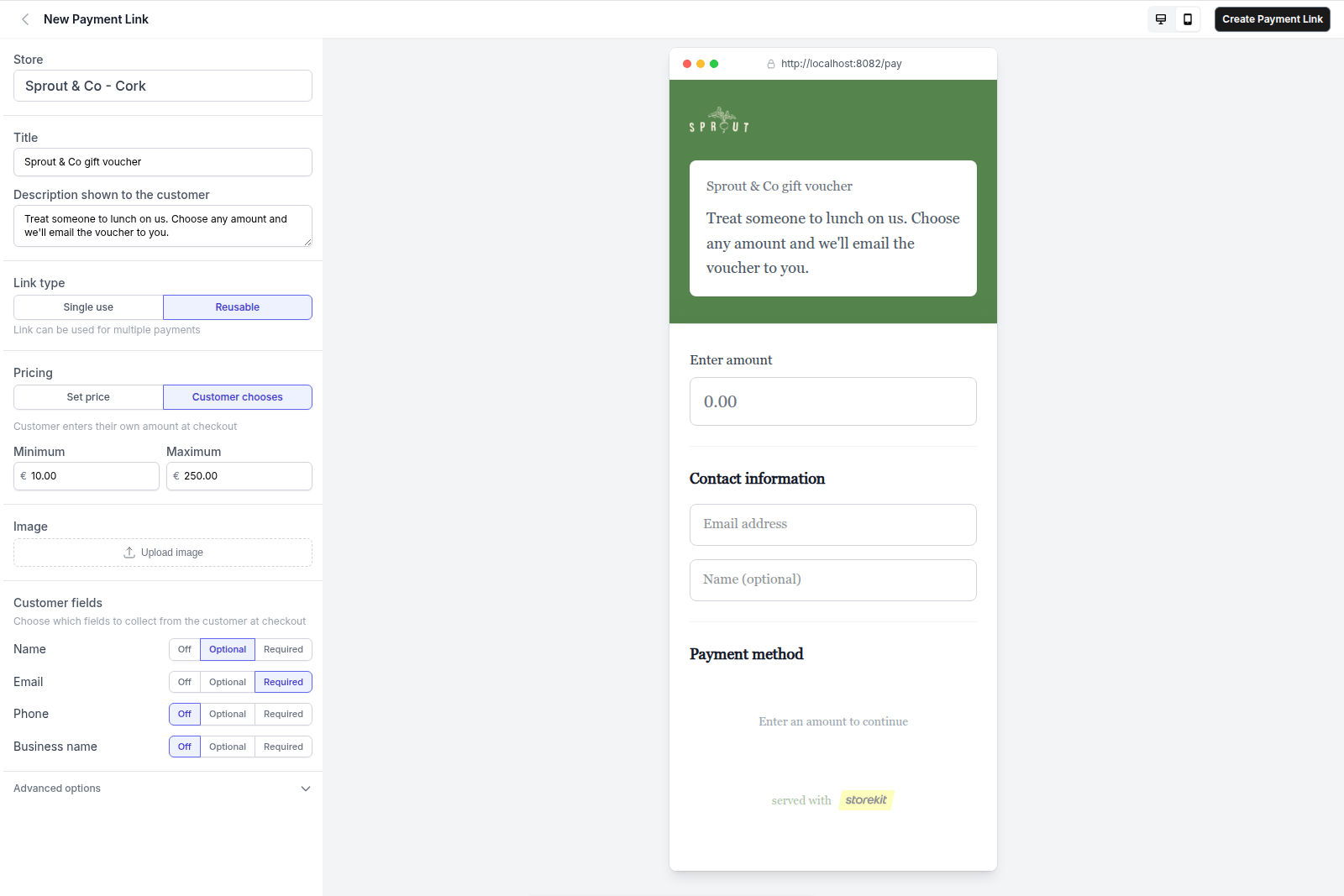 After creating the link, open the URL from **Copy Link** yourself to see the real page; nothing is recorded unless you pay.
## Related Guides
Where each of these fields is set.
Statuses and what closes a link.
## Related topics
- [Payment Links Overview](/docs/payment-links/overview.md)
- [Sharing a Payment Link](/docs/payment-links/sharing-a-payment-link.md)
- [Blocking Pre-Order Timeslots](/docs/guides/orders/advanced/block-timeslot.md)
- [Cash and pay-on-collection orders](/docs/guides/payments/cash-payments.md)
- [Permissions & Privacy](/docs/guides/ai/permissions-and-privacy.md)
After creating the link, open the URL from **Copy Link** yourself to see the real page; nothing is recorded unless you pay.
## Related Guides
Where each of these fields is set.
Statuses and what closes a link.
## Related topics
- [Payment Links Overview](/docs/payment-links/overview.md)
- [Sharing a Payment Link](/docs/payment-links/sharing-a-payment-link.md)
- [Blocking Pre-Order Timeslots](/docs/guides/orders/advanced/block-timeslot.md)
- [Cash and pay-on-collection orders](/docs/guides/payments/cash-payments.md)
- [Permissions & Privacy](/docs/guides/ai/permissions-and-privacy.md)