
Find Your Tax Settings
Go to Stores → your store → Settings → Taxes. It’s in the Money group, under Payments and Gratuity.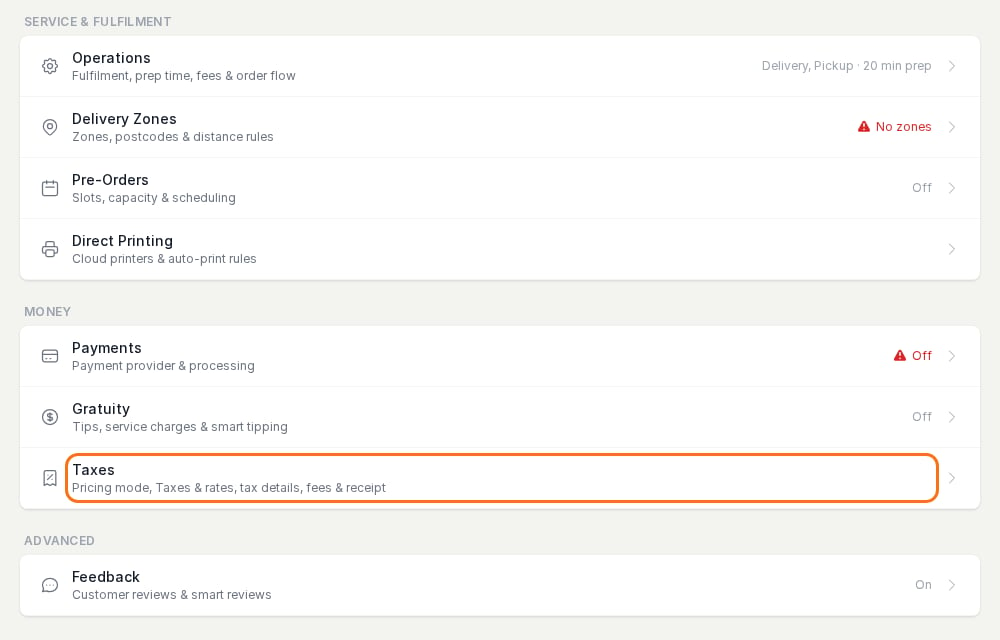
Two Ways to Price Tax
The Prices setting at the top of the page decides which one your store uses.
These are the only two options.
What’s on the Taxes Page
Nothing changes until you click Save at the bottom of the page.
Give One Item a Different Tax
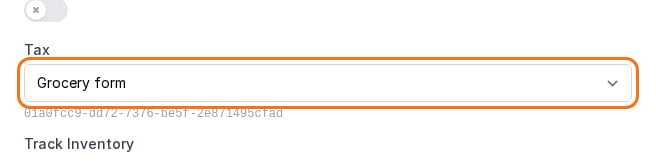
Items use the tax set in Items without their own tax. To charge a different tax on one item, such as a lower rate on bakery goods sold to take home:- Add that tax on the Taxes page and click Save.
- Open the menu, click the item, and choose the tax in its Tax field.
Next Steps
Tax defaults for new stores
What a store is set up with when you create it, and what to check.
Set up tax-exclusive pricing
Add tax at checkout, as US sales tax works.
Taxes and your POS
How taxes work when your store is connected to a point of sale.