
Before The Connection
Go to Stores → your store → Settings → Integrations. Before the connection is in place, the integration entry is EPOS with the description “Connect to your EPOS system to sync menus, send orders and manage your restaurant operations”.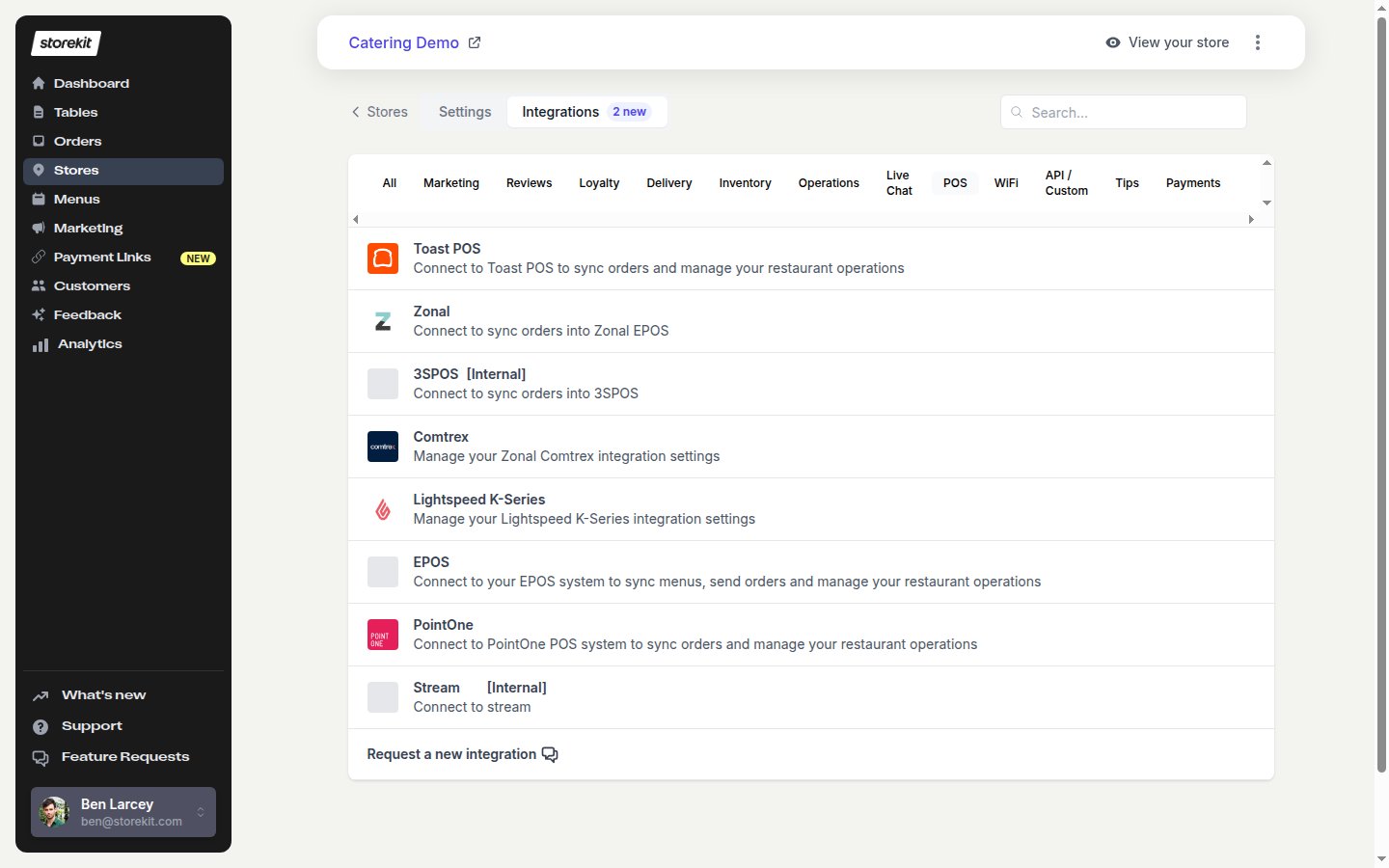
The EPOS entry on the Integrations tab, filtered to POS
After The Connection
When Deliverect has linked the store to a channel, Deliverect sends the channel-status callback. The callback assigns the channel link ID to the store. Deliverect then appears in the Integrations list and shows Connected. This entry is visible only when the store has a Deliverect ID. Select Deliverect to open the Deliverect settings page.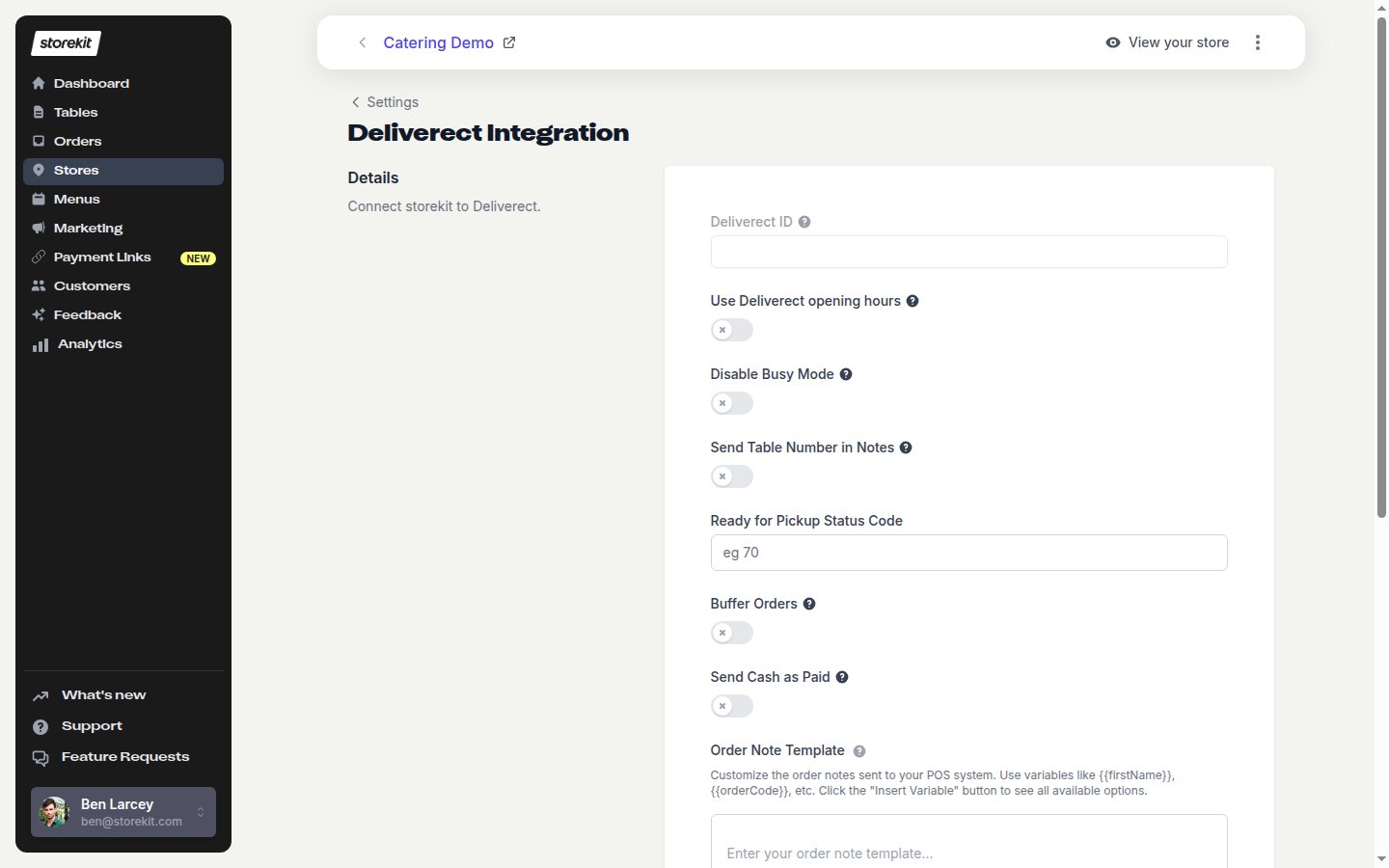
The Deliverect settings page
Deliverect Settings
After changing a setting, click Save in the top bar. The location ID is read-only. It appears after Location in the page header and at the top of Orders; contact storekit support to change it.Orders
Opening Hours & Busy Mode
Opening hours sync one way only, from Deliverect to storekit. storekit never sends opening hours to Deliverect.
- Use Deliverect opening hours on: each time you publish a menu in Deliverect, its availability hours replace the store’s weekly hours in storekit. A day with no Deliverect availability is set to closed. Changes you make in Stores → your store → Settings → Opening Hours last only until the next publication, so change hours in Deliverect.
- Use Deliverect opening hours off: storekit and Deliverect each keep their own hours. Changes in Opening Hours are not sent to Deliverect, so update the hours in Deliverect as well.
Order Details Sent
Disable busy mode in Opening hours & busy mode → Edit and Menu sync only in Orders → Edit → Show advanced both prevent Deliverect busy-mode statuses from changing store availability. With busy mode enabled,
PAUSED takes the storekit store offline and ONLINE brings it back online; BUSY is also received from Deliverect but does not itself change the store’s online state.