Open Tissl Settings
Go to Stores → your store → Settings → Integrations → Tissl.Tissl is available only when it is enabled for your account. If it is not listed under Integrations, contact storekit support.
Connect the Account and Store
1
Enter the account credentials
For the first store connected to the Tissl account, enter the API key and Organisation ID in the Connect to Tissl form. Ask Tissl support for these details.The Connect to Tissl button stays disabled until both fields are filled. storekit checks the credentials with Tissl before saving them; rejected credentials are not saved.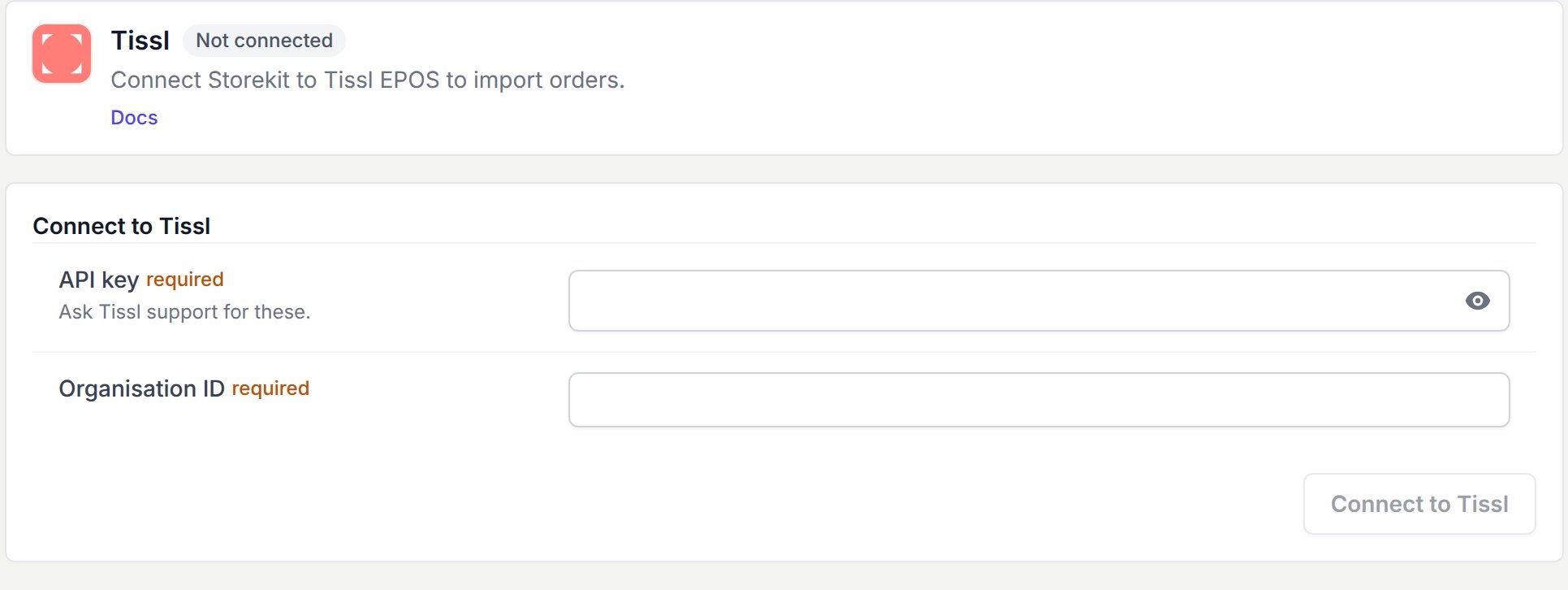
2
Reuse the connected account or enter different details
When the account already has Tissl credentials, select Connect this store to reuse them. Choose Use different details to enter a different API key and Organisation ID.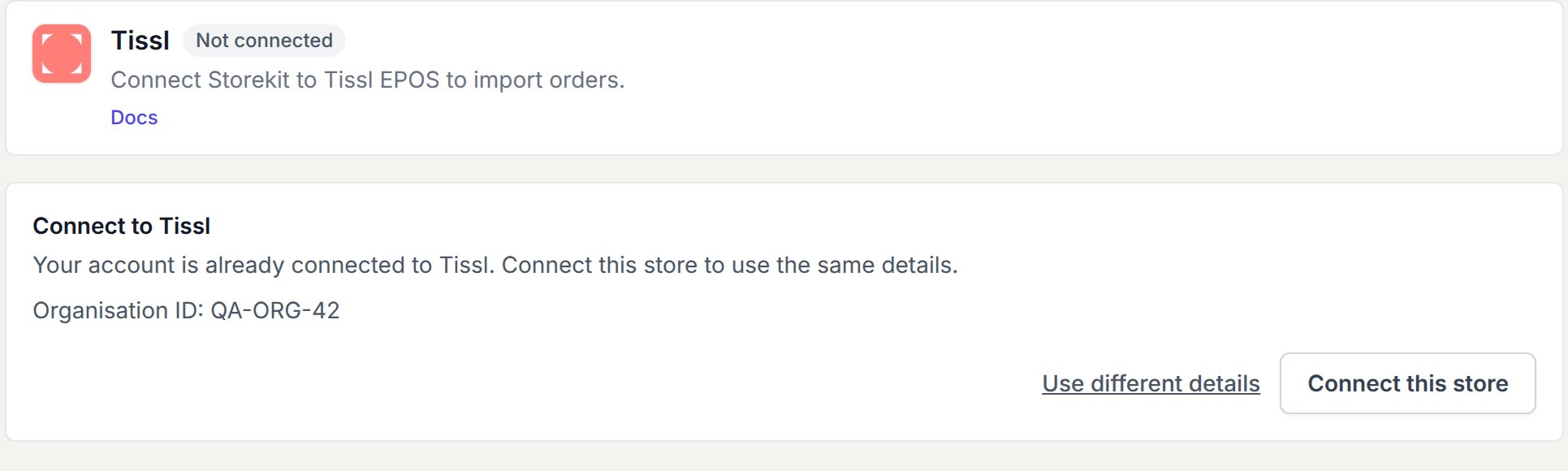
3
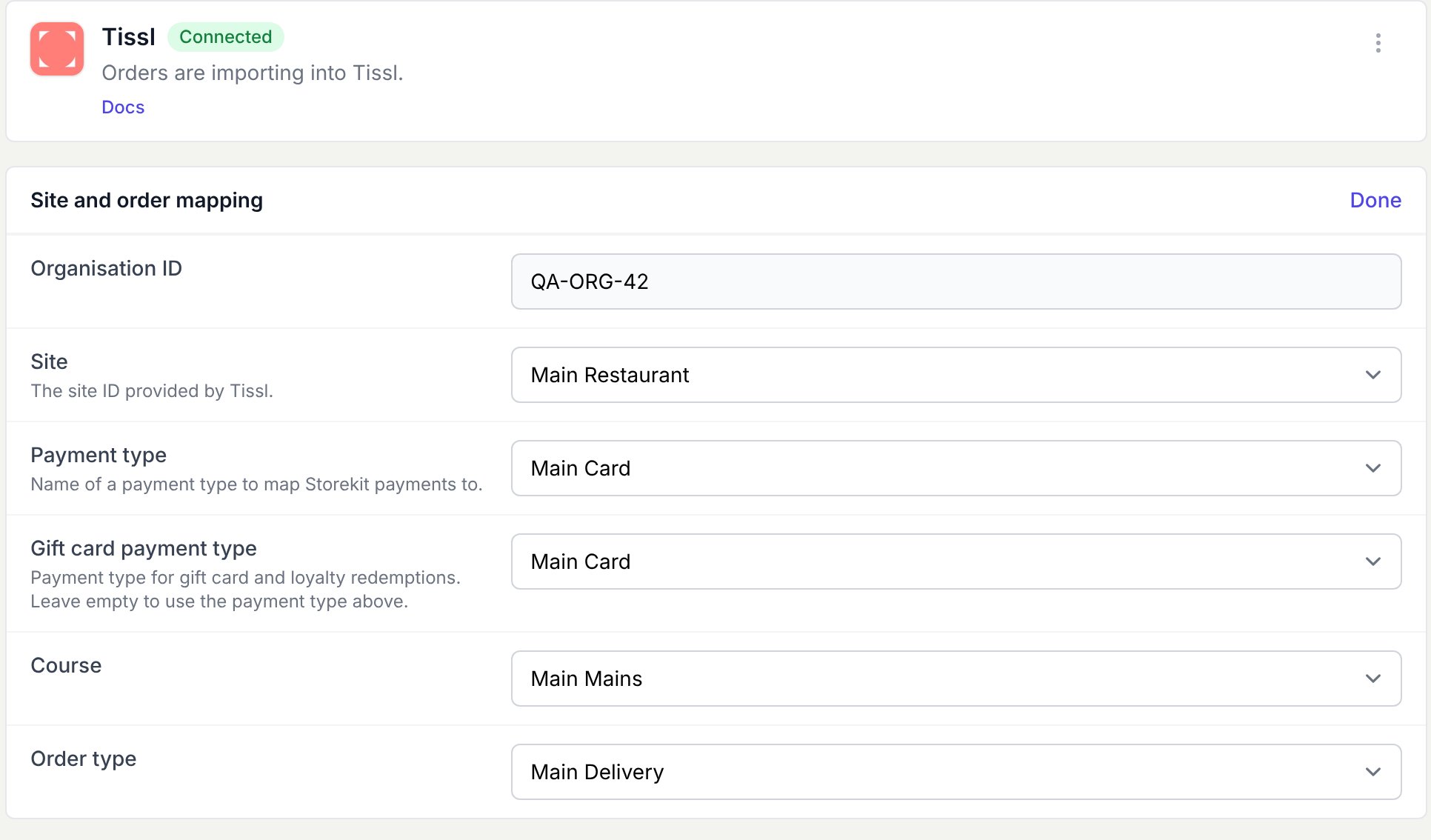
Choose the Site and review its mappings
A newly connected store is Disabled by default. Choose the store’s Site first. This loads that Site’s Payment type, Gift card payment type, Course, and Order type options.
4
Enable order dispatch when ready
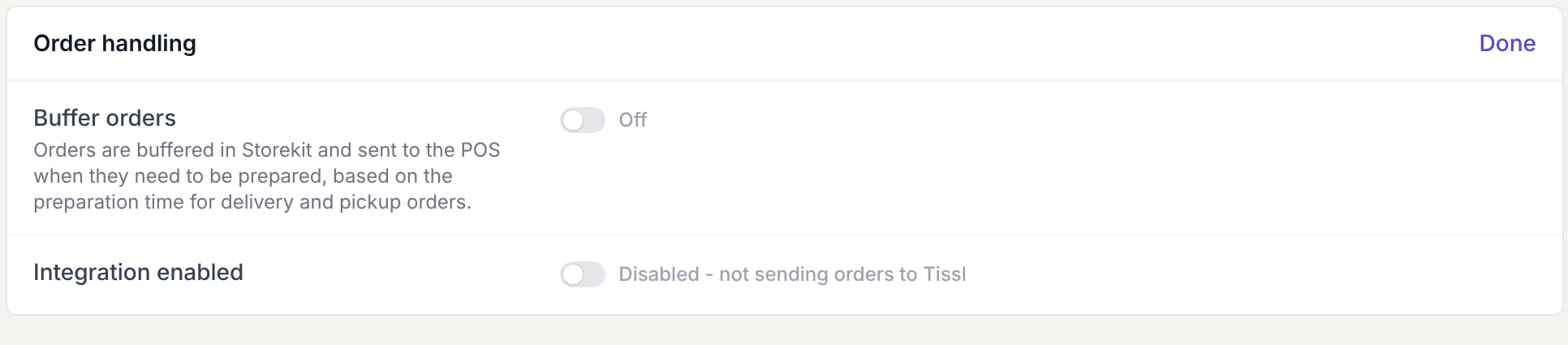
Confirm the mappings, turn on Integration enabled, and save the settings. Until the integration is enabled and a Site is selected, storekit does not dispatch orders to Tissl.
Change Account Details
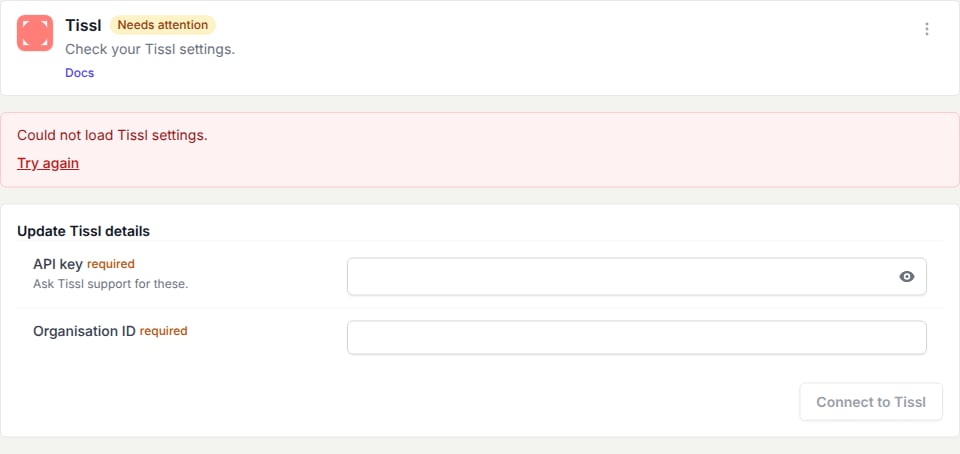
Reconnecting with credentials for the same Tissl Organisation keeps this store’s existing settings. If the Organisation ID changes, storekit clears this store’s Site and mappings and turns the integration off; choose the correct Site and review the mappings before enabling it again. Other stores’ saved settings are not reset by this store’s reconnection, so review their Site and mappings against the new Organisation.Recover From a Connection Error
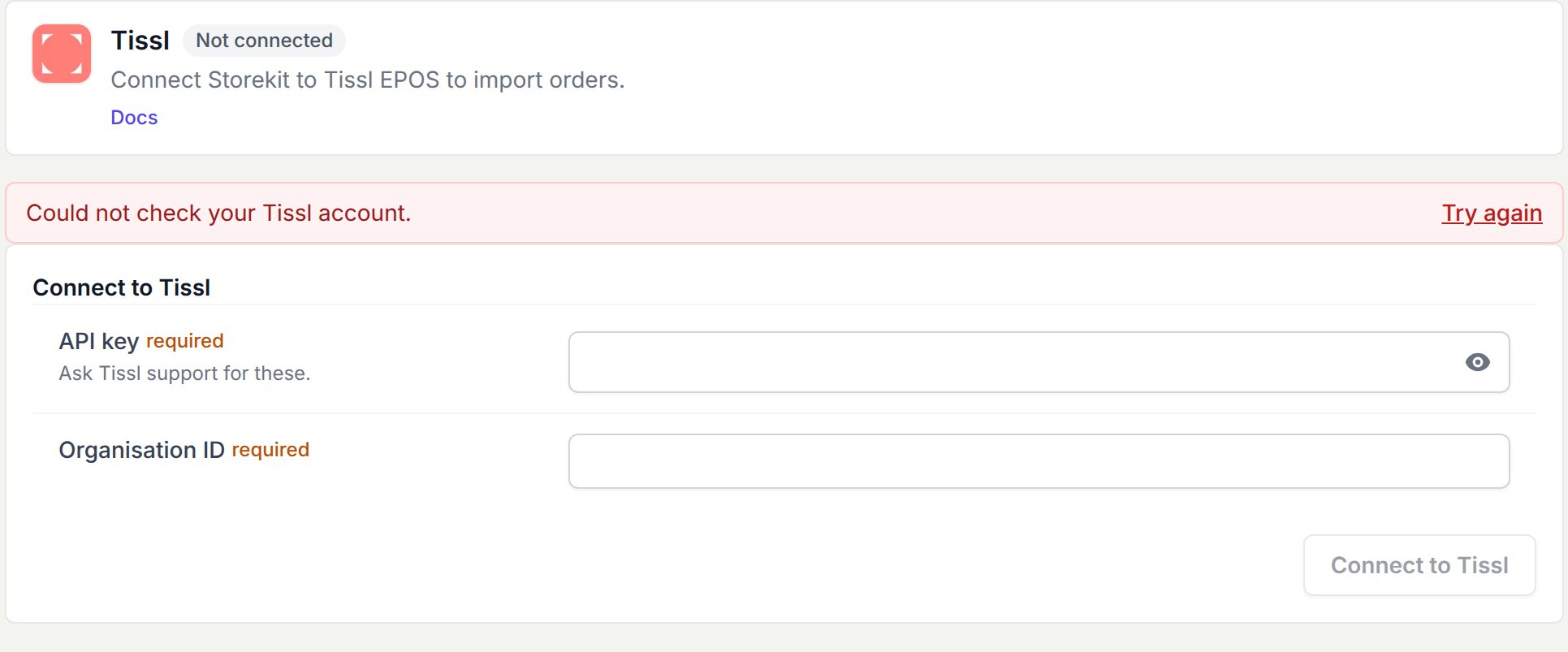
If the account check fails, the page shows Could not check your Tissl account. Select Try again to retry the check; the credential form remains available.