
There is no Sync Menu button for Comtrex. If you’re used to Lightspeed or Toast importing categories and products, expect to build the menu yourself — see CSV Import for the fastest way to do that.
How Linking Works
Every item on the till has an item number (Zonal usually calls it the PLU). When storekit sends an order it lists each product and modifier by that number, so the till can ring it through as the right item. storekit reads the number from the POS ID field on your product or modifier.Browse the Till Catalogue
You don’t have to ask Zonal for a list of item numbers — the dashboard can read them from the till.1
Open the Comtrex integration
Go to Stores → your store → Settings → Integrations → Comtrex. The connection has to be saved first (see Connecting Comtrex).
2
Load the catalogue
Scroll to Till catalogue and click Load catalogue. storekit asks the till for its item sync and shows a summary — for example 2 lists · 5 items · 1 modifier groups — followed by every list.
3
Find the item numbers
Expand a list to see each item’s name, its POS ID and its till price. Modifier groups are listed the same way with a Modifier badge. Copy the POS ID you need into the matching storekit product or modifier.
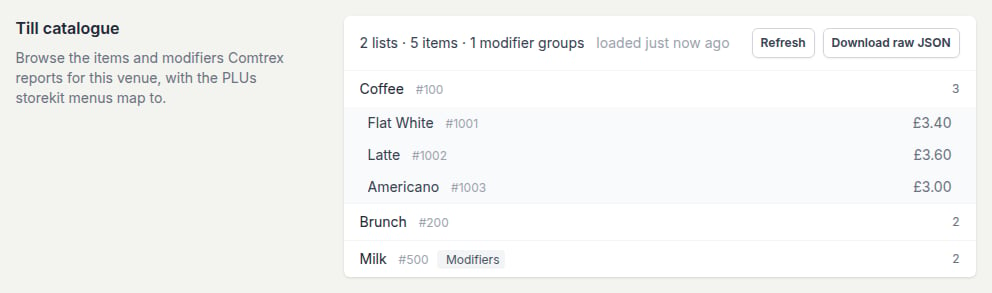
The Till catalogue section after Load catalogue
The catalogue is whatever the till returns to storekit’s item sync request. If an item you expect is missing, ask Zonal to check that it’s included in the lists the RTO interface publishes.
Link Products and Modifiers
- Products
- Modifiers
- In bulk
1
Open the product
Go to Menus, open your menu, and click a product to open the Edit product drawer.
2
Enter the POS ID
On the Details tab, scroll to POS ID and enter the till’s item number.
3
Save
Click Save changes. Repeat for every product.
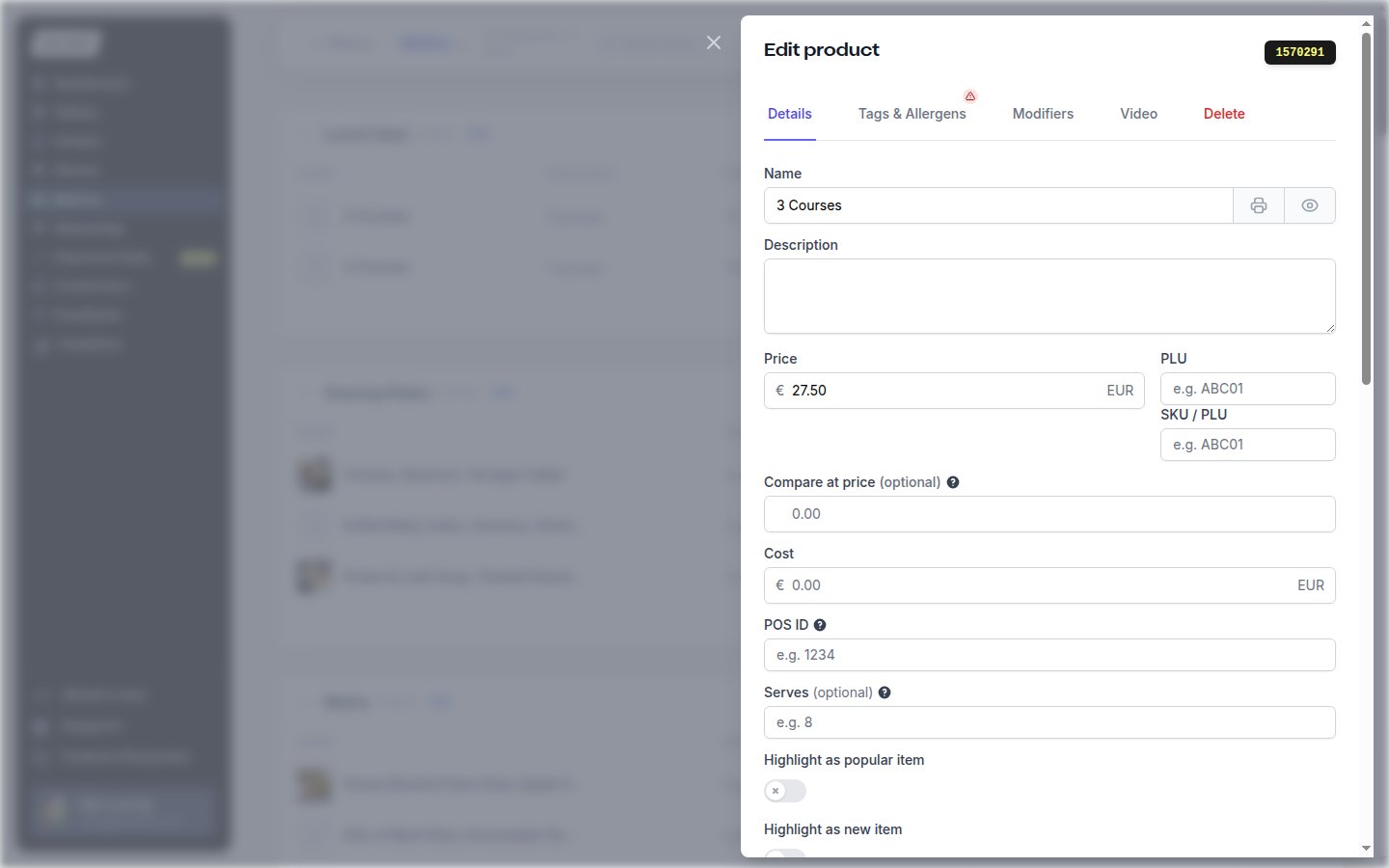
The POS ID field in the Edit product drawer
Price Sync
Once products are linked, Price sync pulls the till’s current prices into your storekit menu so the two never drift. It runs against your store’s active menu, updates only products whose POS ID matches an item in the till catalogue, and never creates, deletes or moves anything.
The Price sync section — preview first, then apply
1
Open the preview
In Stores → your store → Settings → Integrations → Comtrex, scroll to Price sync and click Preview price sync. storekit contacts the till — this can take up to two minutes — and shows the Price sync preview.
2
Review the changes
The summary reads N to update · N unchanged · N unmatched with the number of increases and decreases beneath. Each row shows the storekit item, the matching POS item, and the current and new price.
- Not found on the till lists products whose POS ID isn’t in the catalogue. Their prices won’t change — fix the POS ID or ask Zonal about the item.
- Conflicting till prices appears when the till reports more than one price for the same POS ID; the first price found will be applied.
- Tick Include tax rates to also copy each item’s tax rate from the till. The preview gains a Tax column so you can check it before applying.
3
Apply
Click Apply changes. The sync continues in the background and you’ll see Prices synced successfully when it finishes. Click Close to leave without changing anything.
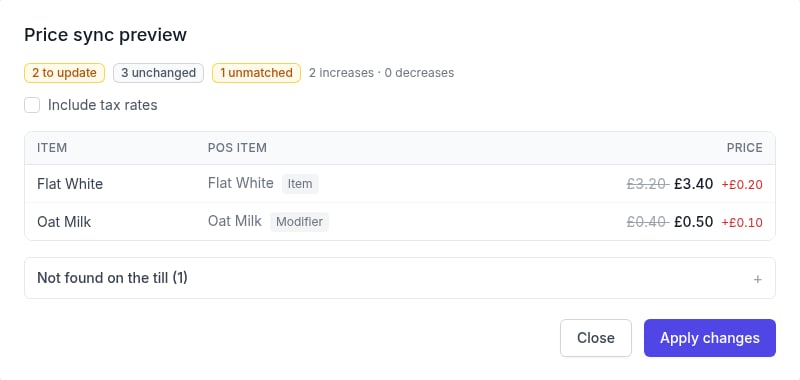
A Price sync preview with two price changes, three unchanged items and one product not found on the till
What Price Sync Does and Doesn’t Do
Price sync is always started by you from the dashboard. If Zonal changes prices on the till, rerun Preview price sync — nothing in storekit updates until you do.
Price sync reads the same catalogue as Till catalogue. If a product’s POS ID doesn’t appear there, it will show under Not found on the till even if the number is right on the till itself.
Next Steps
Orders
See how linked items are sent to the till
Troubleshooting
Fix missing items and unmatched POS IDs