
Connecting Comtrex
Enter the server address and vendor ID, load media types from the till, and turn the integration on
Menu Linking & Price Sync
Browse the till catalogue, set POS IDs, and pull prices from the till
Orders
What storekit sends to the till, sales types, scheduled orders, notes, cover counts and retries
Dine-in: Tables
Give each storekit table the till’s table number so orders land on the right check
Pay at Table
Let guests see and pay their open Comtrex check from their phone
Troubleshooting
Fix connection, linking, order and pay-at-table problems
How the Connection Works
storekit connects to the Comtrex Real Time Ordering interface on your site’s Comtrex server. You enter the server’s address in Server IP Address and the vendor name Zonal has set up for storekit in Vendor ID; storekit then posts every request tohttp://<address>/v10/jrequest.cgi on that server. There is no OAuth step and no Zonal cloud account to authorise — the Comtrex server just has to be reachable from storekit.
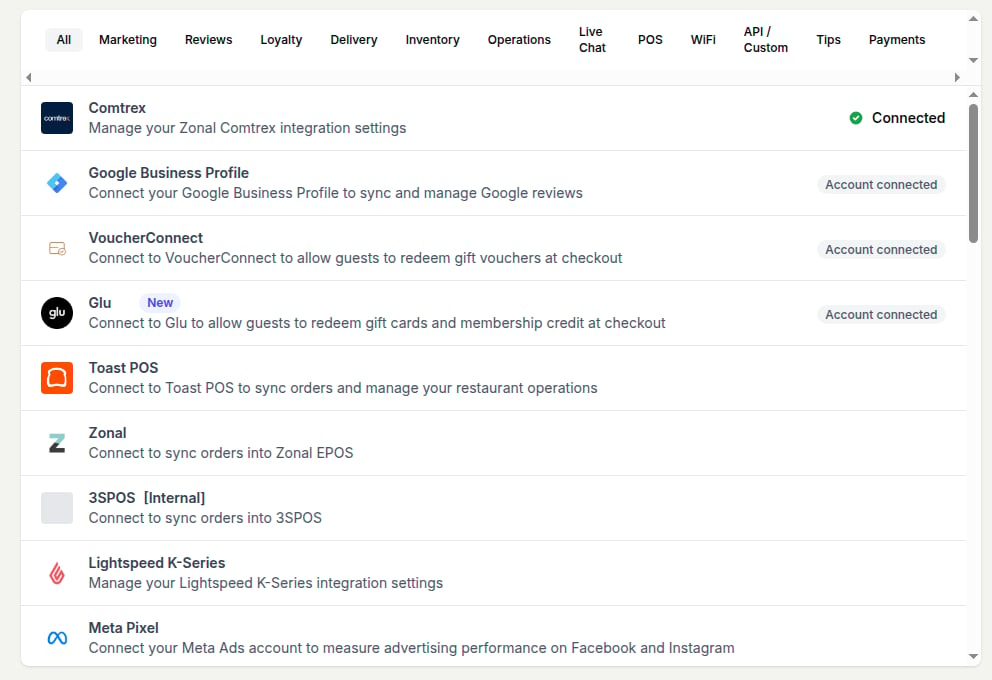
Comtrex on the Integrations list, marked Connected
The Comtrex integration is only available to accounts that have it enabled. If you don’t see Comtrex in your Integrations list, contact storekit support to have it turned on.
How Orders Flow to Comtrex
Supported Features
Orders
Orders
Pay at Table
Pay at Table
Store Setup
Store Setup
Related Guides
POS Integrations Overview
Compare Comtrex with storekit’s other POS integrations
Order Injection
How order injection works across POS providers
PLU Mapping
How storekit matches products to POS identifiers
Pay at Table
How pay-at-table works for guests and staff