
Create a Link
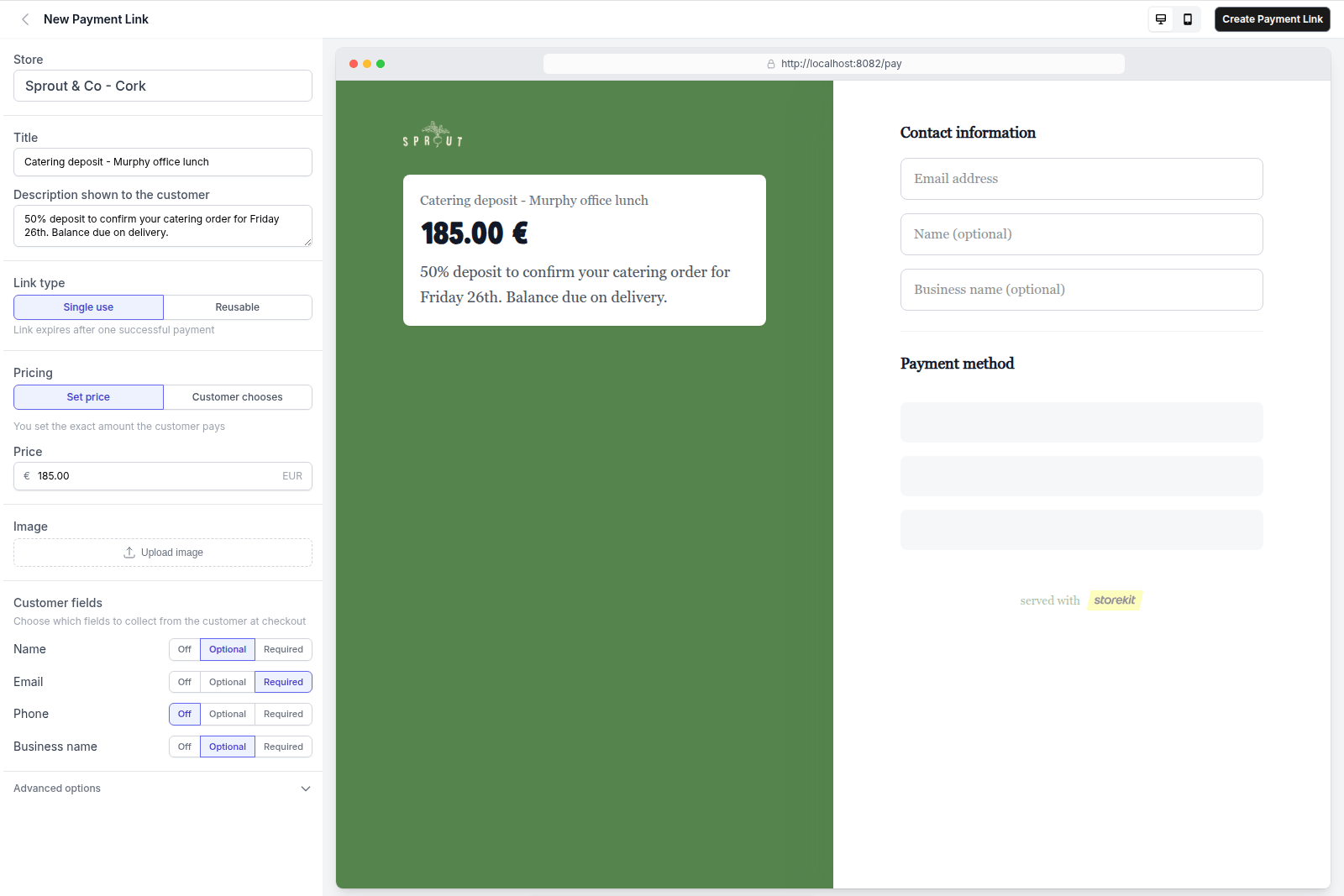
The New Payment Link page — the form on the left, a live preview of the customer checkout on the right (example data)
1
Open Payment Links
In the dashboard click Payment Links in the left-hand navigation.
2
Start a new link
Click Create Payment Link (on an empty list the button reads Create your first payment link). The New Payment Link page opens.
3
Choose the store
Under Store, select the store the money should be paid to. This cannot be changed after the link is created.
4
Give it a title
Enter a Title. This is the heading the customer sees on the checkout page, so make it specific: “Private dining deposit — Patel, 14 Oct” rather than “Deposit”.Optionally expand Description shown to the customer and add a sentence about what the payment covers.
5
Pick the link type
Under Link type choose:
- One-off — the link accepts a single successful payment and then closes.
- Reusable — the link stays open for multiple payments until you deactivate it, it expires, or it reaches its payment cap.
6
Set the pricing
Under Pricing choose:
- Set price — enter the Price. The customer pays exactly this amount.
- Customer chooses — the customer types an amount. Optionally enter a Minimum and Maximum to bound it.
7
Add an image (optional)
Under Image, upload a picture to show on the checkout page.
8
Choose customer fields
Under Customer fields, set each of Name, Email, Phone and Business name to Off, Optional or Required.If you collect an email address, the customer is sent a receipt after paying. Ask for at least one of Email or Phone on reusable links so you can match payments to people later.
9
Set advanced options (optional)
Expand Advanced options:
- Reference — an internal note (order number, invoice number, booking name). The customer sees it on the checkout page and it is stored against every payment.
- Link expiry date — the link stops accepting payments at this date and time and shows as Expired.
- Maximum number of payments — reusable links only. Once this many payments succeed the link closes.
- After successful payment — Show thank you (with an optional Custom thank you message) or Redirect to URL (enter the Redirect URL after payment).
10
Create
Click Create Payment Link. You are taken to the link’s detail page, where the Share panel shows the URL. See Sharing a Payment Link.
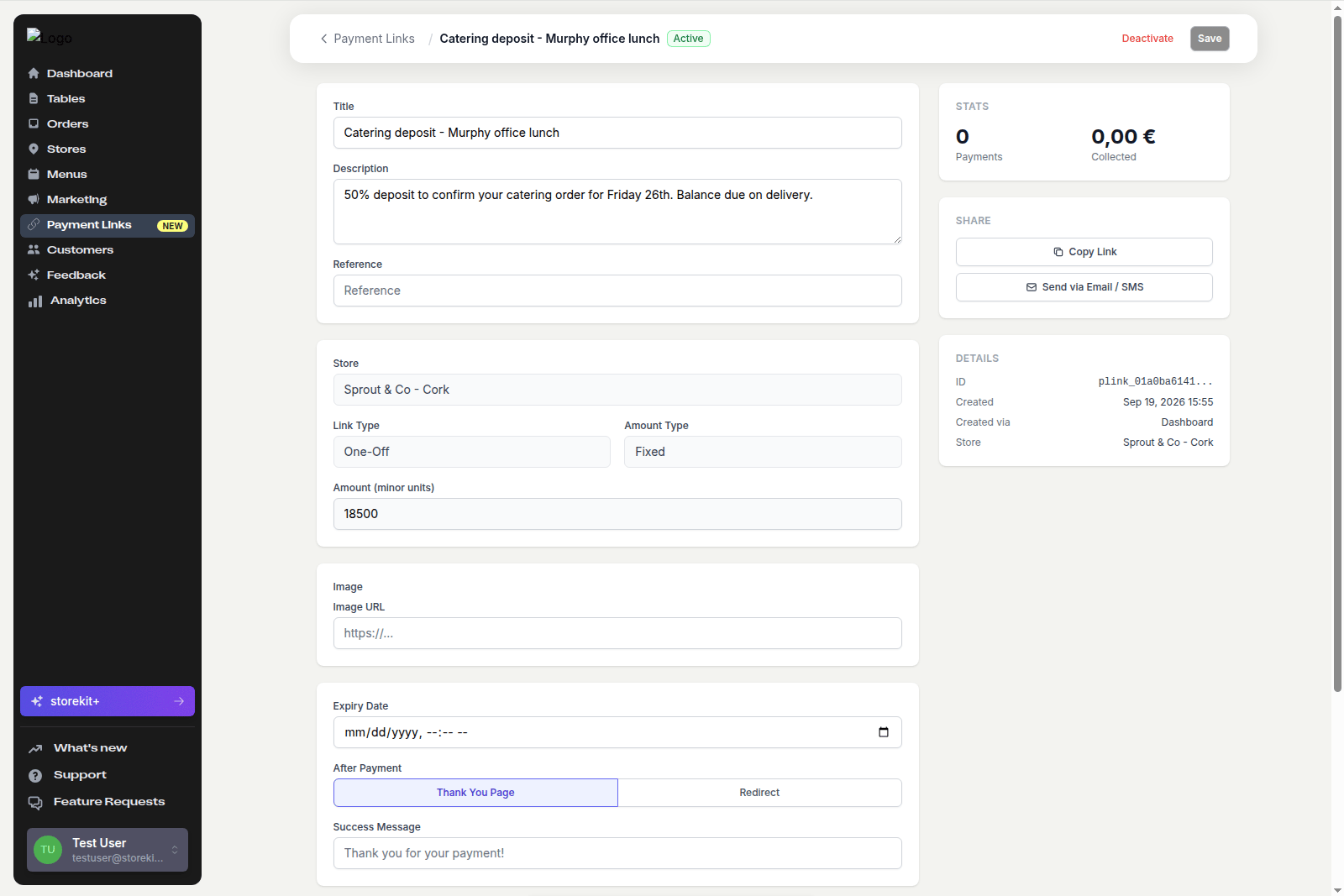
The detail page after creating a link (example data)
Which Fields Can Change Later
On the link’s detail page you can edit the title, description, reference, minimum and maximum, image, expiry date, payment cap and the after-payment behaviour, then click Save. The store, link type, pricing mode and set price are fixed once the link exists — create a new link if any of those need to change.Other Ways to Create a Link
- From an unpaid cash order — catering stores get a Send Payment Link prompt on the order page that pre-fills the amount. See Collecting Payment for an Unpaid Order.
- From an AI assistant — ask Claude, ChatGPT or another connected assistant to “create a £50 one-off payment link titled…”. Creating a link is a write action, so you approve it before it runs. See What you can ask.
Related Guides
Sharing a Payment Link
Copy the URL or send it by email or SMS.
Managing Payment Links
Filter, edit, deactivate and reactivate links.