
The Payment Links List
Choose a store from the selector at the top of the page. Each row shows Title, Type, Amount, Status, Store, Payments (successful payments so far) and Created. Click a row to open the link. Two sets of filters sit above the list:- Status: All, Active, Inactive, Expired
- Type: All, One-off, Reusable
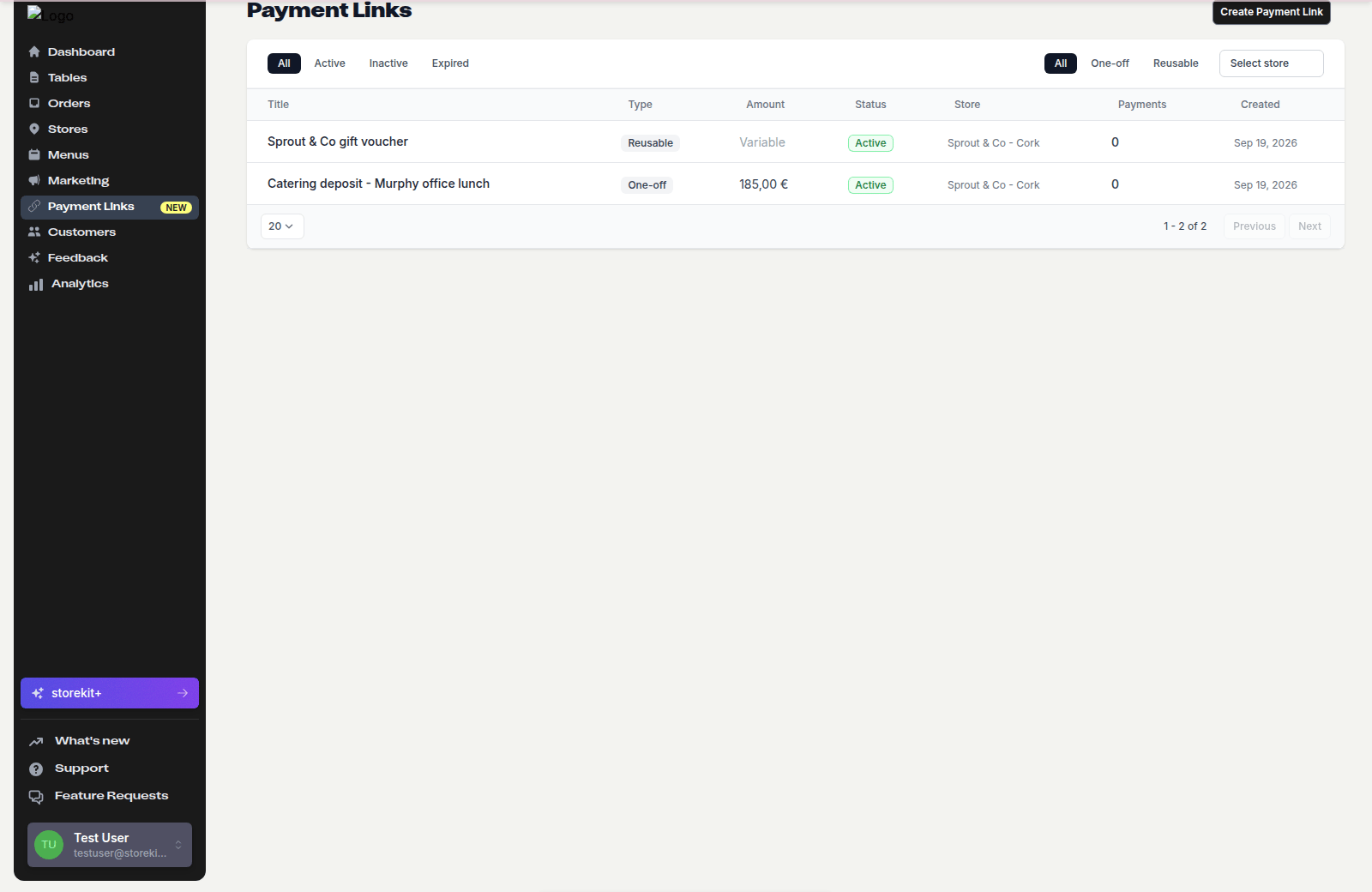
The Payment Links list with a reusable customer-chooses link and a one-off set-price link (example data)
Statuses
The status filter has no Completed option; choose All and look at the Status column.
Edit a Link
1
Open the link
Click Payment Links, then click the link in the list.
2
Change the fields
Edit the fields in the form on the left. The Store, Link Type, Amount Type and set amount are locked; everything else — Title, Description, Reference, Min Amount, Max Amount, Max Payments, Image, Expiry Date and After Payment — can change.
3
Save
Click Save in the bar at the top. Changes apply to the live link immediately; anyone who opens it afterwards sees the new details.
Deactivate a Link
Deactivate a link when it has been shared too widely, the price is wrong, or the thing it paid for is no longer on offer.1
Open the link
Click Payment Links, then click the link in the list.
2
Deactivate
Click Deactivate in the bar at the top and confirm. The link’s status becomes Inactive; anyone opening the URL sees that it is no longer available.
Reactivate a Link
Open an Inactive link and click Activate. The button only appears on links you deactivated yourself. Expired and Completed links cannot be reactivated from the dashboard. Create a new link instead.Expiry Dates and Payment Caps
Two settings close a link without you doing anything:- Link expiry date — a date and time after which the link shows Expired. Useful for deposits that must be paid by a deadline, or an early-bird price.
- Maximum number of payments — reusable links only. After this many successful payments the link becomes Completed. Useful for events with a fixed number of places.
Delete a Link
Payment links cannot be deleted from the dashboard. Deactivate the link instead; it stays in the list under the Inactive filter with its payment history intact.Related Guides
Refunds and Transactions
See who paid and refund a payment.
Payment Links Reference
Statuses, fields and IDs in one place.