
Copy the Link
1
Open the link
Click Payment Links in the left-hand navigation, then click the link in the list.
2
Copy
In the Share panel on the right, click Copy Link. The URL is on your clipboard; paste it wherever you talk to the customer.
Send by Email or SMS
storekit can send the link for you, branded with your store’s name and logo.1
Open the link
Click Payment Links in the left-hand navigation, then click the link in the list.
2
Open the send dialog
In the Share panel, click Send via Email / SMS. The Send Payment Link dialog opens.
3
Enter the recipient
Fill in Email, Phone or both. Use the international format for phone numbers (for example
+447700900123).4
Send
Click Send. The email comes from your store’s contact address where one is set, otherwise from
payments@storekit.com.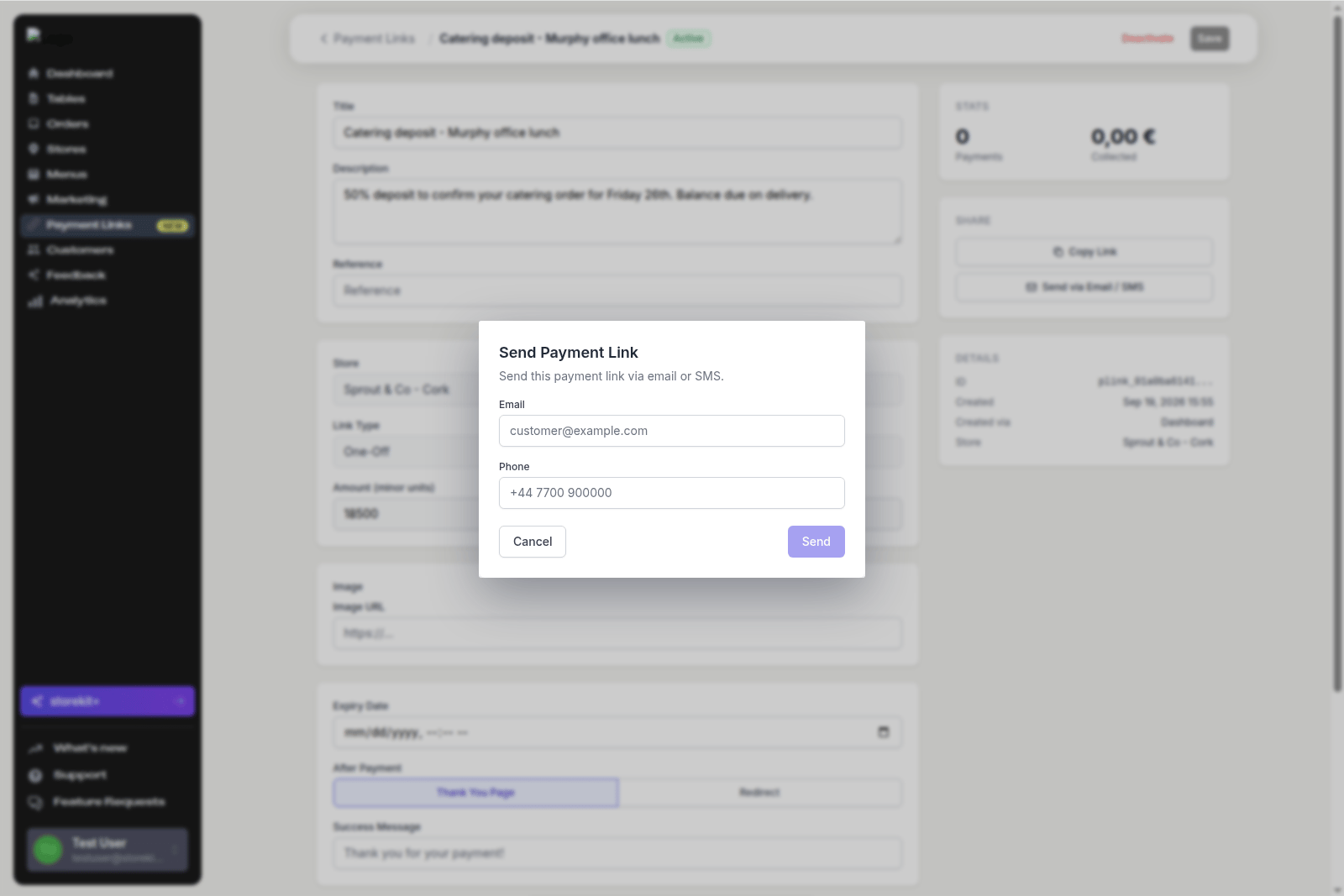
The Send Payment Link dialog
For a link created from an order page, the dashboard sends it to the email address or phone number on the order automatically, and offers Resend and Copy Link on the order. See Collecting Payment for an Unpaid Order.
QR Codes
A QR code that opens the payment link is useful on a printed menu, a counter card or an event poster. Reusable, customer-chooses links work well here because the same code serves everyone. The dashboard does not currently have a QR download button on the payment link page. To get a QR code:- Ask an AI assistant — a connected assistant can call the
get-payment-link-qrtool and return the image. See What you can ask. - Use any QR generator — paste the URL from Copy Link into the QR tool of your choice. The link is a normal URL and does not need to be generated by storekit.
Where to Put the Link
Related Guides
What Your Customer Sees
The page that opens when they tap the link.
Managing Payment Links
Deactivate a link that has been shared too widely.