Set up a storekit pickup screen on a TV, pair it with your account, choose stores and order types, and customise the board guests see while waiting to collect.
Enterprise required - Pickup screens are available on the Enterprise plan. Contact us to get started.
Show guests their order codes while they wait, then let them know when to collect. Each screen belongs to your account and can show orders from one or more stores, with its own styling and no storekit branding on the order board.
You need a TV with a web browser, or a TV stick with a web browser connected to a TV, and an internet connection. Keep the dashboard open on a separate computer so you can enter the code shown on the TV.
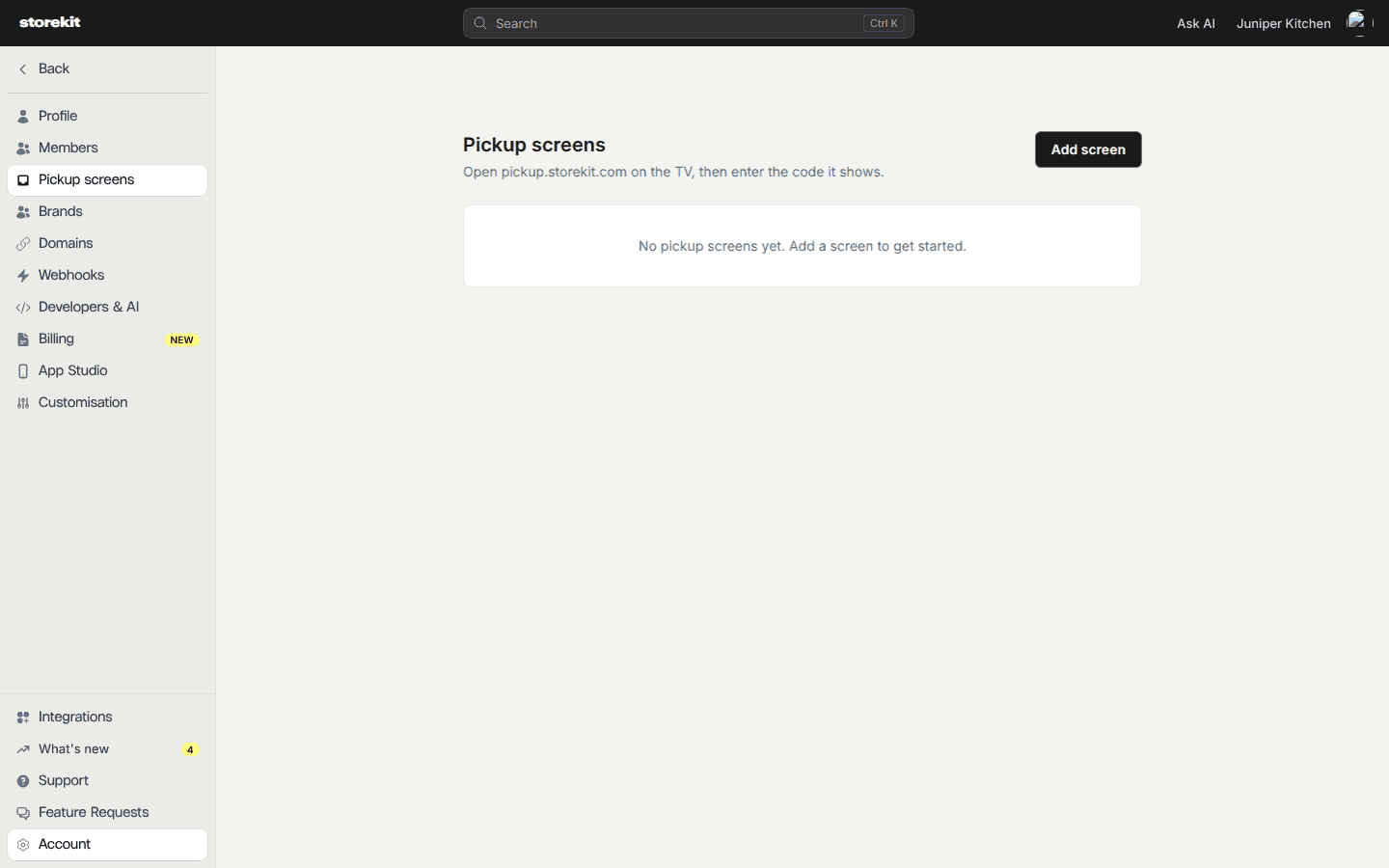
Click Settings in the dashboard side navigation, then Pickup screens. This is account settings, not a store’s settings.
Add your first pickup screen from account settings.
2
Get the TV's Pairing Code
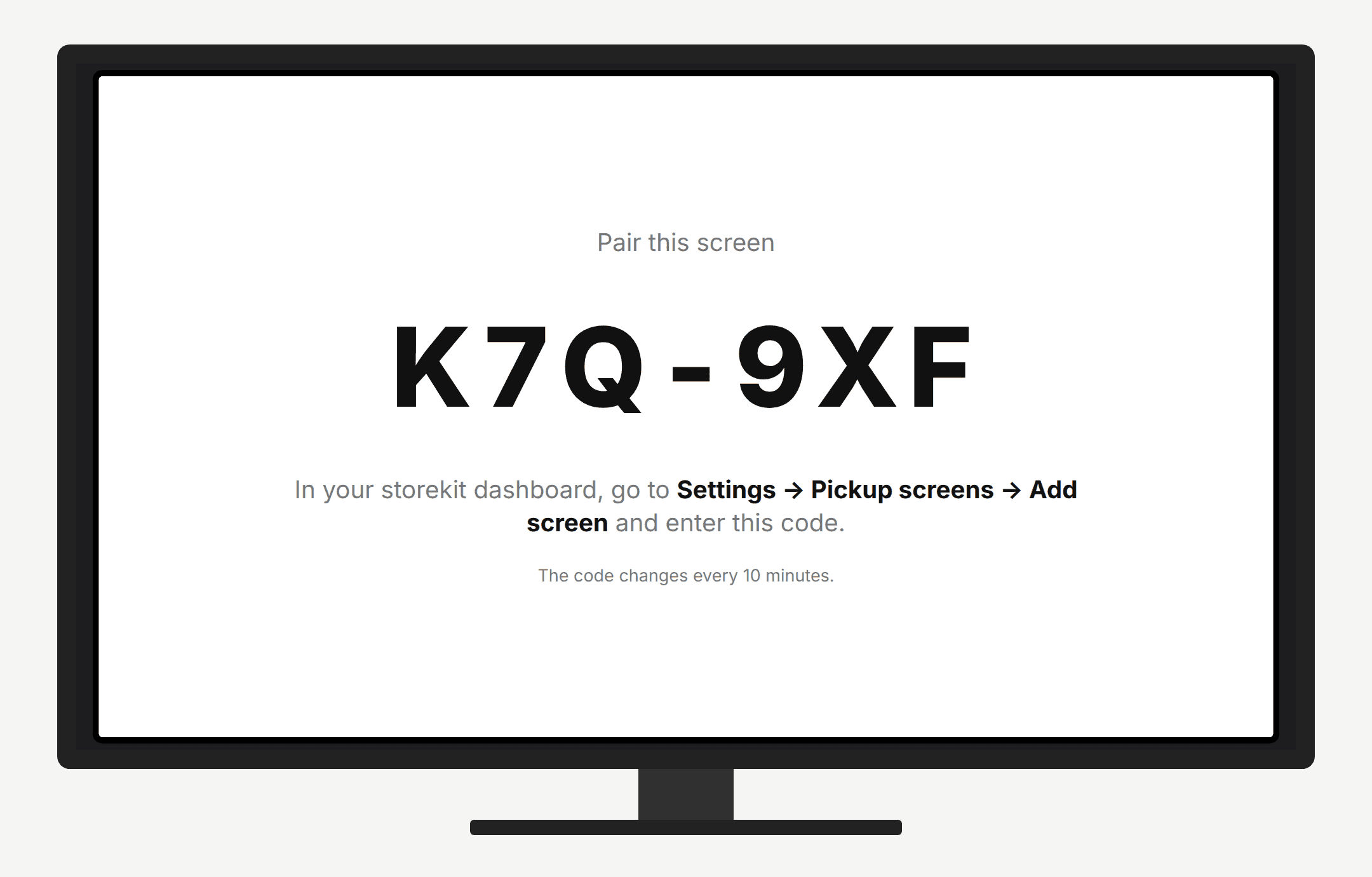
On the TV’s browser, visit pickup.storekit.com. The TV displays a six-character pairing code. Codes expire after 10 minutes; use the current code on the TV.
The TV shows the code to enter in the dashboard.
3
Add Your Screen
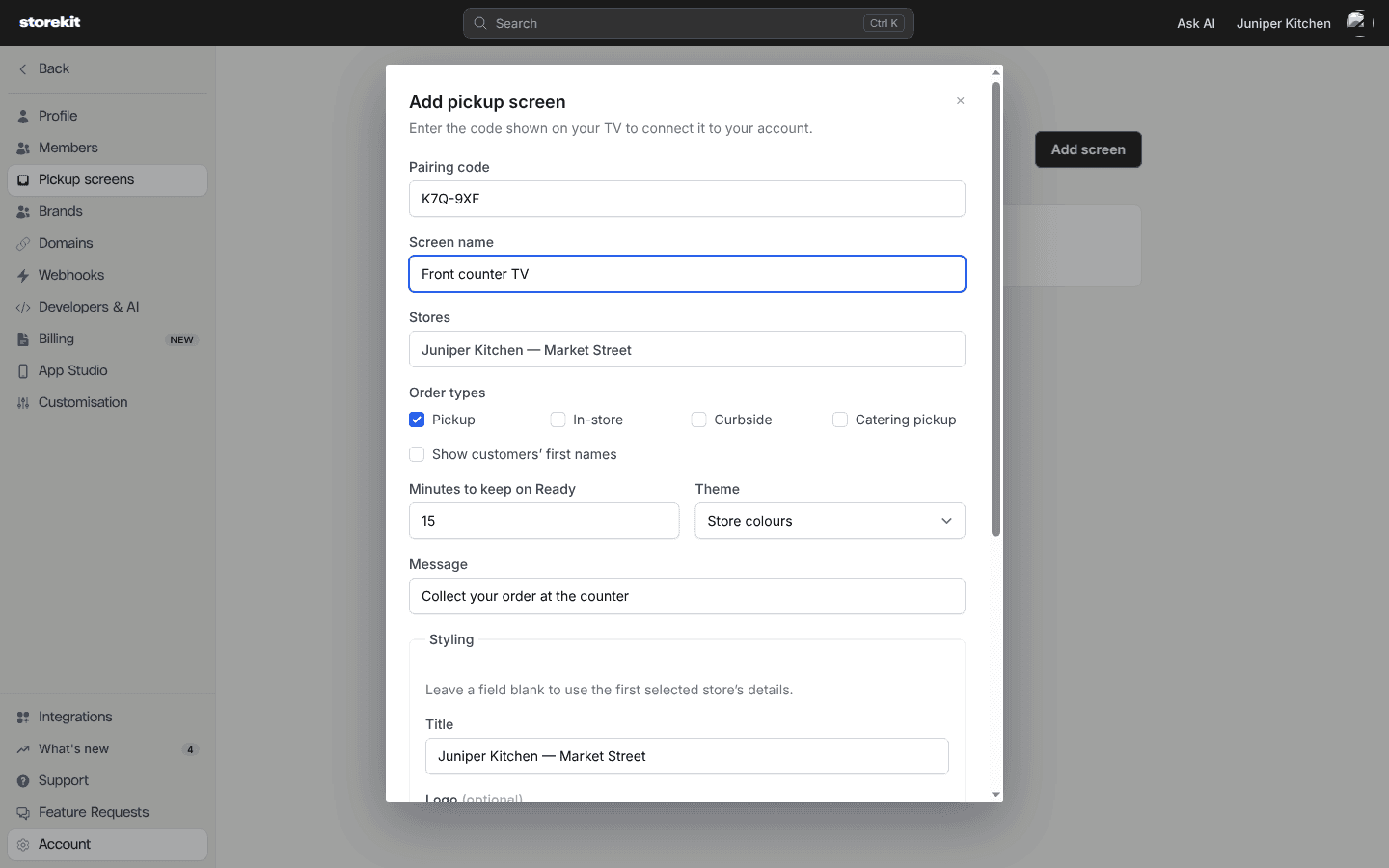
In the dashboard, click Add screen. Enter the TV’s code in Pairing code, give it a Screen name, and choose one or more Stores. Complete the fields below, then click Add screen to connect the TV.
Enter the TV's code and choose what this screen shows.
4
Check the Board
The TV replaces the code with your board. Check the title, logo and colours, and confirm that the correct stores are listed against the screen in the dashboard.
The six-character code on the TV. Only needed when adding a screen; the hyphen is optional.
Screen name
A name to identify the TV in the dashboard, up to 80 characters.
Stores
One or more stores from your account.
Order types
The fixed options are Pickup, In-store, Curbside and Catering pickup. Select at least one. The default is Pickup. There is no delivery option.
Show customers’ first names
Off by default. When enabled, the board can show the customer’s first name and last initial, such as Jane D., not their full surname. Names and store labels may be hidden when tiles are small.
Minutes to keep on Ready
A whole number from 1 to 120; the default is 15. Controls how long an order stays visible after its ready time, unless its status changes first.
Theme
The fixed options are Store colours, Light and Dark. The default is Store colours. Light and dark themes use a fixed background rather than your background colour.
Message
Footer text, up to 120 characters. The default is “Collect your order at the counter”. It also supplies the idle message during opening hours.
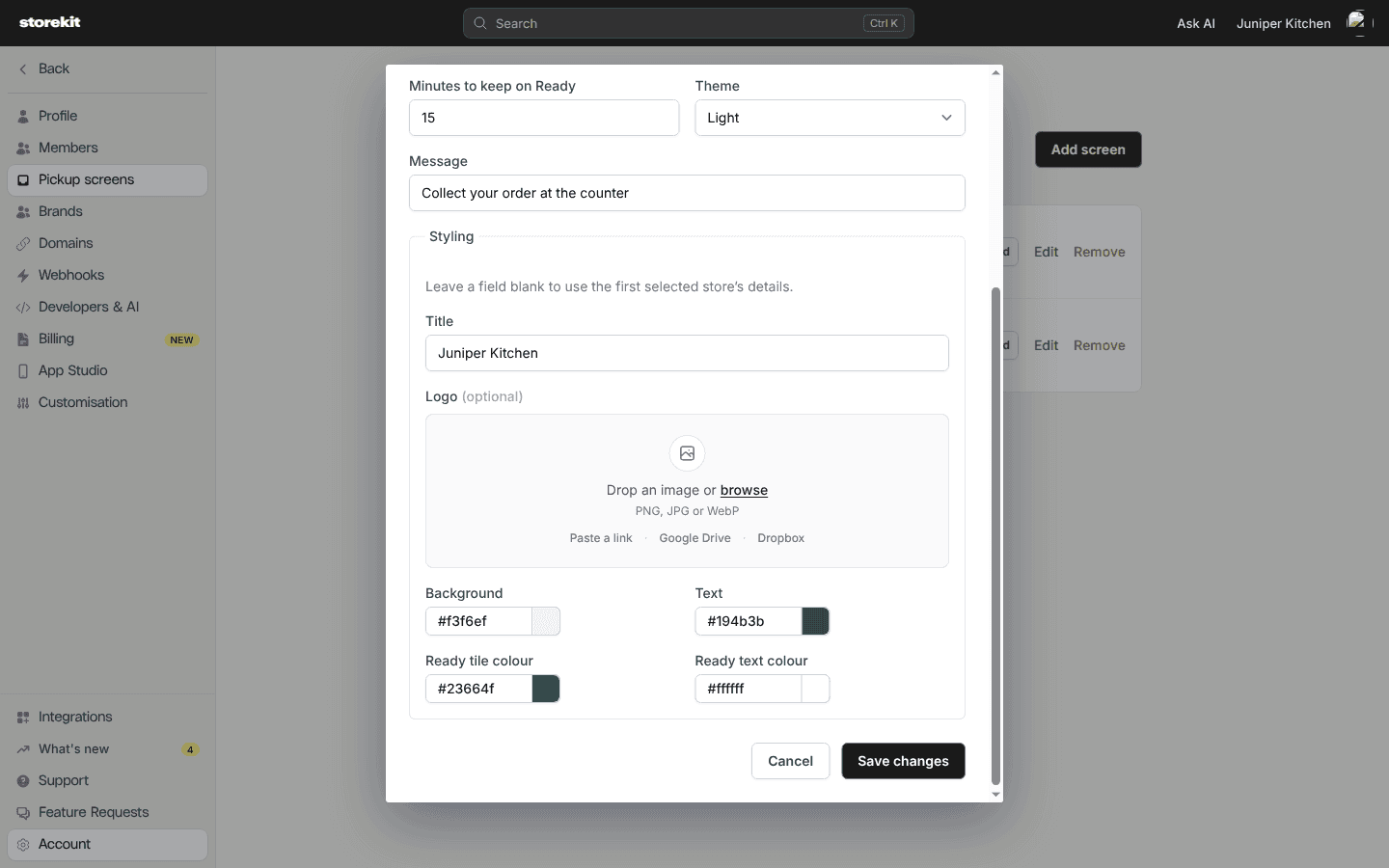
Under Styling, set the appearance for this screen. New screens prefill these fields from the first selected store. Leave a styling field blank to use that store’s details instead. Changing a screen’s styling does not change the store’s branding.
Customise the title, logo and colours for each screen.
Field
What it changes
Title
The board heading, up to 60 characters. Falls back to the first selected store’s name.
Logo
The image at the top of the board and on the idle screen. Falls back to the first selected store’s logo.
Background
The background when using Store colours.
Text
The preferred heading colour when using Store colours.
Ready tile colour
The colour used for ready-order tiles and, where readable, headings.
Ready text colour
The preferred text colour on ready-order tiles.
The board adjusts colours for contrast where needed, so a preferred text colour may be replaced with a more readable one. There is no custom layout or heading-text editor for the order columns.
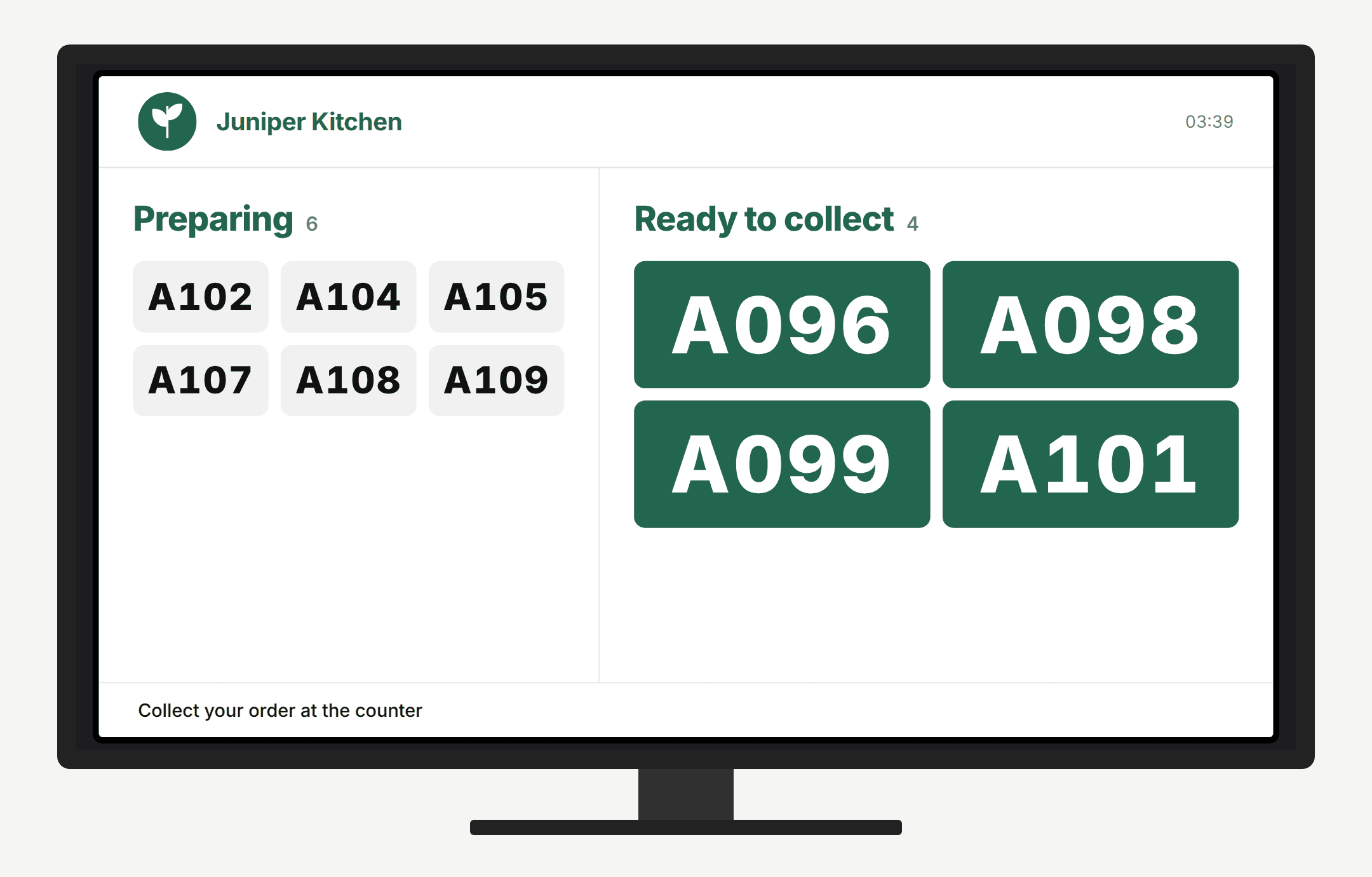
The board has two columns: “Preparing” and “Ready to collect”. It shows order codes, your title and logo, a clock, and your message. With multiple stores, tiles also show the store name when space allows. Busy columns rotate through pages automatically every eight seconds.
Light theme: six orders preparing and four ready to collect.
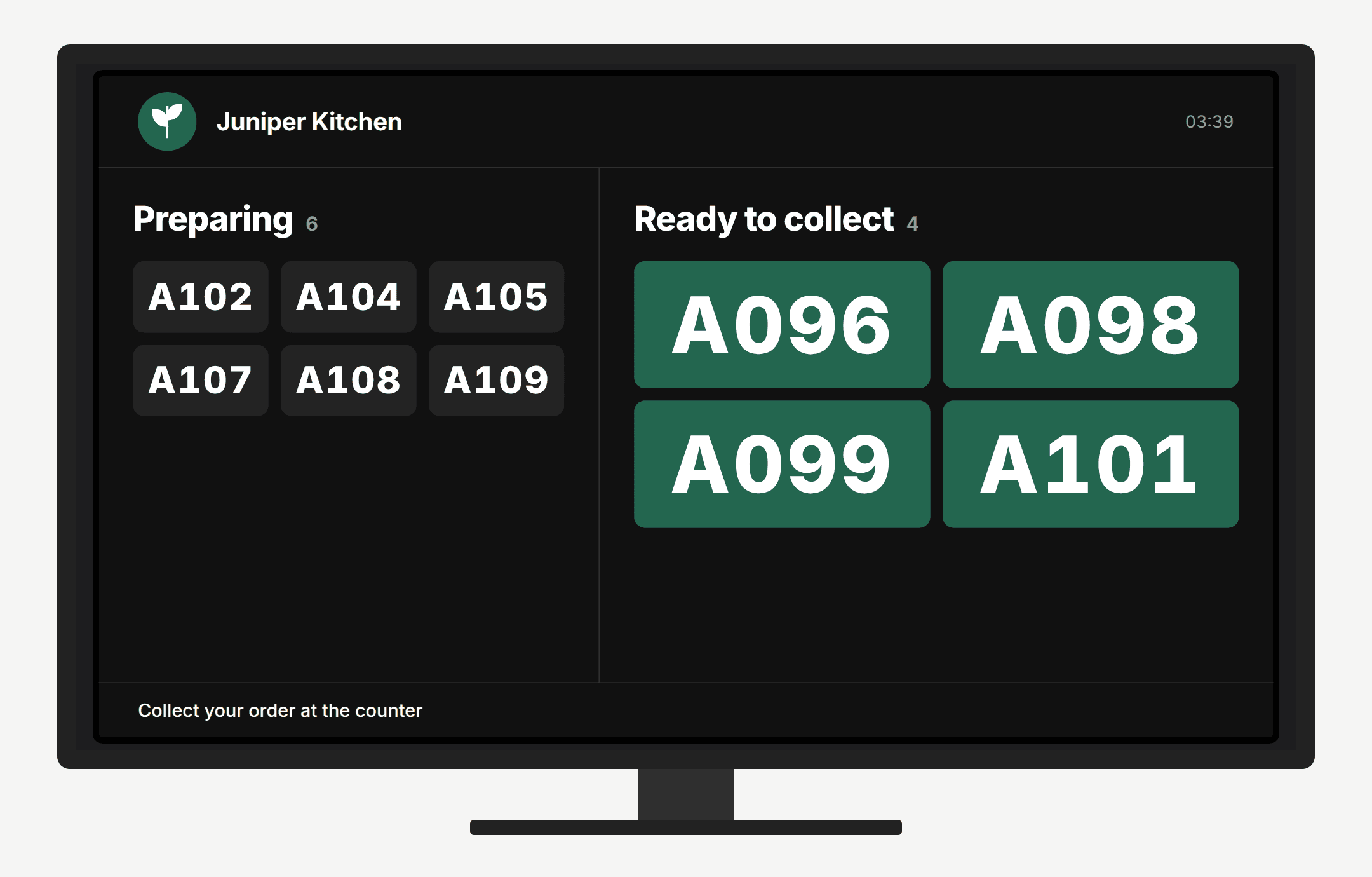
The same orders in the Dark theme.
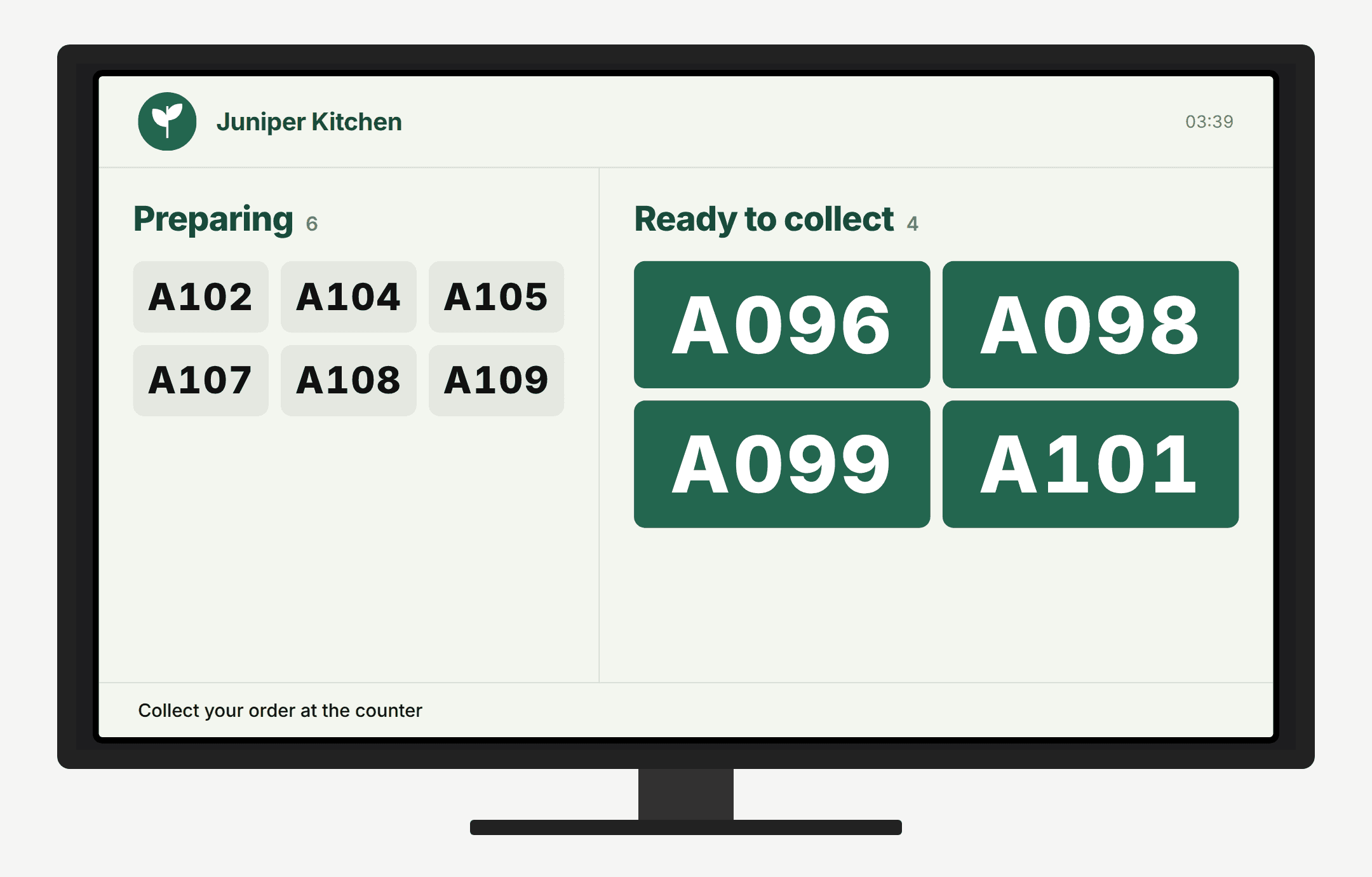
Store colours uses your screen's background and brand colours.
Preparing includes eligible orders with the statuses New, Received, Accepted or Preparing.
Ready to collect includes orders marked Ready for Pickup. If an order has a future ready time, it stays under Preparing until that time arrives.
Only the selected stores and order types appear. Draft and archived orders do not appear. Completed, cancelled and rejected orders do not remain on the board.
Pre-orders are not shown as soon as they are placed: their scheduled time controls when they appear. Orders already being prepared or marked ready can appear ahead of their scheduled time within the store’s current board window.
There is no item list, payment information or customer contact information on the TV board. There is no control on the TV to accept orders or change their status; continue managing orders through your usual workflow, such as Live Orders →.Each source column is limited to 200 orders. There is no dashboard setting to increase that limit or change the column status rules.
In Settings → Pickup screens, click Edit next to the screen, change the fields, then click Save changes. There is no pairing-code field when editing; you do not need to pair again to change stores or styling.Click Reload to request a browser refresh on the TV. The TV needs a working connection to receive the request. A reload is not a new pairing.Click Remove next to the screen and confirm the browser prompt to disconnect it. The TV stops showing orders and returns to pairing. Pair it again as a new screen if you want to reconnect it. There is no undo control for removing a screen.
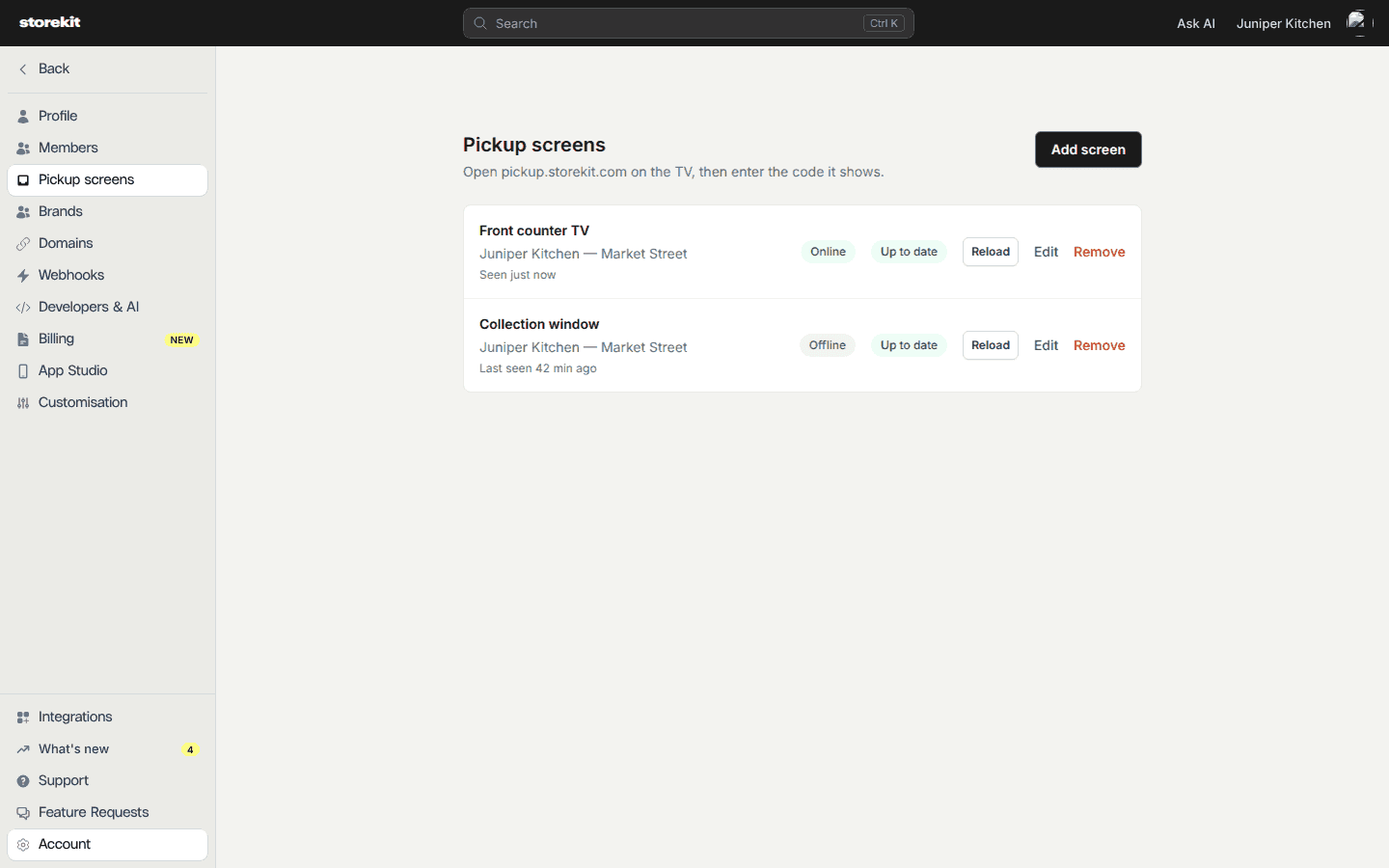
The dashboard shows Online when the TV has checked in within the last 11 minutes; otherwise it shows Offline. This allows for slower checks outside opening hours, so Online is not a guarantee that the TV is connected at this instant.The last-seen text is Never connected, Seen just now, or “Last seen” followed by the number of minutes since the last check-in. Refresh the dashboard page to fetch current screen details.
Check each screen's connection, last-seen time and software status.
Update waiting means the TV has detected a newer version of the screen app and reported that it is waiting to reload. It does not mean an order or styling change is waiting.
Up to date means the TV has reported an app version without a pending update. It reflects the TV’s last report, not a fresh software check by the dashboard.
Software updates normally reload automatically outside opening hours, on the pairing or idle screen, or after the board has been empty for two minutes. Use Reload if you need to request a refresh yourself.
Use the current code shown at pickup.storekit.com on the TV. Codes expire after 10 minutes and cannot be claimed again after pairing. Check the code, then try Add screen again. If repeated attempts are refused, wait before retrying rather than repeatedly generating codes.
Add screen is unavailable
Your account needs at least one store. To save the form, provide a screen name, at least one store, at least one order type, a valid six-character code, and a whole number from 1 to 120 for Minutes to keep on Ready.
An order is missing or is still under Preparing
Check Stores and Order types using Edit, then check the order’s status in Orders → Live Orders. Ready orders disappear when their ready display time expires or their status changes. A future ready time keeps an order under Preparing until that time arrives. Drafts, archived orders and orders outside the current board window are excluded.
The TV says Closed or shows an idle screen
An empty board shows “Closed” outside the selected stores’ opening hours. The hours check includes a 30-minute buffer before opening and after closing; any selected store being within that window keeps the screen in opening-hours mode. Special hours and each store’s time zone are taken into account. Stores without usable hours default to opening-hours mode.Outside those hours, the TV checks for board changes every five minutes. During opening hours it receives live updates, with a safety check every minute when connected, or every five seconds without the live connection. An empty board also becomes idle after 10 minutes during opening hours. Existing orders keep the board visible even outside opening hours. There is no separate opening-hours schedule for a screen.
The TV is reconnecting or orders look out of date
Check the TV’s internet connection. After a failed request and 30 seconds without a successful update, the TV warns that it is showing the last update. After five minutes it shows an offline warning. There is no offline live-order mode: the last displayed orders may be out of date. The TV retries automatically.
The TV asks to pair again
A removed screen or invalid connection credentials return the TV to pairing. The connection is stored in that browser, so keep using the same browser and avoid clearing its saved site data. Use the new code to add the screen again.
Was this page helpful?
⌘I
{"docsConfig":{"theme":"almond","$schema":"https://mintlify.com/docs.json","name":"docs","colors":{"primary":"#1a1a1a","light":"#6465dd","dark":"#6465dd"},"logo":{"light":"https://cdn.prod.website-files.com/6810c692b1c009a01454a09e/6810d382b85a065f11753ca6_SKLogo.svg","dark":"https://ucarecdn.com/20d662e7-f923-4257-abce-3cb8e7db1d7e/-/format/auto/","href":"https://storekit.com/docs"},"favicon":"https://mintcdn.com/storekit/gMJTuU6Q4-JZfRTr/logo/favicon.png?fit=max\u0026auto=format\u0026n=gMJTuU6Q4-JZfRTr\u0026q=85\u0026s=f2ffd46376b0bd15c7575ae113a1ce43","navbar":{"links":[{"href":"https://dashboard.storekit.com/login","label":"Login"}],"primary":{"type":"button","label":"Get Started","href":"https://dashboard.storekit.com/signup"}},"footer":{"socials":{"instagram":"https://www.instagram.com/storekit.official","linkedin":"https://linkedin.com/company/storekit"}},"seo":{"metatags":{"canonical":"https://storekit.com/docs"}},"styling":{"eyebrows":"breadcrumbs","latex":false},"integrations":{"intercom":{"appId":"im0h2j56"},"posthog":{"apiKey":"phc_IWPLrD4iPcAToPiAcQ5Z9geibVdBhJKhaC88LTMcEOP","sessionRecording":true}},"contextual":{"options":["copy","view","chatgpt","claude","perplexity","mcp","cursor","vscode"],"display":"header"},"navigation":{"global":{"anchors":[{"anchor":"storekit.com","icon":"globe","href":"https://storekit.com"},{"anchor":"Changelog","icon":"newspaper","href":"https://feedback.storekit.com/changelog"},{"anchor":"Status","icon":"signal-bars","href":"https://status.storekit.com"},{"anchor":"Feature Requests","icon":"lightbulb","href":"https://dashboard.storekit.com/feature-requests"}]},"languages":[{"language":"en","default":true,"href":""},{"language":"it","href":"it"},{"language":"nl","href":"nl"},{"language":"de","href":"de"},{"language":"fr","href":"fr"}]}},"deployment":{"deploymentMetadataValue":{"subdomain":"storekit","hasAudioNarration":false,"actualSubdomain":"storekit","customDomains":["storekit.com"],"gitSource":{"type":"github","owner":"store-kit","repo":"storekit","deployBranch":"master","contentDirectory":"apps/docs/docs","isPrivate":true,"mountPath":"","label":""},"feedback":{"thumbs":true,"agentFeedback":true},"entitlements":{"AI_CHAT":{"status":"ENABLED"},"WEB_MCP":{"status":"ENABLED"},"NARRATION":{"status":"ENABLED"}},"buildId":"6af4743529c5f8147342a7c9","clientVersion":"0.0.4102","searchFilterCounts":[{"language":"en","tag":"Documentation","count":608},{"language":"de","tag":"Documentation","count":512},{"language":"fr","tag":"Documentation","count":512},{"language":"it","tag":"Documentation","count":512},{"language":"nl","tag":"Documentation","count":512},{"language":"en","tag":"Integrations","count":109},{"language":"de","tag":"Integrations","count":84},{"language":"fr","tag":"Integrations","count":84},{"language":"it","tag":"Integrations","count":84},{"language":"nl","tag":"Integrations","count":84},{"language":"en","tag":"POS Systems","count":66},{"language":"de","tag":"POS Systems","count":58},{"language":"fr","tag":"POS Systems","count":58},{"language":"it","tag":"POS Systems","count":58},{"language":"nl","tag":"POS Systems","count":58},{"language":"en","tag":"Advanced","count":29},{"language":"de","tag":"Advanced","count":29},{"language":"fr","tag":"Advanced","count":29},{"language":"it","tag":"Advanced","count":29},{"language":"nl","tag":"Advanced","count":29},{"language":"en","tag":"Developers","count":27},{"language":"de","tag":"Developers","count":27},{"language":"fr","tag":"Developers","count":27},{"language":"it","tag":"Developers","count":27},{"language":"nl","tag":"Developers","count":27},{"language":"en","tag":"Menu","count":26},{"language":"de","tag":"Menu","count":26},{"language":"fr","tag":"Menu","count":26},{"language":"it","tag":"Menu","count":26},{"language":"nl","tag":"Menu","count":26},{"language":"en","tag":"Marketing","count":25},{"language":"en","tag":"Guides","count":20},{"language":"de","tag":"Getting Started","count":17},{"language":"fr","tag":"Getting Started","count":17},{"language":"it","tag":"Getting Started","count":17},{"language":"nl","tag":"Getting Started","count":17},{"language":"en","tag":"Getting Started","count":16},{"language":"en","tag":"Orders","count":16},{"language":"de","tag":"Guides","count":16},{"language":"de","tag":"Orders","count":16},{"language":"fr","tag":"Guides","count":16},{"language":"fr","tag":"Orders","count":16},{"language":"it","tag":"Guides","count":16},{"language":"it","tag":"Orders","count":16},{"language":"nl","tag":"Guides","count":16},{"language":"nl","tag":"Orders","count":16},{"language":"de","tag":"Discounts","count":15},{"language":"fr","tag":"Discounts","count":15},{"language":"it","tag":"Discounts","count":15},{"language":"nl","tag":"Discounts","count":15}],"searchSettings":{"showContentSnippets":true,"isFiltersEnabled":false}},"assistantConfig":{"enableAskAiButton":true,"enableStarterQuestions":false,"enableAskAiSearchBar":true,"deflection":{"enabled":true,"email":"cs@storekit.com","showHelpButton":true}},"basePath":"/docs","hasChatPermissions":true,"hasWebMcpPermissions":true,"toggles":[{"name":"kill-isr","enabled":true,"variant":{"name":"disabled","enabled":false,"feature_enabled":true},"impressionData":false},{"name":"custom-rbac-roles","enabled":true,"variant":{"name":"disabled","enabled":false,"feature_enabled":true},"impressionData":false},{"name":"agent-mintlify-slack","enabled":true,"variant":{"name":"disabled","enabled":false,"feature_enabled":true},"impressionData":false},{"name":"agent-integrations-settings","enabled":true,"variant":{"name":"disabled","enabled":false,"feature_enabled":true},"impressionData":false},{"name":"rbac-expansion","enabled":true,"variant":{"name":"disabled","enabled":false,"feature_enabled":true},"impressionData":false},{"name":"automations-pr-grouping","enabled":true,"variant":{"name":"disabled","enabled":false,"feature_enabled":true},"impressionData":false},{"name":"custom-prefix","enabled":true,"variant":{"name":"disabled","enabled":false,"feature_enabled":true},"impressionData":false},{"name":"analytics-v7","enabled":true,"variant":{"name":"disabled","enabled":false,"feature_enabled":true},"impressionData":false},{"name":"user-flows-analytics","enabled":true,"variant":{"name":"disabled","enabled":false,"feature_enabled":true},"impressionData":false},{"name":"no-publish-flow","enabled":true,"variant":{"name":"disabled","enabled":false,"feature_enabled":true},"impressionData":false},{"name":"workos-onboarding","enabled":true,"variant":{"name":"disabled","enabled":false,"feature_enabled":true},"impressionData":false},{"name":"llms-txt-v2","enabled":true,"variant":{"name":"disabled","enabled":false,"feature_enabled":true},"impressionData":false},{"name":"snapshot-serving-live","enabled":true,"variant":{"name":"disabled","enabled":false,"feature_enabled":true},"impressionData":false},{"name":"stripTemperatureMiddleware","enabled":true,"variant":{"name":"disabled","enabled":false,"feature_enabled":true},"impressionData":false},{"name":"support-platform-pylon-zendesk","enabled":true,"variant":{"name":"disabled","enabled":false,"feature_enabled":true},"impressionData":false},{"name":"snapshot-serving","enabled":true,"variant":{"name":"disabled","enabled":false,"feature_enabled":true},"impressionData":false},{"name":"instant-rollback","enabled":true,"variant":{"name":"disabled","enabled":false,"feature_enabled":true},"impressionData":false},{"name":"granular-notifications-server","enabled":true,"variant":{"name":"disabled","enabled":false,"feature_enabled":true},"impressionData":false},{"name":"granular-notifications","enabled":true,"variant":{"name":"disabled","enabled":false,"feature_enabled":true},"impressionData":false},{"name":"automations-fable","enabled":true,"variant":{"name":"disabled","enabled":false,"feature_enabled":true},"impressionData":false},{"name":"fixed-ai-action-pricing","enabled":true,"variant":{"name":"disabled","enabled":false,"feature_enabled":true},"impressionData":false},{"name":"automation-resolve-merge-conflict","enabled":true,"variant":{"name":"disabled","enabled":false,"feature_enabled":true},"impressionData":false},{"name":"scoped-publishing","enabled":true,"variant":{"name":"disabled","enabled":false,"feature_enabled":true},"impressionData":false},{"name":"mintql","enabled":true,"variant":{"name":"disabled","enabled":false,"feature_enabled":true},"impressionData":false},{"name":"page-level-analytics","enabled":true,"variant":{"name":"disabled","enabled":false,"feature_enabled":true},"impressionData":false},{"name":"editor-version-history-v2","enabled":true,"variant":{"name":"disabled","enabled":false,"feature_enabled":true},"impressionData":false},{"name":"billing-page-v2","enabled":true,"variant":{"name":"disabled","enabled":false,"feature_enabled":true},"impressionData":false},{"name":"full-page-search","enabled":true,"variant":{"name":"disabled","enabled":false,"feature_enabled":true},"impressionData":false},{"name":"workspace-projects","enabled":true,"variant":{"name":"disabled","enabled":false,"feature_enabled":true},"impressionData":false},{"name":"assistant-v5","enabled":true,"variant":{"name":"disabled","enabled":false,"feature_enabled":true},"impressionData":false},{"name":"fork-pr-previews","enabled":true,"variant":{"name":"disabled","enabled":false,"feature_enabled":true},"impressionData":false},{"name":"revalidation-jwt","enabled":true,"variant":{"name":"disabled","enabled":false,"feature_enabled":true},"impressionData":false},{"name":"workos-sso-scim","enabled":true,"variant":{"name":"disabled","enabled":false,"feature_enabled":true},"impressionData":false},{"name":"hobby-abuse-scan","enabled":true,"variant":{"name":"disabled","enabled":false,"feature_enabled":true},"impressionData":false},{"name":"dashboard-inbox","enabled":true,"variant":{"name":"disabled","enabled":false,"feature_enabled":true},"impressionData":false},{"name":"workos-signup","enabled":true,"variant":{"name":"disabled","enabled":false,"feature_enabled":true},"impressionData":false},{"name":"turbopuffer-dual-write","enabled":true,"variant":{"name":"disabled","enabled":false,"feature_enabled":true},"impressionData":false},{"name":"workos-enabled","enabled":true,"variant":{"name":"disabled","enabled":false,"feature_enabled":true},"impressionData":false},{"name":"approve-review-flow","enabled":true,"variant":{"name":"disabled","enabled":false,"feature_enabled":true},"impressionData":false},{"name":"editor-metadata","enabled":true,"variant":{"name":"disabled","enabled":false,"feature_enabled":true},"impressionData":false},{"name":"sso-setup-deadline-banner","enabled":true,"variant":{"name":"disabled","enabled":false,"feature_enabled":true},"impressionData":false},{"name":"turbopuffer-serve","enabled":true,"variant":{"name":"disabled","enabled":false,"feature_enabled":true},"impressionData":false},{"name":"live-agents","enabled":true,"variant":{"name":"disabled","enabled":false,"feature_enabled":true},"impressionData":false}],"privacy":{"consentBanner":{"enabled":false}},"googleFontsInlined":true},"customCss":[{"filePath":"style.css","content":"[class*=\"sidebar-group\"][data-collapsed=\"true\"] [class*=\"sidebar-group-header\"]::after{content:\"›\";margin-left:auto;transition:transform 0.2s ease}[class*=\"sidebar-group\"][data-collapsed=\"false\"] [class*=\"sidebar-group-header\"]::after{content:\"›\";margin-left:auto;transform:rotate(90deg);transition:transform 0.2s ease}[class*=\"sidebar-group-header\"]{cursor:pointer;user-select:none}[class*=\"sidebar-group-header\"]:hover{opacity:0.8}@font-face{font-family:\"Attila Sans Classic\";src:url(\"/docs/fonts/AttilaSansClassic-Black.woff2\") format(\"woff2\"),\n url(\"/fonts/AttilaSansClassic-Black.woff2\") format(\"woff2\");font-weight:900;font-display:swap}@font-face{font-family:\"Residenz Grotesk\";src:url(\"/docs/fonts/ResidenzGrotesk-Medium.woff2\") format(\"woff2\"),\n url(\"/fonts/ResidenzGrotesk-Medium.woff2\") format(\"woff2\");font-weight:500;font-display:swap}@font-face{font-family:\"Residenz Grotesk\";src:url(\"/docs/fonts/ResidenzGrotesk-Bold.woff2\") format(\"woff2\"),\n url(\"/fonts/ResidenzGrotesk-Bold.woff2\") format(\"woff2\");font-weight:700;font-display:swap}.sk-landing{--sk-bg: #fff;--sk-fg: #181818;--sk-fg-muted: #60605a;--sk-fg-subtle: #6a6a64;--sk-brand: #fdfe7d;--sk-brand-fg: #070707;--sk-border: #ececea;--sk-border-strong: #dededb;--sk-ease: cubic-bezier(0.16, 1, 0.3, 1);--sk-dur: 250ms;--sk-section: 64px;--sk-gutter: 56px;--sk-font-display: \"Attila Sans Classic\", \"Arial Black\", Impact, sans-serif;--sk-font-sans: \"Residenz Grotesk\", system-ui, -apple-system, \"Segoe UI\", sans-serif;box-sizing:border-box;min-height:100vh;background:var(--sk-bg);border-radius:16px;overflow:clip;color:var(--sk-fg);font:500 16px/1.55 var(--sk-font-sans)}.sk-landing *,.sk-landing *::before,.sk-landing *::after{box-sizing:border-box}.sk-landing a{color:inherit;text-decoration:none}.sk-landing h1,.sk-landing h2,.sk-landing h3,.sk-landing p,.sk-landing ul{margin:0;padding:0;color:inherit}.sk-landing ::selection{background:var(--sk-brand);color:var(--sk-brand-fg)}.sk-landing :focus-visible{outline:2px solid #6465dd;outline-offset:3px}.sk-wrap{max-width:1440px;margin:0 auto;padding:0 var(--sk-gutter)}.sk-section{padding-block:var(--sk-section)}.sk-rule{height:1px;background:var(--sk-border-strong);margin:0 auto;max-width:1280px}.sk-landing .sk-eyebrow{font:700 11px var(--sk-font-sans);letter-spacing:0.09em;text-transform:uppercase;color:var(--sk-fg-subtle);margin:0 0 16px}.sk-display{font-family:var(--sk-font-display);font-weight:900;text-transform:uppercase;line-height:0.9;letter-spacing:-0.01em;text-wrap:balance}.sk-display--xl{font-size:clamp(64px, 5.5vw, 84px)}.sk-display--md{font-size:34px;letter-spacing:0.6px;line-height:1}.sk-landing .sk-body{color:var(--sk-fg-muted);max-width:60ch;margin:16px 0 0;font-size:15px}.sk-head{display:flex;flex-wrap:wrap;align-items:end;justify-content:space-between;gap:16px 40px}.sk-head .sk-body{margin-top:12px}.sk-ghost{font:700 11px var(--sk-font-sans);text-transform:uppercase;letter-spacing:0.06em;color:var(--sk-fg-muted);white-space:nowrap;border-bottom:1px solid #a5a59e;padding-bottom:4px}.sk-ghost:hover{color:var(--sk-fg)}.sk-hero{--sk-fg: #fff;--sk-fg-muted: #d3d3d0;--sk-fg-subtle: #d8d8d4;display:grid;grid-template-columns:1.08fr 1fr;gap:0 36px;align-items:center;margin-inline:calc(-1 * var(--sk-gutter));padding:64px var(--sk-gutter) 34px;background:#30302e url(\"/images/hero-studio-scene.avif\") center 54% / cover;color:var(--sk-fg);text-align:left}.sk-landing .sk-hero .sk-eyebrow{grid-column:1 / -1;color:#ecece8;margin-bottom:22px;font-size:12px;letter-spacing:0.08em}.sk-hero .sk-eyebrow::before{content:\"\";display:inline-block;width:7px;height:7px;margin-right:10px;background:var(--sk-brand);vertical-align:1px}.sk-hero .sk-display{grid-column:1;grid-row:2 / 4;line-height:0.93}.sk-landing .sk-hero .sk-body{grid-column:2;grid-row:2;margin:0;font-size:17px;max-width:42ch}.sk-hero__controls{grid-column:2;grid-row:3;align-self:start;display:flex;margin-top:24px}.sk-search{display:flex;align-items:center;gap:14px;width:min(720px, 100%);height:58px;padding:0 8px 0 17px;border-radius:6px;border:1px solid #fff;background:#fff;color:#62625e;font:inherit;font-size:13px;text-align:left;cursor:text}.sk-search svg{flex:none;width:18px;height:18px;color:#454540}.sk-search__hint{flex:1;min-width:0;overflow:hidden;text-overflow:ellipsis;white-space:nowrap}.sk-search__cta{display:inline-flex;align-items:center;height:40px;padding:0 18px;border-radius:4px;background:var(--sk-brand);color:var(--sk-brand-fg);font:700 12px var(--sk-font-sans);text-transform:uppercase;letter-spacing:0.06em;transition:transform var(--sk-dur) var(--sk-ease)}.sk-search:hover .sk-search__cta{transform:translateY(-1px)}.sk-hero__links{grid-column:1 / -1;display:flex;gap:26px;flex-wrap:wrap;margin-top:38px;padding-top:22px;border-top:1px solid #ffffff30;font-size:12px;color:#e1e1dd}.sk-hero__links a:hover{color:var(--sk-fg);text-decoration:underline;text-decoration-color:var(--sk-brand);text-underline-offset:4px}.sk-status-dot{display:inline-block;width:8px;height:8px;border-radius:50%;background:currentColor;margin-right:8px;vertical-align:1px}.sk-status-dot--up{background:#16a34a}.sk-status-dot--degraded{background:#f59e0b}.sk-status-dot--down{background:#dc2626}.sk-tile-group{display:grid;gap:16px;margin-top:32px}.sk-cols-4{grid-template-columns:repeat(4, 1fr)}.sk-cols-3{grid-template-columns:repeat(3, 1fr)}.sk-cols-2{grid-template-columns:repeat(2, 1fr)}@media (max-width: 1024px){.sk-cols-4,.sk-cols-3{grid-template-columns:repeat(2, 1fr)}}@media (max-width: 639px){.sk-cols-2{grid-template-columns:1fr}}.sk-tile{position:relative;display:flex;flex-direction:column;border:1px solid #eaeae5;border-radius:8px;overflow:hidden;background:#fafaf8;padding:22px;min-height:194px;transition:background var(--sk-dur) var(--sk-ease), border-color var(--sk-dur) var(--sk-ease)}.sk-tile:hover{border-color:#aaa99e;background:#f5f5ef}.sk-tile__meta{font:700 10px var(--sk-font-sans);letter-spacing:0.07em;text-transform:uppercase;color:#71716a;margin-bottom:8px}.sk-landing .sk-tile__title{font:700 17px/1.3 var(--sk-font-sans);margin:12px 0 10px;text-wrap:pretty}.sk-landing .sk-tile__desc{color:var(--sk-fg-muted);font-size:13px;line-height:1.55}.sk-tile__arrow{position:absolute;top:18px;right:19px;font-size:18px;color:var(--sk-fg-muted);transition:transform var(--sk-dur) var(--sk-ease)}.sk-tile:hover .sk-tile__arrow{transform:translateX(4px);color:var(--sk-fg)}a.sk-tile:hover .sk-tile__title,.sk-hub .sk-tile__title a:hover{text-decoration:underline;text-decoration-color:#7c7c55;text-underline-offset:4px}@media (prefers-reduced-motion: reduce){.sk-landing *,.sk-landing *::before,.sk-landing *::after{transition:none}}@media (max-width: 1150px){.sk-landing{--sk-gutter: 36px}.sk-display--xl{font-size:64px}}@media (max-width: 850px){.sk-hero{display:block}.sk-landing .sk-hero .sk-body{margin-top:22px}}@media (max-width: 639px){.sk-landing{--sk-gutter: 24px;--sk-section: 40px;border-radius:0}.sk-hero{padding-block:44px 30px}.sk-display--xl{font-size:52px}.sk-display--md{font-size:30px}.sk-landing .sk-hero .sk-body{font-size:15px}.sk-hero__controls{margin-top:26px}.sk-search{font-size:12px}.sk-hero__links{gap:15px;font-size:11px;margin-top:24px;padding-top:20px}.sk-tile-group{grid-template-columns:1fr;gap:12px;margin-top:24px}.sk-tile{min-height:0}.sk-landing .sk-tile__desc{font-size:14px}}.sk-hub .sk-tile{min-height:0;padding-bottom:18px}.sk-landing .sk-hub .sk-tile__title{margin-top:0}.sk-hub ul{list-style:none;margin-top:10px;display:flex;flex-direction:column;gap:6px}.sk-hub li a{font-size:13px;color:var(--sk-fg-muted);display:flex;gap:8px}.sk-hub li a::before{content:\"→\";color:var(--sk-fg-subtle)}.sk-hub li a:hover{color:var(--sk-fg)}.sk-split .sk-tile{min-height:220px;padding:25px}.sk-landing .sk-split .sk-tile__title{font-size:17px}.sk-split__links{display:flex;flex-wrap:wrap;gap:10px;margin-top:18px}.sk-btn-glass{display:inline-flex;align-items:center;gap:10px;min-height:36px;padding:9px 12px;border-radius:6px;background:#fff;border:1px solid #d8d8d2;color:#30302b;font:700 12px var(--sk-font-sans);transition:transform var(--sk-dur) var(--sk-ease)}.sk-btn-glass:hover{transform:translateY(-1px)}.sk-btn-glass .sk-g{transition:transform var(--sk-dur) var(--sk-ease)}.sk-btn-glass:hover .sk-g{transform:translateX(3px)}.sk-support{display:grid;grid-template-columns:repeat(4, 1fr);margin-top:40px;border-top:1px solid var(--sk-border-strong);border-bottom:1px solid var(--sk-border-strong)}.sk-support>a{padding:26px 0 26px 24px;border-left:1px solid var(--sk-border)}.sk-support>a:first-child{padding-left:0;border-left:0}.sk-support__lbl{font:700 12px var(--sk-font-sans);text-transform:uppercase;letter-spacing:0.06em;color:var(--sk-fg-subtle)}.sk-support__val{font-weight:700;font-size:16px;margin-top:8px}.sk-support__sub{color:var(--sk-fg-muted);font-size:14px;margin-top:4px}.sk-support>a:hover .sk-support__val{text-decoration:underline;text-decoration-color:var(--sk-brand);text-underline-offset:4px}@media (max-width: 1024px){.sk-support{grid-template-columns:repeat(2, 1fr)}.sk-support>a:nth-child(3){padding-left:0;border-left:0}}@media (max-width: 639px){.sk-support{grid-template-columns:1fr}.sk-support>a{padding:18px 0;border-left:0;border-top:1px solid var(--sk-border)}.sk-support>a:first-child{border-top:0}}.sk-landing .sk-hours{color:var(--sk-fg-subtle);font-size:14px;margin-top:18px}.sk-footer{padding:28px 0 40px;border-top:1px solid var(--sk-border-strong);color:var(--sk-fg-subtle);font-size:13px;display:flex;justify-content:space-between;flex-wrap:wrap;gap:12px}.sk-footer>span:first-child{font-weight:700;font-size:21px;letter-spacing:-1px;color:#20201e}.sk-footer a:hover{color:var(--sk-fg)}.sk-build-btns{display:flex;flex-wrap:wrap;gap:12px;margin:20px 0 8px}.sk-build-btn{display:inline-flex;align-items:center;height:36px;line-height:1;text-decoration:none!important;transition:transform 150ms ease, opacity 150ms ease}.sk-build-btn:hover{transform:translateY(-1px);opacity:0.92}.sk-build-btn img{display:block;margin:0;border-radius:0}.sk-build-btn--replit img{height:36px;width:auto}.sk-build-btn--lovable{gap:8px;padding:0 14px 0 10px;border-radius:8px;background:#0f1017;border:1px solid #2a2c36;color:#e6e8ed!important;font-weight:600;font-size:14px;font-family:ui-sans-serif, system-ui, -apple-system, \"Segoe UI\", sans-serif}.sk-build-btns__note{margin:0 0 20px;font-size:14px;opacity:0.75}"}],"page":{"pagePath":"guides/orders/pickup-screens","slug":"/guides/orders/pickup-screens","pageMetadata":{"title":"Show Order Status on a Pickup Screen","description":"Set up a storekit pickup screen on a TV, pair it with your account, choose stores and order types, and customise the board guests see while waiting to collect.","href":"/guides/orders/pickup-screens"},"description":{"compiledSource":"\"use strict\";\nconst {jsx: _jsx} = arguments[0];\nconst {useMDXComponents: _provideComponents} = arguments[0];\nfunction _createMdxContent(props) {\n const _components = {\n p: \"p\",\n ..._provideComponents(),\n ...props.components\n };\n return _jsx(_components.p, {\n children: \"Set up a storekit pickup screen on a TV, pair it with your account, choose stores and order types, and customise the board guests see while waiting to collect.\"\n });\n}\nfunction MDXContent(props = {}) {\n const {wrapper: MDXLayout} = {\n ..._provideComponents(),\n ...props.components\n };\n return MDXLayout ? _jsx(MDXLayout, {\n ...props,\n children: _jsx(_createMdxContent, {\n ...props\n })\n }) : _createMdxContent(props);\n}\nreturn {\n default: MDXContent\n};\n","frontmatter":{},"scope":{}},"pageType":"default","mdx":{"mdxSource":{"compiledSource":"\"use strict\";const{Fragment:_Fragment,jsx:_jsx,jsxs:_jsxs}=arguments[0];const{useMDXComponents:_provideComponents}=arguments[0];function _createMdxContent(props){const _components={a:`a`,li:`li`,p:`p`,strong:`strong`,tbody:`tbody`,td:`td`,th:`th`,thead:`thead`,tr:`tr`,ul:`ul`,..._provideComponents(),...props.components},{Accordion,AccordionGroup,Frame,Heading,Note,OptimizedImage,Step,Steps,Table}=_components;if(!Accordion)_missingMdxReference(`Accordion`,true);if(!AccordionGroup)_missingMdxReference(`AccordionGroup`,true);if(!Frame)_missingMdxReference(`Frame`,true);if(!Heading)_missingMdxReference(`Heading`,true);if(!Note)_missingMdxReference(`Note`,true);if(!OptimizedImage)_missingMdxReference(`OptimizedImage`,true);if(!Step)_missingMdxReference(`Step`,true);if(!Steps)_missingMdxReference(`Steps`,true);if(!Table)_missingMdxReference(`Table`,true);return _jsxs(_Fragment,{children:[_jsx(Note,{children:_jsxs(_components.p,{children:[_jsx(_components.strong,{children:`Enterprise required`}),` - Pickup screens are available on the Enterprise plan. `,_jsx(_components.a,{href:`/getting-started/contact-support`,children:`Contact us`}),` to get started.`]})}),`\n`,_jsx(_components.p,{children:`Show guests their order codes while they wait, then let them know when to collect. Each screen belongs to your account and can show orders from one or more stores, with its own styling and no storekit branding on the order board.`}),`\n`,_jsx(`video`,{autoPlay:true,muted:true,loop:true,playsInline:true,controls:true,className:`mint-w-full mint-rounded-xl mint-shadow-lg`,src:`https://mintcdn.com/storekit/9unJxivHdm3OBGjb/videos/pickup-screens-walkthrough.mp4?fit=max\u0026auto=format\u0026n=9unJxivHdm3OBGjb\u0026q=85\u0026s=17aa8941b12b46733badc44e93352fe8`,\"data-path\":`videos/pickup-screens-walkthrough.mp4`}),`\n`,_jsx(Heading,{level:`2`,id:`before-you-start`,children:`Before You Start`}),`\n`,_jsx(_components.p,{children:`You need a TV with a web browser, or a TV stick with a web browser connected to a TV, and an internet connection. Keep the dashboard open on a separate computer so you can enter the code shown on the TV.`}),`\n`,_jsx(Heading,{level:`2`,id:`connect-your-tv`,children:`Connect Your TV`}),`\n`,_jsxs(Steps,{children:[_jsxs(Step,{title:`Open Pickup Screens in the Dashboard`,children:[_jsxs(_components.p,{children:[`Click `,_jsx(_components.strong,{children:`Settings`}),` in the dashboard side navigation, then `,_jsx(_components.strong,{children:`Pickup screens`}),`. This is account settings, not a store’s settings.`]}),_jsx(Frame,{caption:`Add your first pickup screen from account settings.`,children:_jsx(OptimizedImage,{src:`https://mintcdn.com/storekit/X-Z8w3o1j-iwNoyy/images/pickup-screens/dashboard-empty.png?fit=max\u0026auto=format\u0026n=X-Z8w3o1j-iwNoyy\u0026q=85\u0026s=bb018ae245faf5413cf383d48958cec7`,alt:`Pickup screens dashboard with no screens connected`,\"data-og-width\":`1440`,width:`1440`,\"data-og-height\":`900`,height:`900`,\"data-path\":`images/pickup-screens/dashboard-empty.png`,\"data-optimize\":`true`,\"data-opv\":`3`,srcset:`https://mintcdn.com/storekit/X-Z8w3o1j-iwNoyy/images/pickup-screens/dashboard-empty.png?w=280\u0026fit=max\u0026auto=format\u0026n=X-Z8w3o1j-iwNoyy\u0026q=85\u0026s=9c2c5d5addeb99a50f940721e69d1b5f 280w, https://mintcdn.com/storekit/X-Z8w3o1j-iwNoyy/images/pickup-screens/dashboard-empty.png?w=560\u0026fit=max\u0026auto=format\u0026n=X-Z8w3o1j-iwNoyy\u0026q=85\u0026s=ec5ed2ef87d1f92b0b8e9ec58b76af52 560w, https://mintcdn.com/storekit/X-Z8w3o1j-iwNoyy/images/pickup-screens/dashboard-empty.png?w=840\u0026fit=max\u0026auto=format\u0026n=X-Z8w3o1j-iwNoyy\u0026q=85\u0026s=9543e3f56cef7558d02e3bcaa5b67f98 840w, https://mintcdn.com/storekit/X-Z8w3o1j-iwNoyy/images/pickup-screens/dashboard-empty.png?w=1100\u0026fit=max\u0026auto=format\u0026n=X-Z8w3o1j-iwNoyy\u0026q=85\u0026s=582f5a32ce0a57f99355f11c1ca1bf90 1100w, https://mintcdn.com/storekit/X-Z8w3o1j-iwNoyy/images/pickup-screens/dashboard-empty.png?w=1650\u0026fit=max\u0026auto=format\u0026n=X-Z8w3o1j-iwNoyy\u0026q=85\u0026s=b2f850d2141bc4bcaf637d0dc1b3b0b8 1650w, https://mintcdn.com/storekit/X-Z8w3o1j-iwNoyy/images/pickup-screens/dashboard-empty.png?w=2500\u0026fit=max\u0026auto=format\u0026n=X-Z8w3o1j-iwNoyy\u0026q=85\u0026s=0d305d8335770f3a45b4ea96dfa12f58 2500w`})})]}),_jsxs(Step,{title:`Get the TV's Pairing Code`,children:[_jsxs(_components.p,{children:[`On the TV’s browser, visit `,_jsx(_components.a,{href:`https://pickup.storekit.com`,children:`pickup.storekit.com`}),`. The TV displays a six-character pairing code. Codes expire after 10 minutes; use the current code on the TV.`]}),_jsx(Frame,{caption:`The TV shows the code to enter in the dashboard.`,children:_jsx(OptimizedImage,{src:`https://mintcdn.com/storekit/X-Z8w3o1j-iwNoyy/images/pickup-screens/tv-pairing-framed.png?fit=max\u0026auto=format\u0026n=X-Z8w3o1j-iwNoyy\u0026q=85\u0026s=e2ede513547f57d88957acb2dd4d96fe`,alt:`TV displaying the example pairing code K7Q-9XF`,\"data-og-width\":`2160`,width:`2160`,\"data-og-height\":`1380`,height:`1380`,\"data-path\":`images/pickup-screens/tv-pairing-framed.png`,\"data-optimize\":`true`,\"data-opv\":`3`,srcset:`https://mintcdn.com/storekit/X-Z8w3o1j-iwNoyy/images/pickup-screens/tv-pairing-framed.png?w=280\u0026fit=max\u0026auto=format\u0026n=X-Z8w3o1j-iwNoyy\u0026q=85\u0026s=e939d21120b4cdbeb4b6149126a34aa8 280w, https://mintcdn.com/storekit/X-Z8w3o1j-iwNoyy/images/pickup-screens/tv-pairing-framed.png?w=560\u0026fit=max\u0026auto=format\u0026n=X-Z8w3o1j-iwNoyy\u0026q=85\u0026s=9003507a1fe5b10c7c688671326b0871 560w, https://mintcdn.com/storekit/X-Z8w3o1j-iwNoyy/images/pickup-screens/tv-pairing-framed.png?w=840\u0026fit=max\u0026auto=format\u0026n=X-Z8w3o1j-iwNoyy\u0026q=85\u0026s=a3259e7e1fe71374c8b4fe071b1d0cdb 840w, https://mintcdn.com/storekit/X-Z8w3o1j-iwNoyy/images/pickup-screens/tv-pairing-framed.png?w=1100\u0026fit=max\u0026auto=format\u0026n=X-Z8w3o1j-iwNoyy\u0026q=85\u0026s=f0ce7271c5b3036a45fc117e73c00e08 1100w, https://mintcdn.com/storekit/X-Z8w3o1j-iwNoyy/images/pickup-screens/tv-pairing-framed.png?w=1650\u0026fit=max\u0026auto=format\u0026n=X-Z8w3o1j-iwNoyy\u0026q=85\u0026s=e495d31d70b8adaad096a00e5d30eb06 1650w, https://mintcdn.com/storekit/X-Z8w3o1j-iwNoyy/images/pickup-screens/tv-pairing-framed.png?w=2500\u0026fit=max\u0026auto=format\u0026n=X-Z8w3o1j-iwNoyy\u0026q=85\u0026s=21ec4c3caa1743a7712c539e008ed48d 2500w`})})]}),_jsxs(Step,{title:`Add Your Screen`,children:[_jsxs(_components.p,{children:[`In the dashboard, click `,_jsx(_components.strong,{children:`Add screen`}),`. Enter the TV’s code in `,_jsx(_components.strong,{children:`Pairing code`}),`, give it a `,_jsx(_components.strong,{children:`Screen name`}),`, and choose one or more `,_jsx(_components.strong,{children:`Stores`}),`. Complete the fields below, then click `,_jsx(_components.strong,{children:`Add screen`}),` to connect the TV.`]}),_jsx(Frame,{caption:`Enter the TV's code and choose what this screen shows.`,children:_jsx(OptimizedImage,{src:`https://mintcdn.com/storekit/X-Z8w3o1j-iwNoyy/images/pickup-screens/dashboard-pairing-form.png?fit=max\u0026auto=format\u0026n=X-Z8w3o1j-iwNoyy\u0026q=85\u0026s=3ec2d458a263bcf3f2de43fccacc7548`,alt:`Add pickup screen form with an example pairing code entered`,\"data-og-width\":`1440`,width:`1440`,\"data-og-height\":`900`,height:`900`,\"data-path\":`images/pickup-screens/dashboard-pairing-form.png`,\"data-optimize\":`true`,\"data-opv\":`3`,srcset:`https://mintcdn.com/storekit/X-Z8w3o1j-iwNoyy/images/pickup-screens/dashboard-pairing-form.png?w=280\u0026fit=max\u0026auto=format\u0026n=X-Z8w3o1j-iwNoyy\u0026q=85\u0026s=78bc9424c1429c68d8716254e520d91c 280w, https://mintcdn.com/storekit/X-Z8w3o1j-iwNoyy/images/pickup-screens/dashboard-pairing-form.png?w=560\u0026fit=max\u0026auto=format\u0026n=X-Z8w3o1j-iwNoyy\u0026q=85\u0026s=2ff09e61c77449fa7486572530fae98a 560w, https://mintcdn.com/storekit/X-Z8w3o1j-iwNoyy/images/pickup-screens/dashboard-pairing-form.png?w=840\u0026fit=max\u0026auto=format\u0026n=X-Z8w3o1j-iwNoyy\u0026q=85\u0026s=554de0e65454a472607ae92e78ea179d 840w, https://mintcdn.com/storekit/X-Z8w3o1j-iwNoyy/images/pickup-screens/dashboard-pairing-form.png?w=1100\u0026fit=max\u0026auto=format\u0026n=X-Z8w3o1j-iwNoyy\u0026q=85\u0026s=a505337619631bc1472b9ec2fbb108ca 1100w, https://mintcdn.com/storekit/X-Z8w3o1j-iwNoyy/images/pickup-screens/dashboard-pairing-form.png?w=1650\u0026fit=max\u0026auto=format\u0026n=X-Z8w3o1j-iwNoyy\u0026q=85\u0026s=f5711cb8b459f3a4aab0022115294fe0 1650w, https://mintcdn.com/storekit/X-Z8w3o1j-iwNoyy/images/pickup-screens/dashboard-pairing-form.png?w=2500\u0026fit=max\u0026auto=format\u0026n=X-Z8w3o1j-iwNoyy\u0026q=85\u0026s=c181604f29b4ec753d105cfae2cdbbaf 2500w`})})]}),_jsx(Step,{title:`Check the Board`,children:_jsx(_components.p,{children:`The TV replaces the code with your board. Check the title, logo and colours, and confirm that the correct stores are listed against the screen in the dashboard.`})})]}),`\n`,_jsx(Heading,{level:`2`,id:`choose-what-the-screen-shows`,children:`Choose What the Screen Shows`}),`\n`,_jsxs(Table,{children:[_jsx(_components.thead,{children:_jsxs(_components.tr,{children:[_jsx(_components.th,{children:`Field`}),_jsx(_components.th,{children:`What to enter`})]})}),_jsxs(_components.tbody,{children:[_jsxs(_components.tr,{children:[_jsx(_components.td,{children:_jsx(_components.strong,{children:`Pairing code`})}),_jsx(_components.td,{children:`The six-character code on the TV. Only needed when adding a screen; the hyphen is optional.`})]}),_jsxs(_components.tr,{children:[_jsx(_components.td,{children:_jsx(_components.strong,{children:`Screen name`})}),_jsx(_components.td,{children:`A name to identify the TV in the dashboard, up to 80 characters.`})]}),_jsxs(_components.tr,{children:[_jsx(_components.td,{children:_jsx(_components.strong,{children:`Stores`})}),_jsx(_components.td,{children:`One or more stores from your account.`})]}),_jsxs(_components.tr,{children:[_jsx(_components.td,{children:_jsx(_components.strong,{children:`Order types`})}),_jsxs(_components.td,{children:[`The fixed options are `,_jsx(_components.strong,{children:`Pickup`}),`, `,_jsx(_components.strong,{children:`In-store`}),`, `,_jsx(_components.strong,{children:`Curbside`}),` and `,_jsx(_components.strong,{children:`Catering pickup`}),`. Select at least one. The default is `,_jsx(_components.strong,{children:`Pickup`}),`. There is no delivery option.`]})]}),_jsxs(_components.tr,{children:[_jsx(_components.td,{children:_jsx(_components.strong,{children:`Show customers’ first names`})}),_jsx(_components.td,{children:`Off by default. When enabled, the board can show the customer’s first name and last initial, such as Jane D., not their full surname. Names and store labels may be hidden when tiles are small.`})]}),_jsxs(_components.tr,{children:[_jsx(_components.td,{children:_jsx(_components.strong,{children:`Minutes to keep on Ready`})}),_jsx(_components.td,{children:`A whole number from 1 to 120; the default is 15. Controls how long an order stays visible after its ready time, unless its status changes first.`})]}),_jsxs(_components.tr,{children:[_jsx(_components.td,{children:_jsx(_components.strong,{children:`Theme`})}),_jsxs(_components.td,{children:[`The fixed options are `,_jsx(_components.strong,{children:`Store colours`}),`, `,_jsx(_components.strong,{children:`Light`}),` and `,_jsx(_components.strong,{children:`Dark`}),`. The default is `,_jsx(_components.strong,{children:`Store colours`}),`. Light and dark themes use a fixed background rather than your background colour.`]})]}),_jsxs(_components.tr,{children:[_jsx(_components.td,{children:_jsx(_components.strong,{children:`Message`})}),_jsx(_components.td,{children:`Footer text, up to 120 characters. The default is “Collect your order at the counter”. It also supplies the idle message during opening hours.`})]})]})]}),`\n`,_jsxs(_components.p,{children:[`Under `,_jsx(_components.strong,{children:`Styling`}),`, set the appearance for this screen. New screens prefill these fields from the first selected store. Leave a styling field blank to use that store’s details instead. Changing a screen’s styling does not change the store’s branding.`]}),`\n`,_jsx(Frame,{caption:`Customise the title, logo and colours for each screen.`,children:_jsx(OptimizedImage,{src:`https://mintcdn.com/storekit/X-Z8w3o1j-iwNoyy/images/pickup-screens/dashboard-styling.png?fit=max\u0026auto=format\u0026n=X-Z8w3o1j-iwNoyy\u0026q=85\u0026s=278d092f8201eb77a7d3e7b4ec62ba9a`,alt:`Edit pickup screen form showing the Styling fields`,\"data-og-width\":`1440`,width:`1440`,\"data-og-height\":`900`,height:`900`,\"data-path\":`images/pickup-screens/dashboard-styling.png`,\"data-optimize\":`true`,\"data-opv\":`3`,srcset:`https://mintcdn.com/storekit/X-Z8w3o1j-iwNoyy/images/pickup-screens/dashboard-styling.png?w=280\u0026fit=max\u0026auto=format\u0026n=X-Z8w3o1j-iwNoyy\u0026q=85\u0026s=f1315e632c933e34dd4d8947e61ba761 280w, https://mintcdn.com/storekit/X-Z8w3o1j-iwNoyy/images/pickup-screens/dashboard-styling.png?w=560\u0026fit=max\u0026auto=format\u0026n=X-Z8w3o1j-iwNoyy\u0026q=85\u0026s=67ae6df2abb655459aa384ea308d908e 560w, https://mintcdn.com/storekit/X-Z8w3o1j-iwNoyy/images/pickup-screens/dashboard-styling.png?w=840\u0026fit=max\u0026auto=format\u0026n=X-Z8w3o1j-iwNoyy\u0026q=85\u0026s=08a56c176994dda21c16b528e6819d3b 840w, https://mintcdn.com/storekit/X-Z8w3o1j-iwNoyy/images/pickup-screens/dashboard-styling.png?w=1100\u0026fit=max\u0026auto=format\u0026n=X-Z8w3o1j-iwNoyy\u0026q=85\u0026s=32b265be1568c7762061ef01a1e31755 1100w, https://mintcdn.com/storekit/X-Z8w3o1j-iwNoyy/images/pickup-screens/dashboard-styling.png?w=1650\u0026fit=max\u0026auto=format\u0026n=X-Z8w3o1j-iwNoyy\u0026q=85\u0026s=ac9ba97afa526f28192f242d87550c69 1650w, https://mintcdn.com/storekit/X-Z8w3o1j-iwNoyy/images/pickup-screens/dashboard-styling.png?w=2500\u0026fit=max\u0026auto=format\u0026n=X-Z8w3o1j-iwNoyy\u0026q=85\u0026s=7f6348eac2478693fea653492235b0d4 2500w`})}),`\n`,_jsxs(Table,{children:[_jsx(_components.thead,{children:_jsxs(_components.tr,{children:[_jsx(_components.th,{children:`Field`}),_jsx(_components.th,{children:`What it changes`})]})}),_jsxs(_components.tbody,{children:[_jsxs(_components.tr,{children:[_jsx(_components.td,{children:_jsx(_components.strong,{children:`Title`})}),_jsx(_components.td,{children:`The board heading, up to 60 characters. Falls back to the first selected store’s name.`})]}),_jsxs(_components.tr,{children:[_jsx(_components.td,{children:_jsx(_components.strong,{children:`Logo`})}),_jsx(_components.td,{children:`The image at the top of the board and on the idle screen. Falls back to the first selected store’s logo.`})]}),_jsxs(_components.tr,{children:[_jsx(_components.td,{children:_jsx(_components.strong,{children:`Background`})}),_jsxs(_components.td,{children:[`The background when using `,_jsx(_components.strong,{children:`Store colours`}),`.`]})]}),_jsxs(_components.tr,{children:[_jsx(_components.td,{children:_jsx(_components.strong,{children:`Text`})}),_jsxs(_components.td,{children:[`The preferred heading colour when using `,_jsx(_components.strong,{children:`Store colours`}),`.`]})]}),_jsxs(_components.tr,{children:[_jsx(_components.td,{children:_jsx(_components.strong,{children:`Ready tile colour`})}),_jsx(_components.td,{children:`The colour used for ready-order tiles and, where readable, headings.`})]}),_jsxs(_components.tr,{children:[_jsx(_components.td,{children:_jsx(_components.strong,{children:`Ready text colour`})}),_jsx(_components.td,{children:`The preferred text colour on ready-order tiles.`})]})]})]}),`\n`,_jsx(_components.p,{children:`The board adjusts colours for contrast where needed, so a preferred text colour may be replaced with a more readable one. There is no custom layout or heading-text editor for the order columns.`}),`\n`,_jsx(Heading,{level:`2`,id:`what-guests-see`,children:`What Guests See`}),`\n`,_jsx(_components.p,{children:`The board has two columns: “Preparing” and “Ready to collect”. It shows order codes, your title and logo, a clock, and your message. With multiple stores, tiles also show the store name when space allows. Busy columns rotate through pages automatically every eight seconds.`}),`\n`,_jsx(Frame,{caption:`Light theme: six orders preparing and four ready to collect.`,children:_jsx(OptimizedImage,{src:`https://mintcdn.com/storekit/X-Z8w3o1j-iwNoyy/images/pickup-screens/tv-light-framed.png?fit=max\u0026auto=format\u0026n=X-Z8w3o1j-iwNoyy\u0026q=85\u0026s=8e1345e532e4bfa726d47a990fca7e2e`,alt:`Juniper Kitchen example pickup board in the Light theme`,\"data-og-width\":`2160`,width:`2160`,\"data-og-height\":`1380`,height:`1380`,\"data-path\":`images/pickup-screens/tv-light-framed.png`,\"data-optimize\":`true`,\"data-opv\":`3`,srcset:`https://mintcdn.com/storekit/X-Z8w3o1j-iwNoyy/images/pickup-screens/tv-light-framed.png?w=280\u0026fit=max\u0026auto=format\u0026n=X-Z8w3o1j-iwNoyy\u0026q=85\u0026s=5db94aaf5b1ca61f27870fd3b95dd9a5 280w, https://mintcdn.com/storekit/X-Z8w3o1j-iwNoyy/images/pickup-screens/tv-light-framed.png?w=560\u0026fit=max\u0026auto=format\u0026n=X-Z8w3o1j-iwNoyy\u0026q=85\u0026s=1c7036ebc8e090e5e7b528c83fa0c058 560w, https://mintcdn.com/storekit/X-Z8w3o1j-iwNoyy/images/pickup-screens/tv-light-framed.png?w=840\u0026fit=max\u0026auto=format\u0026n=X-Z8w3o1j-iwNoyy\u0026q=85\u0026s=8cb5396c9f065ac78bde4a65660bf937 840w, https://mintcdn.com/storekit/X-Z8w3o1j-iwNoyy/images/pickup-screens/tv-light-framed.png?w=1100\u0026fit=max\u0026auto=format\u0026n=X-Z8w3o1j-iwNoyy\u0026q=85\u0026s=160ad029f05802b5ed0f35e8e0eacbbb 1100w, https://mintcdn.com/storekit/X-Z8w3o1j-iwNoyy/images/pickup-screens/tv-light-framed.png?w=1650\u0026fit=max\u0026auto=format\u0026n=X-Z8w3o1j-iwNoyy\u0026q=85\u0026s=aa941f94e829a97afc7e5cf4aaedbc8b 1650w, https://mintcdn.com/storekit/X-Z8w3o1j-iwNoyy/images/pickup-screens/tv-light-framed.png?w=2500\u0026fit=max\u0026auto=format\u0026n=X-Z8w3o1j-iwNoyy\u0026q=85\u0026s=06e58952a0dfceddfb026941347fbfbf 2500w`})}),`\n`,_jsx(Frame,{caption:`The same orders in the Dark theme.`,children:_jsx(OptimizedImage,{src:`https://mintcdn.com/storekit/X-Z8w3o1j-iwNoyy/images/pickup-screens/tv-dark-framed.png?fit=max\u0026auto=format\u0026n=X-Z8w3o1j-iwNoyy\u0026q=85\u0026s=5b7af9fd7b09bf799c5da508242df4ea`,alt:`Juniper Kitchen example pickup board in the Dark theme`,\"data-og-width\":`2160`,width:`2160`,\"data-og-height\":`1380`,height:`1380`,\"data-path\":`images/pickup-screens/tv-dark-framed.png`,\"data-optimize\":`true`,\"data-opv\":`3`,srcset:`https://mintcdn.com/storekit/X-Z8w3o1j-iwNoyy/images/pickup-screens/tv-dark-framed.png?w=280\u0026fit=max\u0026auto=format\u0026n=X-Z8w3o1j-iwNoyy\u0026q=85\u0026s=c0a8b78cbc1b0ac9bdfdf815be98a0f8 280w, https://mintcdn.com/storekit/X-Z8w3o1j-iwNoyy/images/pickup-screens/tv-dark-framed.png?w=560\u0026fit=max\u0026auto=format\u0026n=X-Z8w3o1j-iwNoyy\u0026q=85\u0026s=d2d2229d1b15881dcc9d57c7e55b3ac8 560w, https://mintcdn.com/storekit/X-Z8w3o1j-iwNoyy/images/pickup-screens/tv-dark-framed.png?w=840\u0026fit=max\u0026auto=format\u0026n=X-Z8w3o1j-iwNoyy\u0026q=85\u0026s=ed89e0e8bde37eec64f918c8d5c2d615 840w, https://mintcdn.com/storekit/X-Z8w3o1j-iwNoyy/images/pickup-screens/tv-dark-framed.png?w=1100\u0026fit=max\u0026auto=format\u0026n=X-Z8w3o1j-iwNoyy\u0026q=85\u0026s=502c037f47bf696b78176030e7953b3a 1100w, https://mintcdn.com/storekit/X-Z8w3o1j-iwNoyy/images/pickup-screens/tv-dark-framed.png?w=1650\u0026fit=max\u0026auto=format\u0026n=X-Z8w3o1j-iwNoyy\u0026q=85\u0026s=3780f3b2ec418dfae486653a7c4fcf29 1650w, https://mintcdn.com/storekit/X-Z8w3o1j-iwNoyy/images/pickup-screens/tv-dark-framed.png?w=2500\u0026fit=max\u0026auto=format\u0026n=X-Z8w3o1j-iwNoyy\u0026q=85\u0026s=ff713b760b23fb5f2882b55c779b693b 2500w`})}),`\n`,_jsx(Frame,{caption:`Store colours uses your screen's background and brand colours.`,children:_jsx(OptimizedImage,{src:`https://mintcdn.com/storekit/X-Z8w3o1j-iwNoyy/images/pickup-screens/tv-brand-framed.png?fit=max\u0026auto=format\u0026n=X-Z8w3o1j-iwNoyy\u0026q=85\u0026s=abd9a62f16641b8e13e6ffaf04c2070f`,alt:`Juniper Kitchen example pickup board with green brand colours`,\"data-og-width\":`2160`,width:`2160`,\"data-og-height\":`1380`,height:`1380`,\"data-path\":`images/pickup-screens/tv-brand-framed.png`,\"data-optimize\":`true`,\"data-opv\":`3`,srcset:`https://mintcdn.com/storekit/X-Z8w3o1j-iwNoyy/images/pickup-screens/tv-brand-framed.png?w=280\u0026fit=max\u0026auto=format\u0026n=X-Z8w3o1j-iwNoyy\u0026q=85\u0026s=6e7f0568aa3c0b2560c1254a7091fb0b 280w, https://mintcdn.com/storekit/X-Z8w3o1j-iwNoyy/images/pickup-screens/tv-brand-framed.png?w=560\u0026fit=max\u0026auto=format\u0026n=X-Z8w3o1j-iwNoyy\u0026q=85\u0026s=91e3083d233d8a44e10d4ec3cfdad463 560w, https://mintcdn.com/storekit/X-Z8w3o1j-iwNoyy/images/pickup-screens/tv-brand-framed.png?w=840\u0026fit=max\u0026auto=format\u0026n=X-Z8w3o1j-iwNoyy\u0026q=85\u0026s=36a00319a78153f6a4106825bba6d0ed 840w, https://mintcdn.com/storekit/X-Z8w3o1j-iwNoyy/images/pickup-screens/tv-brand-framed.png?w=1100\u0026fit=max\u0026auto=format\u0026n=X-Z8w3o1j-iwNoyy\u0026q=85\u0026s=a4630a8f28adb679a41c7173b37b76b3 1100w, https://mintcdn.com/storekit/X-Z8w3o1j-iwNoyy/images/pickup-screens/tv-brand-framed.png?w=1650\u0026fit=max\u0026auto=format\u0026n=X-Z8w3o1j-iwNoyy\u0026q=85\u0026s=caa7253613c76c2f90cb074c7312a780 1650w, https://mintcdn.com/storekit/X-Z8w3o1j-iwNoyy/images/pickup-screens/tv-brand-framed.png?w=2500\u0026fit=max\u0026auto=format\u0026n=X-Z8w3o1j-iwNoyy\u0026q=85\u0026s=abef29523633e73212ed6d663f4a6ed5 2500w`})}),`\n`,_jsxs(_components.ul,{children:[`\n`,_jsx(_components.li,{children:`Preparing includes eligible orders with the statuses New, Received, Accepted or Preparing.`}),`\n`,_jsx(_components.li,{children:`Ready to collect includes orders marked Ready for Pickup. If an order has a future ready time, it stays under Preparing until that time arrives.`}),`\n`,_jsx(_components.li,{children:`Only the selected stores and order types appear. Draft and archived orders do not appear. Completed, cancelled and rejected orders do not remain on the board.`}),`\n`,_jsx(_components.li,{children:`Pre-orders are not shown as soon as they are placed: their scheduled time controls when they appear. Orders already being prepared or marked ready can appear ahead of their scheduled time within the store’s current board window.`}),`\n`]}),`\n`,_jsxs(_components.p,{children:[`There is no item list, payment information or customer contact information on the TV board. There is no control on the TV to accept orders or change their status; continue managing orders through your usual workflow, such as `,_jsx(_components.a,{href:`/guides/orders/managing-live-orders`,children:`Live Orders →`}),`.`]}),`\n`,_jsx(_components.p,{children:`Each source column is limited to 200 orders. There is no dashboard setting to increase that limit or change the column status rules.`}),`\n`,_jsx(Heading,{level:`2`,id:`edit-reload-or-remove-a-screen`,children:`Edit, Reload or Remove a Screen`}),`\n`,_jsxs(_components.p,{children:[`In `,_jsx(_components.strong,{children:`Settings`}),` → `,_jsx(_components.strong,{children:`Pickup screens`}),`, click `,_jsx(_components.strong,{children:`Edit`}),` next to the screen, change the fields, then click `,_jsx(_components.strong,{children:`Save changes`}),`. There is no pairing-code field when editing; you do not need to pair again to change stores or styling.`]}),`\n`,_jsxs(_components.p,{children:[`Click `,_jsx(_components.strong,{children:`Reload`}),` to request a browser refresh on the TV. The TV needs a working connection to receive the request. A reload is not a new pairing.`]}),`\n`,_jsxs(_components.p,{children:[`Click `,_jsx(_components.strong,{children:`Remove`}),` next to the screen and confirm the browser prompt to disconnect it. The TV stops showing orders and returns to pairing. Pair it again as a new screen if you want to reconnect it. There is no undo control for removing a screen.`]}),`\n`,_jsx(Heading,{level:`2`,id:`check-connection-and-update-status`,children:`Check Connection and Update Status`}),`\n`,_jsxs(_components.p,{children:[`The dashboard shows `,_jsx(_components.strong,{children:`Online`}),` when the TV has checked in within the last 11 minutes; otherwise it shows `,_jsx(_components.strong,{children:`Offline`}),`. This allows for slower checks outside opening hours, so Online is not a guarantee that the TV is connected at this instant.`]}),`\n`,_jsxs(_components.p,{children:[`The last-seen text is `,_jsx(_components.strong,{children:`Never connected`}),`, `,_jsx(_components.strong,{children:`Seen just now`}),`, or “Last seen” followed by the number of minutes since the last check-in. Refresh the dashboard page to fetch current screen details.`]}),`\n`,_jsx(Frame,{caption:`Check each screen's connection, last-seen time and software status.`,children:_jsx(OptimizedImage,{src:`https://mintcdn.com/storekit/X-Z8w3o1j-iwNoyy/images/pickup-screens/dashboard-list.png?fit=max\u0026auto=format\u0026n=X-Z8w3o1j-iwNoyy\u0026q=85\u0026s=98d50946a2dc1d00c4e08d8697a3677b`,alt:`Two example pickup screens showing Online and Offline connection statuses`,\"data-og-width\":`1440`,width:`1440`,\"data-og-height\":`900`,height:`900`,\"data-path\":`images/pickup-screens/dashboard-list.png`,\"data-optimize\":`true`,\"data-opv\":`3`,srcset:`https://mintcdn.com/storekit/X-Z8w3o1j-iwNoyy/images/pickup-screens/dashboard-list.png?w=280\u0026fit=max\u0026auto=format\u0026n=X-Z8w3o1j-iwNoyy\u0026q=85\u0026s=0cb3fabf1fb32f9f4776be2384f63510 280w, https://mintcdn.com/storekit/X-Z8w3o1j-iwNoyy/images/pickup-screens/dashboard-list.png?w=560\u0026fit=max\u0026auto=format\u0026n=X-Z8w3o1j-iwNoyy\u0026q=85\u0026s=a596d5140fbb1574d0e807f9a698cd23 560w, https://mintcdn.com/storekit/X-Z8w3o1j-iwNoyy/images/pickup-screens/dashboard-list.png?w=840\u0026fit=max\u0026auto=format\u0026n=X-Z8w3o1j-iwNoyy\u0026q=85\u0026s=969413debd013ed419952684a6545ad6 840w, https://mintcdn.com/storekit/X-Z8w3o1j-iwNoyy/images/pickup-screens/dashboard-list.png?w=1100\u0026fit=max\u0026auto=format\u0026n=X-Z8w3o1j-iwNoyy\u0026q=85\u0026s=46ce020265b087ab33fc26ae542ea74f 1100w, https://mintcdn.com/storekit/X-Z8w3o1j-iwNoyy/images/pickup-screens/dashboard-list.png?w=1650\u0026fit=max\u0026auto=format\u0026n=X-Z8w3o1j-iwNoyy\u0026q=85\u0026s=343b864d1aec6ac7b41ed95181369b43 1650w, https://mintcdn.com/storekit/X-Z8w3o1j-iwNoyy/images/pickup-screens/dashboard-list.png?w=2500\u0026fit=max\u0026auto=format\u0026n=X-Z8w3o1j-iwNoyy\u0026q=85\u0026s=a309b070cc00d268227fad72cb8bc0df 2500w`})}),`\n`,_jsxs(_components.ul,{children:[`\n`,_jsxs(_components.li,{children:[_jsx(_components.strong,{children:`Update waiting`}),` means the TV has detected a newer version of the screen app and reported that it is waiting to reload. It does not mean an order or styling change is waiting.`]}),`\n`,_jsxs(_components.li,{children:[_jsx(_components.strong,{children:`Up to date`}),` means the TV has reported an app version without a pending update. It reflects the TV’s last report, not a fresh software check by the dashboard.`]}),`\n`]}),`\n`,_jsxs(_components.p,{children:[`Software updates normally reload automatically outside opening hours, on the pairing or idle screen, or after the board has been empty for two minutes. Use `,_jsx(_components.strong,{children:`Reload`}),` if you need to request a refresh yourself.`]}),`\n`,_jsx(Heading,{level:`2`,id:`troubleshooting`,children:`Troubleshooting`}),`\n`,_jsxs(AccordionGroup,{children:[_jsx(Accordion,{title:`The pairing code does not work`,id:`the-pairing-code-does-not-work`,children:_jsxs(_components.p,{children:[`Use the current code shown at pickup.storekit.com on the TV. Codes expire after 10 minutes and cannot be claimed again after pairing. Check the code, then try `,_jsx(_components.strong,{children:`Add screen`}),` again. If repeated attempts are refused, wait before retrying rather than repeatedly generating codes.`]})}),_jsx(Accordion,{title:`Add screen is unavailable`,id:`add-screen-is-unavailable`,children:_jsxs(_components.p,{children:[`Your account needs at least one store. To save the form, provide a screen name, at least one store, at least one order type, a valid six-character code, and a whole number from 1 to 120 for `,_jsx(_components.strong,{children:`Minutes to keep on Ready`}),`.`]})}),_jsx(Accordion,{title:`An order is missing or is still under Preparing`,id:`an-order-is-missing-or-is-still-under-preparing`,children:_jsxs(_components.p,{children:[`Check `,_jsx(_components.strong,{children:`Stores`}),` and `,_jsx(_components.strong,{children:`Order types`}),` using `,_jsx(_components.strong,{children:`Edit`}),`, then check the order’s status in `,_jsx(_components.strong,{children:`Orders`}),` → `,_jsx(_components.strong,{children:`Live Orders`}),`. Ready orders disappear when their ready display time expires or their status changes. A future ready time keeps an order under Preparing until that time arrives. Drafts, archived orders and orders outside the current board window are excluded.`]})}),_jsxs(Accordion,{title:`The TV says Closed or shows an idle screen`,id:`the-tv-says-closed-or-shows-an-idle-screen`,children:[_jsx(_components.p,{children:`An empty board shows “Closed” outside the selected stores’ opening hours. The hours check includes a 30-minute buffer before opening and after closing; any selected store being within that window keeps the screen in opening-hours mode. Special hours and each store’s time zone are taken into account. Stores without usable hours default to opening-hours mode.`}),_jsx(_components.p,{children:`Outside those hours, the TV checks for board changes every five minutes. During opening hours it receives live updates, with a safety check every minute when connected, or every five seconds without the live connection. An empty board also becomes idle after 10 minutes during opening hours. Existing orders keep the board visible even outside opening hours. There is no separate opening-hours schedule for a screen.`})]}),_jsx(Accordion,{title:`The TV is reconnecting or orders look out of date`,id:`the-tv-is-reconnecting-or-orders-look-out-of-date`,children:_jsx(_components.p,{children:`Check the TV’s internet connection. After a failed request and 30 seconds without a successful update, the TV warns that it is showing the last update. After five minutes it shows an offline warning. There is no offline live-order mode: the last displayed orders may be out of date. The TV retries automatically.`})}),_jsx(Accordion,{title:`The TV asks to pair again`,id:`the-tv-asks-to-pair-again`,children:_jsx(_components.p,{children:`A removed screen or invalid connection credentials return the TV to pairing. The connection is stored in that browser, so keep using the same browser and avoid clearing its saved site data. Use the new code to add the screen again.`})})]})]})}function MDXContent(props={}){const{wrapper:MDXLayout}={..._provideComponents(),...props.components};return MDXLayout?_jsx(MDXLayout,{...props,children:_jsx(_createMdxContent,{...props})}):_createMdxContent(props)}return{default:MDXContent};function _missingMdxReference(id,component){throw new Error(`Expected `+(component?`component`:`object`)+\" `\"+id+\"` to be defined: you likely forgot to import, pass, or provide it.\")}","frontmatter":{},"scope":{"config":{},"pageMetadata":{"title":"Show Order Status on a Pickup Screen","description":"Set up a storekit pickup screen on a TV, pair it with your account, choose stores and order types, and customise the board guests see while waiting to collect.","href":"/guides/orders/pickup-screens"}}},"mdxSourceWithNoJs":null},"mdxExtracts":{"tableOfContents":[{"title":"Before You Start","slug":"before-you-start","depth":2,"children":[]},{"title":"Connect Your TV","slug":"connect-your-tv","depth":2,"children":[]},{"title":"Choose What the Screen Shows","slug":"choose-what-the-screen-shows","depth":2,"children":[]},{"title":"What Guests See","slug":"what-guests-see","depth":2,"children":[]},{"title":"Edit, Reload or Remove a Screen","slug":"edit-reload-or-remove-a-screen","depth":2,"children":[]},{"title":"Check Connection and Update Status","slug":"check-connection-and-update-status","depth":2,"children":[]},{"title":"Troubleshooting","slug":"troubleshooting","depth":2,"children":[]}],"codeExamples":{}},"jsLinks":[],"dynamicCss":".mint-w-full {\n width: 100%\n}\n.mint-rounded-xl {\n border-radius: 0.75rem\n}\n.mint-shadow-lg {\n --tw-shadow: 0 10px 15px -3px rgb(0 0 0 / 0.1), 0 4px 6px -4px rgb(0 0 0 / 0.1);\n --tw-shadow-colored: 0 10px 15px -3px var(--tw-shadow-color), 0 4px 6px -4px var(--tw-shadow-color);\n box-shadow: var(--tw-ring-offset-shadow, 0 0 #0000), var(--tw-ring-shadow, 0 0 #0000), var(--tw-shadow)\n}","subdomain":"storekit","siteName":"docs","title":"Show Order Status on a Pickup Screen - docs","relatedPagesConfig":{"enabled":true,"limit":5,"mode":"automatic"},"navMaps":{"firstHrefInVersion":{},"firstHrefInLanguage":{"en":{"href":"/guides/orders/pickup-screens","matchLevel":0},"it":{"href":"/it","matchLevel":4},"nl":{"href":"/nl","matchLevel":4},"de":{"href":"/de","matchLevel":4},"fr":{"href":"/fr","matchLevel":4}}},"lastModified":"2026-11-11T13:57:39.736Z","originalFileLocation":"guides/orders/pickup-screens.mdx","locale":"en"},"headHtml":"\u003cscript data-mint-head>(function(){var d=document.documentElement,p=null;if(!p){try{p=localStorage.getItem(\"isDarkMode\")}catch(e){}if(p==='true')p='dark';else if(p==='false')p='light';if(p!=='light'\u0026\u0026p!=='dark'\u0026\u0026p!=='system')p=\"system\"}var r=p==='system'?(matchMedia(\"(prefers-color-scheme: dark)\").matches?'dark':'light'):p;d.classList.remove(r==='dark'?'light':'dark');d.classList.add(r);d.setAttribute(\"data-theme-preference\",p)})();\u003c/script>\u003cmeta data-mint-head name=\"description\" content=\"Set up a storekit pickup screen on a TV, pair it with your account, choose stores and order types, and customise the board guests see while waiting to collect.\">\u003cmeta data-mint-head name=\"application-name\" content=\"docs\">\u003cmeta data-mint-head name=\"generator\" content=\"Mintlify\">\u003clink data-mint-head rel=\"icon\" type=\"image/png\" sizes=\"192x192\" href=\"/docs/mintlify-assets/_mintlify/favicons/storekit/6LgG56zgHjaPpFKm/_generated/favicon/android-chrome-192x192.png\" media=\"(prefers-color-scheme: light)\">\u003clink data-mint-head rel=\"apple-touch-icon\" type=\"image/png\" sizes=\"180x180\" href=\"/docs/mintlify-assets/_mintlify/favicons/storekit/6LgG56zgHjaPpFKm/_generated/favicon/apple-touch-icon.png\">\u003clink data-mint-head rel=\"icon\" type=\"image/png\" sizes=\"16x16\" href=\"/docs/mintlify-assets/_mintlify/favicons/storekit/6LgG56zgHjaPpFKm/_generated/favicon/favicon-16x16.png\" media=\"(prefers-color-scheme: light)\">\u003clink data-mint-head rel=\"icon\" type=\"image/png\" sizes=\"32x32\" href=\"/docs/mintlify-assets/_mintlify/favicons/storekit/6LgG56zgHjaPpFKm/_generated/favicon/favicon-32x32.png\" media=\"(prefers-color-scheme: light)\">\u003clink data-mint-head rel=\"shortcut icon\" type=\"image/x-icon\" href=\"/docs/mintlify-assets/_mintlify/favicons/storekit/6LgG56zgHjaPpFKm/_generated/favicon/favicon.ico\" media=\"(prefers-color-scheme: light)\">\u003clink data-mint-head rel=\"icon\" type=\"image/png\" sizes=\"192x192\" href=\"/docs/mintlify-assets/_mintlify/favicons/storekit/6LgG56zgHjaPpFKm/_generated/favicon-dark/android-chrome-192x192.png\" media=\"(prefers-color-scheme: dark)\">\u003clink data-mint-head rel=\"icon\" type=\"image/png\" sizes=\"16x16\" href=\"/docs/mintlify-assets/_mintlify/favicons/storekit/6LgG56zgHjaPpFKm/_generated/favicon-dark/favicon-16x16.png\" media=\"(prefers-color-scheme: dark)\">\u003clink data-mint-head rel=\"icon\" type=\"image/png\" sizes=\"32x32\" href=\"/docs/mintlify-assets/_mintlify/favicons/storekit/6LgG56zgHjaPpFKm/_generated/favicon-dark/favicon-32x32.png\" media=\"(prefers-color-scheme: dark)\">\u003clink data-mint-head rel=\"shortcut icon\" type=\"image/x-icon\" href=\"/docs/mintlify-assets/_mintlify/favicons/storekit/6LgG56zgHjaPpFKm/_generated/favicon-dark/favicon.ico\" media=\"(prefers-color-scheme: dark)\">\u003cmeta data-mint-head property=\"og:title\" content=\"Show Order Status on a Pickup Screen - docs\">\u003cmeta data-mint-head property=\"og:description\" content=\"Set up a storekit pickup screen on a TV, pair it with your account, choose stores and order types, and customise the board guests see while waiting to collect.\">\u003cmeta data-mint-head property=\"og:site_name\" content=\"docs\">\u003cmeta data-mint-head property=\"og:url\" content=\"https://storekit.com/docs/guides/orders/pickup-screens\">\u003cmeta data-mint-head property=\"og:type\" content=\"website\">\u003cmeta data-mint-head property=\"og:image\" content=\"https://storekit.mintlify.site/docs/_mintlify/api/og/v2?division=Orders\u0026amp;title=Show+Order+Status+on+a+Pickup+Screen\u0026amp;description=Set+up+a+storekit+pickup+screen+on+a+TV%2C+pair+it+with+your+account%2C+choose+stores+and+order+types%2C+and+customise+the+board+guests+see+while+waiting+to+collect.\u0026amp;theme=db6af829e65a21187530dc15\u0026amp;signature=eca6d207d387d043143b20f60cf3645d5bf60856af59b6d62cdc3afb23dc281f\">\u003cmeta data-mint-head property=\"og:image:width\" content=\"1200\">\u003cmeta data-mint-head property=\"og:image:height\" content=\"630\">\u003cmeta data-mint-head name=\"twitter:card\" content=\"summary_large_image\">\u003cmeta data-mint-head name=\"twitter:title\" content=\"Show Order Status on a Pickup Screen - docs\">\u003cmeta data-mint-head name=\"twitter:description\" content=\"Set up a storekit pickup screen on a TV, pair it with your account, choose stores and order types, and customise the board guests see while waiting to collect.\">\u003cmeta data-mint-head name=\"twitter:image\" content=\"https://storekit.mintlify.site/docs/_mintlify/api/og/v2?division=Orders\u0026amp;title=Show+Order+Status+on+a+Pickup+Screen\u0026amp;description=Set+up+a+storekit+pickup+screen+on+a+TV%2C+pair+it+with+your+account%2C+choose+stores+and+order+types%2C+and+customise+the+board+guests+see+while+waiting+to+collect.\u0026amp;theme=db6af829e65a21187530dc15\u0026amp;signature=eca6d207d387d043143b20f60cf3645d5bf60856af59b6d62cdc3afb23dc281f\">\u003cmeta data-mint-head name=\"twitter:image:width\" content=\"1200\">\u003cmeta data-mint-head name=\"twitter:image:height\" content=\"630\">\u003cmeta data-mint-head name=\"msapplication-config\" content=\"/docs/mintlify-assets/_mintlify/favicons/storekit/6LgG56zgHjaPpFKm/_generated/favicon/browserconfig.xml\">\u003cmeta data-mint-head name=\"apple-mobile-web-app-title\" content=\"docs\">\u003cmeta data-mint-head name=\"msapplication-TileColor\" content=\"#1a1a1a\">\u003clink data-mint-head rel=\"canonical\" href=\"https://storekit.com/docs/guides/orders/pickup-screens\">\u003clink data-mint-head rel=\"alternate\" type=\"application/xml\" href=\"/docs/sitemap.xml\">\u003clink data-mint-head rel=\"alternate\" type=\"text/markdown\" href=\"/docs/guides/orders/pickup-screens.md\">\u003cscript data-mint-head type=\"application/ld+json\">{\"@context\":\"https://schema.org\",\"@graph\":[{\"@type\":\"Organization\",\"@id\":\"https://storekit.com/#organization\",\"name\":\"docs\",\"url\":\"https://storekit.com\",\"logo\":{\"@type\":\"ImageObject\",\"url\":\"https://cdn.prod.website-files.com/6810c692b1c009a01454a09e/6810d382b85a065f11753ca6_SKLogo.svg\"}},{\"@type\":\"WebSite\",\"@id\":\"https://storekit.com/docs#website\",\"name\":\"docs\",\"url\":\"https://storekit.com/docs\",\"publisher\":{\"@id\":\"https://storekit.com/#organization\"}},{\"@type\":\"WebPage\",\"@id\":\"https://storekit.com/docs/guides/orders/pickup-screens#webpage\",\"url\":\"https://storekit.com/docs/guides/orders/pickup-screens\",\"name\":\"Show Order Status on a Pickup Screen\",\"description\":\"Set up a storekit pickup screen on a TV, pair it with your account, choose stores and order types, and customise the board guests see while waiting to collect.\",\"dateModified\":\"2026-11-11T13:57:39.736Z\",\"isPartOf\":{\"@id\":\"https://storekit.com/docs#website\"},\"breadcrumb\":{\"@id\":\"https://storekit.com/docs/guides/orders/pickup-screens#breadcrumb\"}},{\"@type\":\"BreadcrumbList\",\"@id\":\"https://storekit.com/docs/guides/orders/pickup-screens#breadcrumb\",\"itemListElement\":[{\"@type\":\"ListItem\",\"position\":1,\"name\":\"Documentation\",\"item\":\"https://storekit.com/docs\"},{\"@type\":\"ListItem\",\"position\":2,\"name\":\"Orders\",\"item\":\"https://storekit.com/docs/guides/orders/overview\"},{\"@type\":\"ListItem\",\"position\":3,\"name\":\"Show Order Status on a Pickup Screen\",\"item\":\"https://storekit.com/docs/guides/orders/pickup-screens\"}]},{\"@type\":[\"Article\",\"TechArticle\"],\"@id\":\"https://storekit.com/docs/guides/orders/pickup-screens#article\",\"headline\":\"Show Order Status on a Pickup Screen\",\"name\":\"Show Order Status on a Pickup Screen\",\"description\":\"Set up a storekit pickup screen on a TV, pair it with your account, choose stores and order types, and customise the board guests see while waiting to collect.\",\"url\":\"https://storekit.com/docs/guides/orders/pickup-screens\",\"mainEntityOfPage\":{\"@id\":\"https://storekit.com/docs/guides/orders/pickup-screens#webpage\"},\"dateModified\":\"2026-11-11T13:57:39.736Z\",\"publisher\":{\"@id\":\"https://storekit.com/#organization\"},\"isPartOf\":{\"@id\":\"https://storekit.com/docs#website\"}}]}\u003c/script>\u003cscript data-mint-head type=\"application/ld+json\">{\"@context\":\"https://schema.org\",\"@type\":\"WebSite\",\"name\":\"docs\",\"publisher\":{\"@type\":\"Organization\",\"name\":\"docs\"},\"provider\":{\"@type\":\"Organization\",\"name\":\"Mintlify\",\"url\":\"https://mintlify.com\"}}\u003c/script>","agentPointerHref":"/docs/guides/orders/pickup-screens.md","siteName":"docs","nav":{"global":{"anchors":[{"anchor":"storekit.com","icon":"globe","href":"https://storekit.com"},{"anchor":"Changelog","icon":"newspaper","href":"https://feedback.storekit.com/changelog"},{"anchor":"Status","icon":"signal-bars","href":"https://status.storekit.com"},{"anchor":"Feature Requests","icon":"lightbulb","href":"https://dashboard.storekit.com/feature-requests"}]},"languages":[{"language":"en","default":true,"tabs":[{"tab":"Documentation","pages":[{"group":"Documentation","pages":[{"title":"storekit documentation: online ordering guides and APIs","sidebarTitle":"Home","icon":"house","mode":"frame","href":""},{"group":"Getting Started","icon":"rocket","expanded":false,"pages":[{"title":"What is storekit?","href":"/getting-started/what-is-storekit"},{"title":"Quick Start Guide","href":"/getting-started/quick-start-guide"},{"group":"Launch Your Store","expanded":false,"pages":[{"title":"1. Create Your Store","href":"/getting-started/launch/create-your-store"},{"title":"2. Set Opening Hours","href":"/getting-started/launch/set-opening-hours"},{"title":"3. Build Your Menu","href":"/getting-started/launch/build-your-menu"},{"title":"4. Configure fulfillment methods and order scheduling","href":"/getting-started/launch/configure-fulfillment"},{"title":"5. Set Up Payments","href":"/getting-started/launch/set-up-payments"},{"title":"6. Connect a cloud receipt printer","href":"/getting-started/launch/connect-printing"},{"title":"7. Test \u0026 Go Live","href":"/getting-started/launch/test-and-go-live"}]},{"group":"Store Type Guides","expanded":false,"pages":[{"title":"Delivery \u0026 Pickup Store","href":"/getting-started/store-types/delivery-pickup-store"},{"title":"POS-Connected Store","href":"/getting-started/store-types/pos-connected-store"},{"title":"Dine-In (Order \u0026 Pay)","href":"/getting-started/store-types/dine-in-order-and-pay"},{"title":"Dine-In (Pay at Table)","href":"/getting-started/store-types/dine-in-pay-at-table"},{"title":"Set up a catering store for advance group orders","href":"/getting-started/store-types/catering-services"}]},{"title":"Supported Regions","href":"/getting-started/supported-regions"},{"title":"Contact Support","href":"/getting-started/contact-support"}]},{"group":"Orders","icon":"receipt","expanded":false,"pages":[{"title":"Orders Overview","href":"/guides/orders/overview"},{"title":"Managing Live Orders","href":"/guides/orders/managing-live-orders"},{"title":"All Orders and Exports","href":"/guides/orders/all-orders"},{"title":"Kitchen Display","description":"Run the storekit Kitchen Display: a full-screen ticket board that shows live orders by due time and lets staff bump tickets through each stage.","href":"/guides/orders/kitchen-display"},{"title":"Show Order Status on a Pickup Screen","href":"/guides/orders/pickup-screens"},{"title":"Order Statuses","description":"Reference for every storekit order status, from Pending and Accepted through to Ready For Pickup, Delivered and Complete, plus Rejected, Cancelled and Failed.","href":"/guides/orders/order-statuses"},{"title":"VAT Invoices \u0026 Receipts","href":"/guides/orders/vat-invoices"},{"title":"Archiving Orders","href":"/guides/orders/archiving-orders"},{"title":"Temporarily Disable Ordering","href":"/guides/orders/disable-ordering"},{"group":"Advanced","expanded":false,"pages":[{"title":"Order Limits","href":"/guides/orders/advanced/order-limits"},{"title":"Order Code Generation","href":"/guides/orders/advanced/order-sequence-policy"},{"title":"Auto Ready","href":"/guides/orders/advanced/auto-ready"},{"title":"Order Batching","href":"/guides/orders/advanced/order-batching"},{"title":"Blocked orders log: review rejected checkout attempts","href":"/guides/orders/advanced/blocked-orders"},{"title":"Pre-orders: schedule future pickup and delivery","href":"/guides/orders/advanced/pre-orders"},{"title":"Blocking Pre-Order Timeslots","href":"/guides/orders/advanced/block-timeslot"},{"title":"Moving Orders","href":"/guides/orders/advanced/move-orders"}]}]},{"group":"Fulfillment","icon":"truck","expanded":false,"pages":[{"group":"Delivery Setup","expanded":false,"pages":[{"title":"Enabling Delivery","href":"/guides/fulfillment/delivery/enabling-delivery"},{"title":"Delivery Zones","href":"/guides/fulfillment/delivery/delivery-zones"}]},{"group":"Pickup Setup","pages":[{"title":"Enabling Pickup","href":"/enabling-pickup"}]},{"title":"Set up dine-in tables, areas, and QR codes","href":"/guides/fulfillment/dine-in-tables"}]},{"group":"Catering","icon":"utensils","expanded":false,"pages":[{"title":"Catering","href":"/catering/overview"},{"group":"Operations","expanded":false,"pages":[{"title":"Plan Upcoming Catering Orders","href":"/catering/operations/planning-orders"},{"title":"Print a Catering Run Sheet","href":"/catering/operations/run-sheet"},{"title":"Print Catering Pack Lists","href":"/catering/operations/pack-lists"},{"title":"Printing a Prep Sheet for Pre-Orders","href":"/guides/reports/pre-orders-report"},{"title":"Print Catering Item Labels","href":"/catering/operations/item-labels"}]},{"group":"Marketing","expanded":false,"pages":[{"title":"Find and Review Company Customers","href":"/catering/marketing/company-customers"},{"title":"Win Repeat Catering Orders","href":"/catering/marketing/repeat-orders"},{"title":"How Company Matching Works","href":"/catering/marketing/company-matching"}]},{"group":"Reference","expanded":false,"pages":[{"title":"Catering Views and Printouts","href":"/catering/reference/operations"},{"title":"Company Fields and Metrics","href":"/catering/reference/companies"}]}]},{"group":"Pay at Table","icon":"qrcode","expanded":false,"pages":[{"title":"Pay at Table Overview","href":"/guides/pay-at-table/overview"},{"title":"Check Pay at Table payment status from POS or dashboard","href":"/guides/pay-at-table/checking-payments"}]},{"group":"Menu","icon":"utensils","expanded":false,"pages":[{"title":"Menu Overview","href":"/guides/menu/overview"},{"title":"Build Your First Menu","href":"/guides/menu/build-your-first-menu"},{"title":"Item Not Showing on the Menu","href":"/guides/menu/item-not-showing"},{"title":"Managing Menus","href":"/guides/menu/managing-menus"},{"title":"Create and schedule menu categories","href":"/guides/menu/categories"},{"title":"Add and configure menu products, modifiers, and tags","href":"/guides/menu/products"},{"title":"Modifiers","href":"/guides/menu/modifiers"},{"title":"Tags \u0026 Allergens","href":"/guides/menu/tags-allergens"},{"title":"Nutrition Information","href":"/guides/menu/nutrition-info"},{"title":"Availability \u0026 Snoozing","href":"/guides/menu/availability-snoozing"},{"title":"Inventory Management","href":"/guides/menu/inventory-management"},{"title":"CSV Import","href":"/guides/menu/csv-import"},{"title":"POS Menu Sync","href":"/guides/menu/pos-menu-sync"},{"title":"Visual \u0026 Digital Menu","href":"/guides/menu/visual-menu"},{"group":"Advanced","expanded":false,"pages":[{"title":"Custom Filters","href":"/guides/menu/custom-filters"},{"title":"Compare At Price","href":"/guides/menu/compare-at-price"},{"title":"Cost Price","href":"/guides/menu/cost-price"},{"title":"Print Modifiers as Products","href":"/guides/menu/print-modifiers-as-products"},{"title":"Course Assignments","href":"/guides/menu/course-assignments"},{"title":"Deposits","href":"/guides/menu/deposits"},{"title":"Free Modifiers","href":"/guides/menu/free-modifiers"},{"title":"Multi Max","href":"/guides/menu/multi-max"},{"title":"Nested modifiers: setup, POS support, and nesting depth","href":"/guides/menu/nested-modifiers"},{"title":"Removal Modifiers","href":"/guides/menu/removal-modifiers"},{"title":"Show \u0026 Hide Modifier Groups","href":"/guides/menu/show-hide-modifiers"},{"title":"Table Area Category Restrictions","href":"/guides/menu/table-area-restrictions"}]}]},{"group":"Direct Printing","icon":"print","expanded":false,"pages":[{"title":"Set up a Star Micronics cloud printer","href":"/guides/printing/printer-setup"},{"title":"Auto vs Manual Printing","href":"/guides/printing/auto-vs-manual"},{"title":"Split Printing","href":"/guides/printing/split-printing"},{"title":"Troubleshoot Star printer connectivity and order printing","href":"/guides/printing/troubleshooting"},{"group":"Advanced","expanded":false,"pages":[{"title":"Fallback Printing","href":"/guides/printing/fallback-printing"},{"title":"Print Order","href":"/guides/printing/print-order"},{"title":"Print Name","href":"/guides/printing/print-name"}]}]},{"group":"Payments","icon":"credit-card","expanded":false,"pages":[{"title":"storekit Payments Setup","href":"/guides/payments/storekit-payments-setup"},{"group":"Payment Methods","expanded":false,"pages":[{"title":"Payment methods supported by storekit","href":"/guides/payments/payment-methods"},{"title":"Cash and pay-on-collection orders","href":"/guides/payments/cash-payments"},{"title":"Alipay","href":"/guides/payments/alipay"},{"title":"American Express","href":"/guides/payments/amex"},{"title":"Bancontact","href":"/guides/payments/bancontact"},{"title":"iDEAL","href":"/guides/payments/ideal"},{"title":"Klarna","href":"/guides/payments/klarna"},{"title":"TWINT","href":"/guides/payments/twint"},{"title":"Yoco","href":"/guides/payments/yoco"}]},{"group":"Payouts","expanded":false,"pages":[{"title":"How storekit payouts work: timing, fees, and verification","href":"/payouts/overview"},{"title":"Payout Schedule","href":"/payouts/payout-schedule"},{"title":"Set up and change your storekit payout bank account","href":"/payouts/bank-accounts"}]},{"title":"Tips \u0026 Service Charges","href":"/guides/payments/tips-service-charges"},{"title":"Refunds \u0026 Payouts","href":"/guides/payments/refunds-payouts"}]},{"group":"Taxes","icon":"percent","pages":[{"title":"How Taxes Work","href":"/guides/taxes/overview"},{"title":"Tax Defaults for New Stores","href":"/guides/taxes/new-store-defaults"},{"title":"Set Up Tax-Exclusive Pricing","href":"/guides/taxes/tax-exclusive-pricing"},{"title":"Taxes and Your POS","href":"/guides/taxes/pos"}]},{"group":"Payment Links","icon":"link","expanded":false,"pages":[{"title":"Payment Links Overview","sidebarTitle":"Overview","href":"/payment-links/overview"},{"title":"Creating a Payment Link","href":"/payment-links/creating-a-payment-link"},{"title":"Sharing a Payment Link","href":"/payment-links/sharing-a-payment-link"},{"title":"Collecting Payment for an Unpaid Order","href":"/payment-links/collecting-for-an-order"},{"title":"Managing Payment Links","href":"/payment-links/managing-payment-links"},{"title":"Payment Link Refunds and Transactions","sidebarTitle":"Refunds and Transactions","href":"/payment-links/refunds-and-transactions"},{"title":"What Your Customer Sees","href":"/payment-links/what-your-customer-sees"},{"title":"Payment Links Reference","sidebarTitle":"Reference","href":"/payment-links/reference"}]},{"group":"Discounts","icon":"percent","expanded":false,"pages":[{"title":"Discounts Overview","href":"/guides/discounts/overview"},{"title":"Discount Codes","href":"/guides/discounts/discount-codes"},{"title":"Promotions","href":"/guides/discounts/promotions"},{"title":"Government \u0026 Seasonal Scheme Discounts","href":"/guides/discounts/government-scheme-discounts"},{"group":"Discount Types","expanded":false,"pages":[{"title":"Percentage Discounts","href":"/guides/discounts/percentage-discounts"},{"title":"Fixed Monetary Discounts","href":"/guides/discounts/fixed-discounts"},{"title":"Free Delivery Discounts","href":"/guides/discounts/free-delivery"},{"title":"Buy X Get Y Discounts","href":"/guides/discounts/buy-x-get-y"},{"title":"Auto-Applied Discounts","href":"/guides/discounts/auto-applied"}]},{"group":"Discount Settings","expanded":false,"pages":[{"title":"Scheduling Discounts","href":"/guides/discounts/scheduling"},{"title":"Limiting Discount Availability","href":"/guides/discounts/limiting-availability"},{"title":"Limiting Discount Redemptions","href":"/guides/discounts/limiting-redemptions"},{"title":"Minimum Spend \u0026 Maximum Discount","href":"/guides/discounts/minimum-spend-maximum-discount"},{"title":"Delivery Fee in Discounts","href":"/guides/discounts/delivery-fee-inclusion"},{"title":"Bulk Import Discounts","href":"/guides/discounts/bulk-import"}]}]},{"group":"Marketing","icon":"megaphone","expanded":false,"pages":[{"title":"Promotional Banners","href":"/guides/marketing/promotional-banners"},{"title":"Create menu stories with video content and CTAs","href":"/guides/marketing/stories"},{"title":"Customer feedback, star ratings, and smart reviews","href":"/guides/marketing/customer-feedback"},{"title":"Customer Data","href":"/guides/marketing/customer-data"},{"title":"Connect a custom domain to your storekit ordering page","href":"/guides/marketing/custom-domains"},{"title":"Posting to Google from the Dashboard","href":"/guides/marketing/google-posts"}]},{"group":"Store Designer","icon":"palette","expanded":false,"pages":[{"title":"Custom Font File Requirements","href":"/store-designer/custom-fonts"},{"title":"Uploading a Custom Font","href":"/store-designer/upload-custom-font"}]},{"group":"Store Settings","icon":"gear","expanded":false,"pages":[{"title":"Opening hours and ASAP availability","href":"/guides/store-settings/opening-hours"},{"title":"Customise store design and branding in storekit","href":"/guides/store-settings/branding-design"},{"title":"Store Address","href":"/guides/store-settings/store-address"},{"title":"Find and share your storekit store URL","href":"/guides/store-settings/store-url"},{"title":"Store Notices and the Closed Message","href":"/guides/store-settings/store-notices"},{"title":"Custom Privacy Policy \u0026 Terms","href":"/guides/store-settings/custom-policies"},{"title":"Translations \u0026 Languages","href":"/guides/store-settings/translations"},{"title":"Image Specifications","href":"/guides/store-settings/image-specifications"},{"title":"Operations settings: prep time, auto-accept, and upsells","href":"/guides/store-settings/operations-settings"},{"title":"Offering Packaging Items at Checkout","href":"/guides/store-settings/packaging"},{"title":"Managing Multiple Stores","href":"/guides/store-settings/multiple-stores"},{"title":"Download and print QR codes for your storekit store","href":"/guides/store-settings/qr-codes"},{"title":"Requiring a Manager PIN for Refunds","href":"/guides/store-settings/manager-pins"}]},{"group":"Kiosks","icon":"tablet","expanded":false,"pages":[{"title":"Kiosk Overview","href":"/guides/kiosks/overview"},{"title":"Setting Up a Kiosk Device","href":"/guides/kiosks/setting-up-a-kiosk"},{"title":"Managing Kiosks and Payment Terminals","href":"/guides/store-settings/kiosks-terminals"},{"title":"Using Kiosk Admin on the Device","href":"/guides/kiosks/kiosk-admin"},{"title":"Using the storekit Kiosk App","href":"/guides/kiosks/kiosk-app"},{"title":"Kiosk Troubleshooting","href":"/guides/kiosks/troubleshooting"}]},{"group":"Account","icon":"user","expanded":false,"pages":[{"title":"Account Structure","href":"/guides/account/overview"},{"title":"Team Members","href":"/guides/account/users"},{"title":"Password Reset","href":"/guides/account/password-reset"},{"title":"Dashboard Language","href":"/guides/account/dashboard-language"},{"title":"Software \u0026 Subscription Invoices","href":"/guides/account/software-invoices"},{"title":"Create a Brand (Custom Domain and Landing Page)","href":"/guides/account/brands"}]},{"group":"Integrations","icon":"plug","expanded":false,"pages":[{"title":"Integrations Overview","href":"/guides/integrations/overview"},{"group":"POS Systems","expanded":false,"pages":[{"title":"POS Integration Overview","href":"/guides/integrations/pos/overview"},{"title":"Centegra","href":"/guides/integrations/pos/centegra"},{"group":"Comtrex","expanded":false,"pages":[{"title":"Comtrex (Zonal)","href":"/guides/integrations/pos/comtrex/overview"},{"title":"Connecting Comtrex","href":"/guides/integrations/pos/comtrex/connect"},{"title":"Menu Linking \u0026 Price Sync","href":"/guides/integrations/pos/comtrex/menu-sync"},{"title":"Orders","href":"/guides/integrations/pos/comtrex/orders"},{"title":"Dine-in: Tables","href":"/guides/integrations/pos/comtrex/dine-in"},{"title":"Pay at Table","href":"/guides/integrations/pos/comtrex/pay-at-table"},{"title":"Troubleshooting","href":"/guides/integrations/pos/comtrex/troubleshooting"}]},{"group":"Lightspeed K-Series","expanded":false,"pages":[{"title":"Lightspeed K-Series","href":"/guides/integrations/pos/lightspeed/overview"},{"title":"Connecting Lightspeed","href":"/guides/integrations/pos/lightspeed/connect"},{"title":"Lightspeed Menu Sync","href":"/guides/integrations/pos/lightspeed/menu-sync"},{"title":"Lightspeed Orders \u0026 Routing","href":"/guides/integrations/pos/lightspeed/orders"},{"title":"Lightspeed Stock \u0026 Availability","href":"/guides/integrations/pos/lightspeed/stock-and-availability"},{"title":"Lightspeed Dine-in: Floor Plan \u0026 Tables","href":"/guides/integrations/pos/lightspeed/dine-in"},{"title":"Lightspeed Pay at Table","href":"/guides/integrations/pos/lightspeed/pay-at-table"},{"title":"Orders Failing: Till Offline","href":"/guides/integrations/pos/lightspeed/till-offline"},{"title":"Lightspeed Troubleshooting","href":"/guides/integrations/pos/lightspeed/troubleshooting"}]},{"group":"Deliverect","expanded":false,"pages":[{"title":"Deliverect","href":"/guides/integrations/pos/deliverect/overview"},{"title":"Connecting Deliverect","href":"/guides/integrations/pos/deliverect/connect"},{"title":"Deliverect Menu Sync","href":"/guides/integrations/pos/deliverect/menu-sync"},{"title":"Deliverect Orders","href":"/guides/integrations/pos/deliverect/orders"},{"title":"Deliverect Stock \u0026 Availability","href":"/guides/integrations/pos/deliverect/stock-and-availability"},{"title":"Deliverect Dine-in","href":"/guides/integrations/pos/deliverect/dine-in"},{"title":"Deliverect Troubleshooting","href":"/guides/integrations/pos/deliverect/troubleshooting"}]},{"group":"PointOne","expanded":false,"pages":[{"title":"PointOne POS","sidebarTitle":"PointOne","href":"/guides/integrations/pos/pointone/overview"},{"title":"Connecting PointOne","href":"/guides/integrations/pos/pointone/connect"},{"title":"PointOne Menu Sync","href":"/guides/integrations/pos/pointone/menu-sync"},{"title":"PointOne Orders","href":"/guides/integrations/pos/pointone/orders"},{"title":"PointOne Pay at Table","href":"/guides/integrations/pos/pointone/pay-at-table"},{"title":"PointOne Troubleshooting","href":"/guides/integrations/pos/pointone/troubleshooting"}]},{"group":"Syrve","expanded":false,"pages":[{"title":"Syrve POS","href":"/guides/integrations/pos/syrve/overview"},{"title":"Connecting Syrve","href":"/guides/integrations/pos/syrve/connect"},{"title":"Syrve Menu Sync","href":"/guides/integrations/pos/syrve/menu-sync"},{"title":"Syrve Orders \u0026 Payments","href":"/guides/integrations/pos/syrve/orders"},{"title":"Syrve Stock \u0026 Availability","href":"/guides/integrations/pos/syrve/stock-and-availability"},{"title":"Syrve Dine-in: Table Orders","href":"/guides/integrations/pos/syrve/dine-in"},{"title":"Orders Failing: Till Asleep","href":"/guides/integrations/pos/syrve/till-offline"},{"title":"Syrve Troubleshooting","href":"/guides/integrations/pos/syrve/troubleshooting"}]},{"group":"Stream","expanded":false,"pages":[{"title":"Stream","href":"/guides/integrations/pos/stream/overview"},{"title":"Connecting Stream","href":"/guides/integrations/pos/stream/connect"},{"title":"Stream Menu Sync","href":"/guides/integrations/pos/stream/menu-sync"},{"title":"Stream Orders","href":"/guides/integrations/pos/stream/orders"},{"title":"Stream Stock \u0026 Availability","href":"/guides/integrations/pos/stream/stock-and-availability"},{"title":"Stream Dine-in: Tables","href":"/guides/integrations/pos/stream/dine-in"},{"title":"Stream Troubleshooting","href":"/guides/integrations/pos/stream/troubleshooting"}]},{"group":"Tissl","expanded":false,"pages":[{"title":"Tissl POS Integration","href":"/guides/integrations/pos/tissl/overview"},{"title":"Connect Tissl to a Store","href":"/guides/integrations/pos/tissl/connect"},{"title":"Link Products and Modifiers to Tissl","href":"/guides/integrations/pos/tissl/product-linking"},{"title":"Configure Tissl Orders","href":"/guides/integrations/pos/tissl/orders"},{"title":"Sync Tissl Stock and Availability","href":"/guides/integrations/pos/tissl/stock-and-availability"},{"title":"Sync a Tissl Dine-in Floorplan","href":"/guides/integrations/pos/tissl/dine-in"},{"title":"Use Tissl Pay at Table","href":"/guides/integrations/pos/tissl/pay-at-table"},{"title":"Troubleshoot Tissl","href":"/guides/integrations/pos/tissl/troubleshooting"}]},{"title":"Zonal (Aztec)","href":"/guides/integrations/pos/zonal"},{"group":"Toast","expanded":false,"pages":[{"title":"Toast POS","href":"/guides/integrations/pos/toast/overview"},{"title":"Connecting Toast","href":"/guides/integrations/pos/toast/connect"},{"title":"Toast Menu Sync","href":"/guides/integrations/pos/toast/menu-sync"},{"title":"Tax-Exclusive Pricing with Toast","href":"/guides/integrations/pos/toast/tax-exclusive-pricing"},{"title":"Toast Orders \u0026 Routing","href":"/guides/integrations/pos/toast/orders"},{"title":"Toast Dine-in: Floor Plan \u0026 Tables","href":"/guides/integrations/pos/toast/dine-in"},{"title":"Toast Pay at Table","href":"/guides/integrations/pos/toast/pay-at-table"},{"title":"Toast Troubleshooting","href":"/guides/integrations/pos/toast/troubleshooting"}]},{"title":"Order Injection","href":"/guides/integrations/pos/order-injection"},{"group":"Advanced","expanded":false,"pages":[{"title":"POS Troubleshooting","href":"/guides/integrations/pos/advanced/troubleshooting"},{"title":"PLU Mapping Guide","href":"/guides/integrations/pos/advanced/plu-mapping"}]}]},{"group":"Delivery Providers","expanded":false,"pages":[{"title":"Uber Direct white-label courier delivery integration","href":"/guides/integrations/delivery/uber-direct"},{"title":"Shipday dispatch and route optimisation","href":"/guides/integrations/delivery/shipday"},{"title":"Nash multi-courier delivery orchestration integration","href":"/guides/integrations/delivery/nash"},{"title":"Orkestro fleet and on-demand courier delivery integration","href":"/guides/integrations/delivery/orkestro"},{"title":"PedalMe cargo bike delivery integration for London","href":"/guides/integrations/delivery/pedalme"},{"title":"Cyclone Couriers delivery integration for Ireland","href":"/guides/integrations/delivery/cyclone"},{"title":"First Delivery dispatch aggregation","href":"/guides/integrations/delivery/first-delivery"}]},{"group":"Marketing","expanded":false,"pages":[{"group":"Klaviyo","expanded":false,"pages":[{"title":"Klaviyo","href":"/guides/integrations/marketing/klaviyo/overview"},{"title":"Connecting Klaviyo","href":"/guides/integrations/marketing/klaviyo/connect"},{"title":"Klaviyo for Native Apps","href":"/guides/integrations/marketing/klaviyo/native-apps"},{"title":"Setting Up Klaviyo Push Notifications","href":"/guides/integrations/marketing/klaviyo/push-setup"},{"title":"Marketing Consent and List Subscription","href":"/guides/integrations/marketing/klaviyo/marketing-consent"},{"title":"Sync Past Orders to Klaviyo","href":"/guides/integrations/marketing/klaviyo/historical-sync"},{"title":"Menu Catalog Sync","href":"/guides/integrations/marketing/klaviyo/catalog-sync"},{"title":"Review Events","href":"/guides/integrations/marketing/klaviyo/review-events"},{"title":"Flows to Build","href":"/guides/integrations/marketing/klaviyo/flows"},{"title":"Klaviyo Event Reference","href":"/guides/integrations/marketing/klaviyo/event-reference"},{"title":"Troubleshooting Klaviyo","href":"/guides/integrations/marketing/klaviyo/troubleshooting"}]},{"title":"Airship","href":"/guides/integrations/marketing/airship"},{"title":"Acteol","href":"/guides/integrations/marketing/acteol"},{"title":"Captive WiFi","href":"/guides/integrations/marketing/captive-wifi"},{"title":"Google Analytics 4","href":"/guides/integrations/marketing/google-analytics"},{"title":"Google Tag Manager","href":"/guides/integrations/marketing/google-tag-manager"},{"title":"Meta Pixel and Conversions API","href":"/guides/integrations/marketing/meta-tracking"}]},{"group":"Loyalty \u0026 Gift Cards","expanded":false,"pages":[{"group":"Leat","expanded":false,"pages":[{"title":"Leat Overview","href":"/guides/integrations/loyalty/leat/overview"},{"title":"Connecting Leat","href":"/guides/integrations/loyalty/leat/connect"},{"title":"Leat Loyalty Points","href":"/guides/integrations/loyalty/leat/loyalty-points"},{"title":"Leat Rewards and Vouchers","href":"/guides/integrations/loyalty/leat/rewards-and-vouchers"},{"title":"Leat Gift Cards","href":"/guides/integrations/loyalty/leat/gift-cards"},{"title":"Leat Discount Type Reference","href":"/guides/integrations/loyalty/leat/discount-type-reference"},{"title":"Troubleshooting Leat","href":"/guides/integrations/loyalty/leat/troubleshooting"}]},{"title":"Set Up Como","href":"/guides/integrations/loyalty/como"},{"title":"Voucher Connect gift card and voucher redemption","href":"/guides/integrations/voucher-connect"},{"title":"Toggle gift card redemption","href":"/guides/integrations/toggle"},{"title":"Glu gift card redemption","href":"/guides/integrations/glu"},{"title":"Square gift card redemption","href":"/guides/integrations/square-gift-cards"},{"title":"Giftpro gift voucher redemption","href":"/guides/integrations/giftpro"}]},{"title":"TiPJAR","href":"/guides/integrations/tipjar"},{"title":"OpenTable","href":"/guides/integrations/opentable"},{"title":"Tenzo","href":"/guides/integrations/tenzo"},{"title":"Kitchen CUT","href":"/guides/integrations/kitchen-cut"},{"title":"API \u0026 Webhooks","href":"/guides/integrations/api-webhooks"}]},{"group":"AI Agents","icon":"sparkles","expanded":false,"pages":[{"title":"Connect Your AI Agent","tag":"Beta","href":"/guides/ai/overview"},{"group":"Connect Your Assistant","pages":[{"title":"Connect Claude","href":"/guides/ai/connect/claude"},{"title":"Connect ChatGPT","href":"/guides/ai/connect/chatgpt"},{"title":"Connect Cursor or VS Code","href":"/guides/ai/connect/cursor-vscode"},{"title":"Connect Claude Code","href":"/guides/ai/connect/claude-code"},{"title":"Connect Replit","href":"/guides/ai/connect/replit"},{"title":"Connect Lovable","href":"/guides/ai/connect/lovable"},{"title":"Connect Other Clients","href":"/guides/ai/connect/other-clients"}]},{"title":"What You Can Ask","href":"/guides/ai/what-you-can-ask"},{"title":"Permissions \u0026 Privacy","href":"/guides/ai/permissions-and-privacy"},{"title":"Troubleshooting Your AI Agent","href":"/guides/ai/troubleshooting"}]},{"group":"Build Your Own","icon":"hammer","expanded":false,"pages":[{"title":"Build Your Own Tools on storekit","href":"/guides/build/overview"},{"title":"Writing a Prompt That Works","href":"/guides/build/prompting-guide"},{"group":"Recipes","expanded":false,"pages":[{"title":"Custom Kitchen Ticket on Your Own Printer","href":"/guides/build/recipes/custom-kitchen-ticket"},{"title":"Order Alerts to Slack or Your Phone","href":"/guides/build/recipes/order-alerts"},{"title":"Live Order Board for the Pass","href":"/guides/build/recipes/live-order-board"},{"title":"Out-of-Stock Log and Morning Digest","href":"/guides/build/recipes/out-of-stock-log"},{"title":"Payout Reconciliation Sheet","href":"/guides/build/recipes/payout-reconciliation"}]}]},{"group":"Reports","icon":"chart-line","expanded":false,"pages":[{"title":"Sales and accounting reports in storekit","sidebarTitle":"Reports Overview","href":"/guides/reports/overview"},{"title":"Explore: Build Your Own Sales Report","sidebarTitle":"Explore","href":"/guides/reports/explore"},{"title":"Visitor Metrics Explained","href":"/guides/reports/visitor-metrics"},{"title":"Sales reports: revenue, products, and order trends","href":"/guides/reports/sales-reports"},{"title":"Fee Report \u0026 Daily Summary","href":"/guides/reports/fee-report"},{"title":"All Transactions Report","href":"/guides/reports/transactions-report"},{"title":"Refunded Orders Report","href":"/guides/reports/refunded-orders-report"},{"title":"Printing a Prep Sheet for Pre-Orders","href":"/guides/reports/pre-orders-report"},{"title":"Guest Activity Reports","href":"/marketing-reports"},{"title":"Review Management","href":"/review-management"}]},{"group":"Notifications","icon":"bell","expanded":false,"pages":[{"title":"Customer Order Notifications","href":"/guides/notifications/customer-communication"},{"title":"Delaying an Order","href":"/guides/notifications/order-delay"},{"title":"Email Deliverability","href":"/guides/notifications/email-deliverability"}]},{"group":"Platform, Privacy \u0026 Security","icon":"shield-halved","expanded":false,"pages":[{"title":"Data Residency","href":"/privacy-security/data-residency"},{"title":"Data Warehouse Export","tag":"Beta","href":"/privacy-security/data-warehouse-export"},{"title":"Event Tracking","href":"/privacy-security/event-tracking"},{"title":"Audit Log","href":"/privacy-security/audit-log"},{"title":"Security Policy","href":"/privacy-security/security-policy"},{"title":"Performance","href":"/privacy-security/performance"},{"title":"Blocked Countries","href":"/privacy-security/blocked-countries"},{"title":"Support service levels","href":"/privacy-security/support-service-levels"}]}]}]},{"tab":"Guides","pages":[{"title":"Guides","href":"/guides/increasing-sales/google-business-profile"}]},{"tab":"Developers","pages":[{"title":"Developers","href":"/developers/introduction"}]},{"tab":"App Studio","pages":[{"title":"App Studio","href":"/app-studio/introduction"}]}]},{"language":"it","pages":[{"title":"it","href":"/it"}]},{"language":"nl","pages":[{"title":"nl","href":"/nl"}]},{"language":"de","pages":[{"title":"de","href":"/de"}]},{"language":"fr","pages":[{"title":"fr","href":"/fr"}]}]},"basePath":"","title":"Show Order Status on a Pickup Screen - docs","buildId":"dpl_2AK98Hxhwu4fUXpx9atbv41cC328","deploymentId":"dpl_2AK98Hxhwu4fUXpx9atbv41cC328","dynamics":["07c022d89b","a74be98ba7"],"chunks":["Frame-Buk2KjK6.js","DynamicMarkdown-DYYZTGpa.js","zoom-image-lightbox-T84NdC3b.js","lightbox-handle-r17bVUz3.js"]}